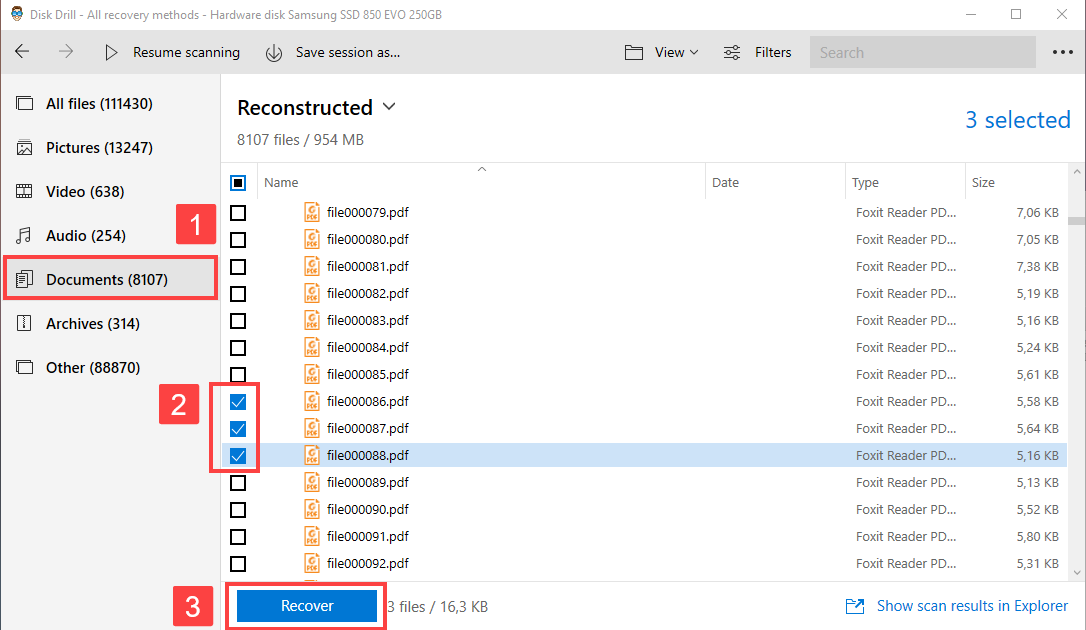
So your PDF file is acting up—won’t open, shows garbage characters, or throws an error. Don’t panic. This guide is for anyone who needs to get their data back, whether it’s a work report, a family photo album, or an ebook. By the end, you’ll have a restored PDF you can open and use.
We’ll cover the best methods to recover a corrupted PDF, starting with the simplest fixes and working up to more powerful tools. You don’t need to be a tech wizard—just follow the steps in order. Let’s get your file back in shape.
What You’ll Need
- A corrupted or damaged PDF file
- A computer with internet access
- Optional: Adobe Acrobat (paid) or Ghostscript (free)
Step 1: Try a Different PDF Reader
Sometimes the PDF isn’t corrupted—your reader is just stubborn. Open the file in a different application like Google Chrome, Microsoft Edge, or even Preview on Mac. If it opens, then the problem is not the PDF itself. This is the quickest fix and a good first check.

Step 2: Use an Online PDF Repair Tool
If a different reader doesn’t work, try a free online PDF repair tool. Upload your file to a service like iLovePDF, Smallpdf, or our recommended online PDF repair tool. These tools can fix mild corruption and recover the content. For a watermark-free option, check out our guide on pdf repair online no watermark. This method is quick and requires no software installation.
Step 3: Repair with Adobe Acrobat
If you have Adobe Acrobat (the paid version, not just Reader), it has a built-in repair feature. Open Acrobat, go to File > Open, select your corrupted PDF, and then choose File > Repair. Acrobat will attempt to rebuild the file. This often works for damaged headers or cross-reference issues. If your PDF won’t open at all, see our article on PDF won’t open for more tips.

Step 4: Recover with Ghostscript (Free & Powerful)
For seriously corrupted files, Ghostscript is a lifesaver. It’s a free command-line tool that can convert PDFs to other formats and back, bypassing corruption. Download Ghostscript, then run a command like: `gs -o repaired.pdf -sDEVICE=pdfwrite corrupt.pdf`. This forces a re-render of the file. It’s especially good for recover partially corrupted PDF files. For step-by-step instructions, refer to our free damaged PDF recovery guide.
Common Pitfalls
- Overwriting the original file: Always work on a copy of your PDF. If the repair goes wrong, you don’t want to lose the original.
- Using unreliable online tools: Some free services add watermarks or reduce quality. Stick to reputable ones or use our recommended fast PDF repair online tools.
- Ignoring encryption or password issues: If your PDF is password-protected, you need the password first. Repair tools can’t fix encrypted files without the password.
Where to Next?
Recovering a PDF doesn’t have to be stressful. Start with the simplest fix and work your way up. For more targeted repairs, check out our guides on fixing specific issues like invalid headers or encoding problems. You’ve got this!




