Been there? You open an important PDF and instead of charts, text, or images, you see — nothing. Blank page after blank page. It’s frustrating, especially when you know the content should be there. This guide is for anyone who’s staring at empty PDF pages and needs a fix, whether you’re a student, office worker, or casual user. By the end, you’ll have practical steps to recover that missing content using free tools and a few manual tricks.
Blank pages usually happen because the PDF’s internal structure got damaged — corrupted content streams, missing page objects, or a broken cross-reference table. The good news is many cases are fixable. We’ll walk through methods that have worked for thousands of users, from simple re-rendering to deep repair using specialized software. You won’t need to be a tech wizard; just follow the steps.
What You’ll Need
- The blank PDF file (keep a backup copy)
- A PDF reader (Adobe Acrobat Reader, Foxit, or browser-based viewer)
- Optionally: PDF repair software (we’ll suggest free ones)
- A text editor (like Notepad++ or Visual Studio Code) for advanced fixes
- Patience — not every fix works the first time
Step 1: Rule Out Simple Rendering Issues
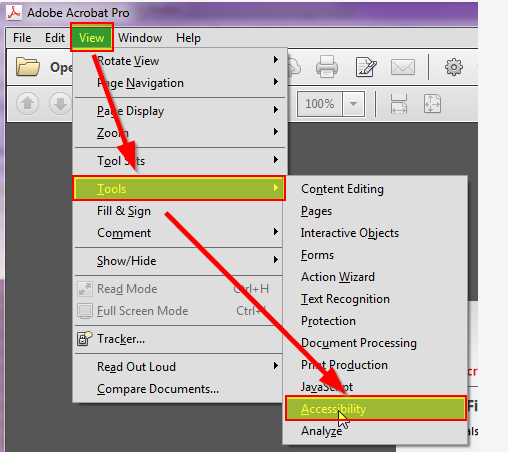
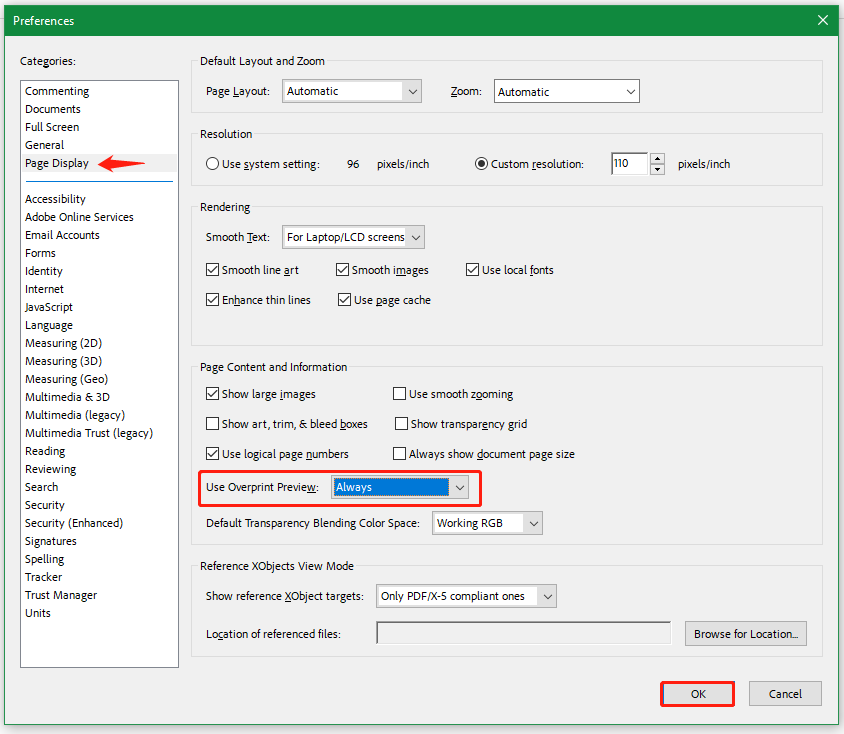
Before diving into repairs, make sure the problem isn’t just a display glitch. Try opening the PDF in a different viewer — sometimes Acrobat Reader will show a blank page while Foxit or a browser displays it fine. Also check if the blank pages appear when printing; if they print correctly, the issue is likely a rendering bug, not corruption.
Step 2: Extract Pages Using a PDF Tool
If only some pages are blank, try extracting the blank pages into a separate file. Tools like PDFsam or Smallpdf can extract specific pages. If the extracted page is still blank, the problem is in that page’s content stream. If it shows content, the issue might be with the parent document’s structure. For a deeper fix, you might need to repair pdf objects within the page.

Step 3: Use a Dedicated PDF Repair Tool
A dedicated repair tool can automatically fix many causes of blank pages. Free options like PDF Repair Toolbox or the online tool at pdfrepairs.click offer simple upload-and-repair. For persistent issues, try the command-line tool `pdftk` with its ‘repair’ option. Run: `pdftk damaged.pdf output repaired.pdf`. This rebuilds the internal cross-reference table and often restores missing content. Check the output — if you still see blank pages, proceed to manual repair.
Step 4: Manually Inspect the PDF Source (Advanced)
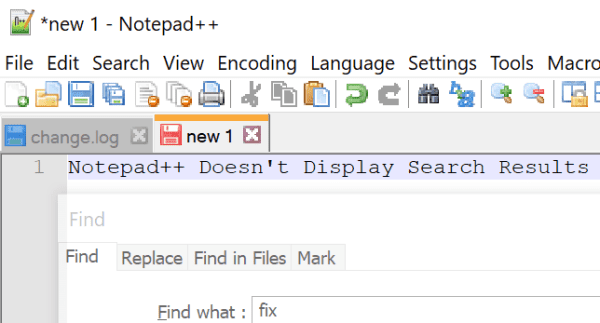
If automated tools fail, you can inspect the raw PDF code. Open the PDF in a text editor (like Notepad++). Search for “stream” and “endstream” — these mark content blocks. If you see an empty stream (nothing between stream and endstream), the page data is missing. You might be able to copy a similar stream from another page or use a hex editor to patch it. This is tricky, so only attempt if you’re comfortable with code. For a safer approach, try to recover text from damaged pdf using text extraction.
Step 5: Use the PDF Repair Checker Tool
Before giving up, run a comprehensive check using a PDF repair checker. This tool scans the file for structural errors like broken xref tables, missing objects, or trailer issues. Often, blank pages are caused by a corrupted trailer — you can learn to fix pdf trailer separately. The checker will report exactly where the problem lies, so you can target your fix.
Common Pitfalls
- Saving over the original file before making a backup — always keep a copy.
- Assuming the file is completely lost — blank pages often have hidden content that’s recoverable.
- Using a single tool and giving up — try multiple approaches (viewer, extract, repair tool, manual) before concluding it’s hopeless.
Also, beware of “too good to be true” online repair services that charge a fortune or require uploading sensitive files. Stick with reputable free tools or open-source software.
Where to Next
Blank pages are just one symptom of a damaged PDF. If you’re dealing with missing pages entirely, check our guide on how to recover missing pdf pages. For more general corruption, see our tutorial on how to fix corrupted pdf. And if the file won’t open at all, we’ve got a step-by-step for pdf wont open fix. Stay calm and repair smart!



