Ever opened a PDF only to find garbled text or nothing at all? It’s frustrating, especially when you need the content. This guide is for anyone with a damaged PDF who wants to extract the text. By the end, you’ll have recovered your text using free tools and simple techniques.
We’ll cover methods from online tools to manual extraction. Even if your PDF looks unreadable, the text might still be there. Let’s save your data.
What You’ll Need
- Your damaged PDF file
- A computer with internet access
- A PDF repair checker (like the one in our guide on damaged PDF file recovery)
- An online text extraction tool or software
- Patience – some steps may take a few minutes
Step 1: Run a PDF Repair Checker
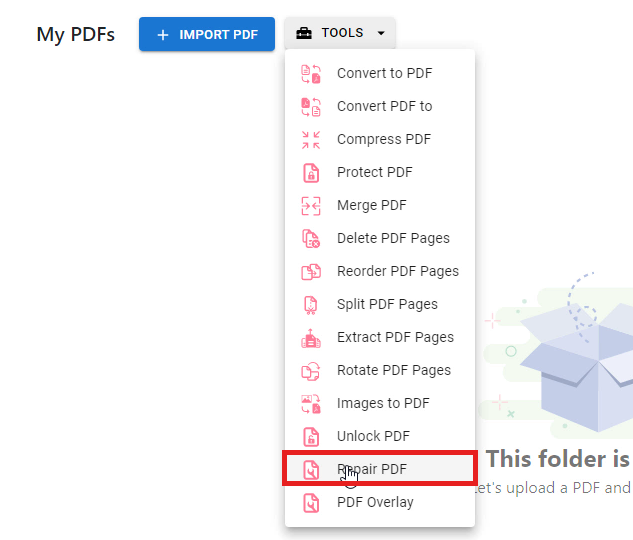
First, try using a PDF repair checker to fix the file’s structure. Many tools can recover the underlying data. Upload your file to a reliable checker and see if it repairs the damage. This step often brings back lost text.
Step 2: Open in a Different Viewer
Sometimes the issue is with your PDF reader. Try opening the file in a web browser like Chrome or Edge. Browsers have built-in PDF viewers that handle some corruptions better. If you see text, copy it right away.

Step 3: Use an Online Text Extractor
If the file still won’t display properly, use an online service to extract text. Upload your PDF to a tool that offers recover PDF online free – these often ignore formatting and pull raw text. Download the extracted .txt file.

Step 4: Try a Free PDF Repair Tool
When online tools aren’t enough, install a free desktop PDF repair tool. Many offer free damaged PDF recovery for basic text. Open your file, run repair, and export to a new PDF or text file.
Step 5: Manual Recovery via Text Editor
Last resort: open the PDF in a plain text editor like Notepad. You’ll see a mess of code, but your text might be visible between symbols. Search for common words. This works if you need just a few paragraphs. For faster results, check our guide on fast PDF repair online.
Common Pitfalls
- Not saving a backup copy first – always duplicate your original before using any tool.
- Using tools that add watermarks – some free services stamp your output, ruining the text. Look for watermark-free options like our PDF repair checker.
- Overlooking encryption – if the PDF is password-protected, you’ll need to remove that first. Check our guide on damaged PDF file recovery for details.
Where to Next
Now that you’ve recovered your text, explore other articles on our site. Learn how to prevent future damage or fix other common PDF issues like end-of-file errors or invalid headers. Don’t let a broken PDF stop you.




