If you’ve ever opened a PDF and seen garbled text, missing images, or a flat-out error message, you’re dealing with corrupted or damaged objects inside the file. This guide is for anyone who needs to repair PDF objects—whether you’re a casual user or a tech-savvy troubleshooter. By the end, you’ll know how to identify, fix, and prevent object-level corruption, and you’ll have a working PDF that looks as good as new.
We’ll cover automated tools and manual methods, so you can choose the approach that fits your skill level. Along the way, I’ll point you to related resources like how to repair a PDF on Linux or how to fix a corrupted PDF if you need more context. Let’s dig in.
What You’ll Need
- A corrupted PDF file to repair (obviously).
- A PDF repair tool (I recommend qpdf for command-line, or an online service like PDFRepair).
- A hex editor (like HxD or Hex Fiend) for manual fixes.
- A plain-text editor (Notepad++ or VS Code) to inspect raw PDF code.
- Optional: a PDF validator (e.g., Preflight in Adobe Acrobat).
Step 1: Identify the Problematic Object
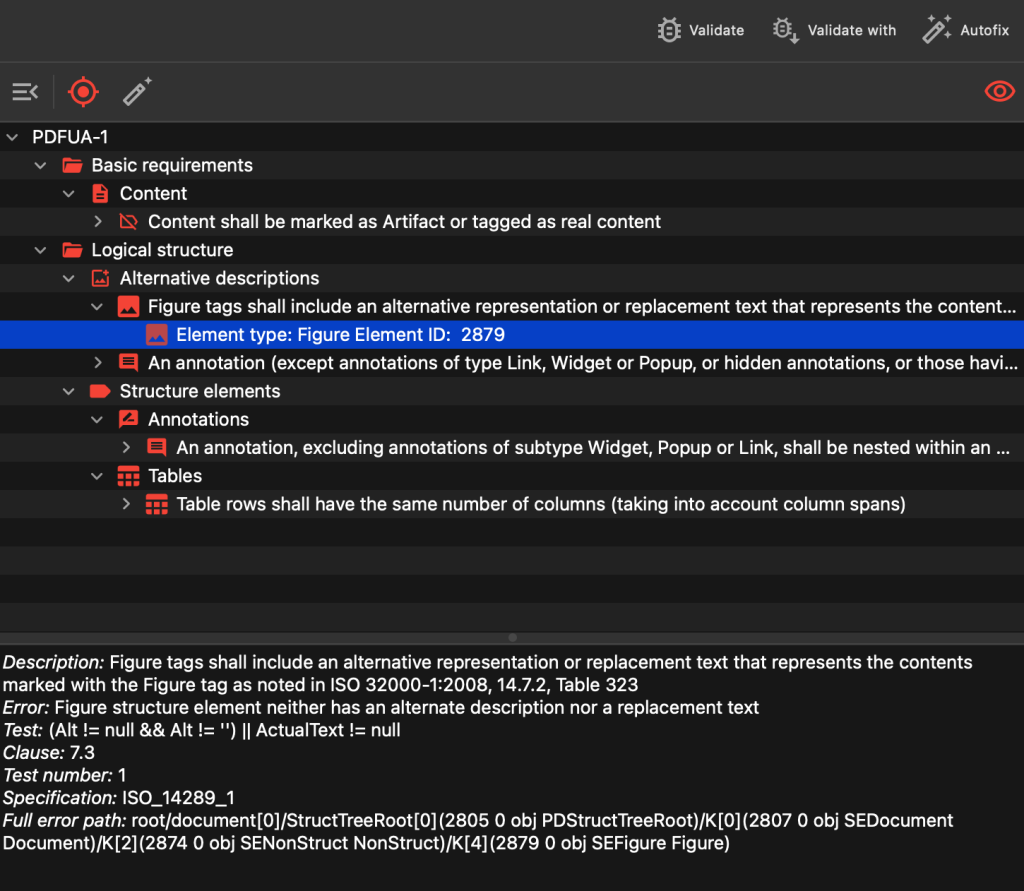
Open your PDF and note any error messages or visual glitches. Common signs: an image that shows a red X, missing fonts, or a message like “An error exists on this page.” If you have a specific error, search for it; for example, an “invalid root object” error often points to a broken object dictionary. You can also run a quick validation using a PDF checker to pinpoint the object number. Once you know the object number, you’re ready to fix it.
Step 2: Use a PDF Repair Tool
The easiest way is to let a tool do the heavy lifting. Tools like qpdf can reconstruct the PDF by interpreting each object. Run: qpdf –repair damaged.pdf repaired.pdf. This rebuilds the internal structure and often fixes objects. If you need to recover text without formatting, check out how to recover text from a damaged PDF. For online options, use a service like PDFRepair – upload and download.
Step 3: Manual Hex Editing (If Needed)
If the tool fails, you can manually edit the PDF. Open the PDF in a hex editor and locate the object number you identified. Look for syntax errors: missing “endobj” markers, truncated stream data, or incorrect XRef entries. For a damaged xref stream, you may need to use a specialized approach like repairing a PDF xref stream. Correct the bytes carefully and save. Always work on a copy.

Step 4: Rebuild the PDF Structure
Even after manual fixes, the cross-reference table or trailer might be out of date. Use qpdf’s linearize option: qpdf –linearize repaired.pdf final.pdf. This regenerates all internal pointers and creates a clean, web-optimized file. If you’re dealing with a corrupted root object, you’ll need to fix that first – see how to fix an invalid root object for details.

Step 5: Validate the Repaired PDF
Open the repaired PDF in your viewer and check every page. Use a PDF validator to confirm no errors remain. Adobe Acrobat’s Preflight tool can run a full compliance check. If the file still has issues, repeat from Step 1 with a fresh copy. Once it passes validation, you’re done.
Common Pitfalls
- Not backing up the original file. Always keep the original corrupted PDF until you’re certain the repair worked.
- Misidentifying the object type. A text object and an image object need different fixes; check the object dictionary carefully.
- Editing the cross-reference table without understanding it. One wrong offset can break the entire file. Instead, use qpdf to regenerate it.
Where to Next?
Now that you know how to repair PDF objects, you can tackle more specific issues. Check out our guides on fixing an invalid root object or repairing a PDF after cloud sync. If you often deal with corrupt files, consider learning how to repair a PDF on Linux for advanced command-line tricks. Happy repairing!




