So your PDF won’t open, shows garbled text, or throws a ‘file is damaged’ error. Don’t panic—this happens more often than you think. Whether it’s a work report, a scanned contract, or an important ebook, a corrupted PDF can feel like a disaster. But in most cases, the file isn’t totally lost. This guide is for anyone who needs to get that PDF working again, even if you’re not tech-savvy. By the end, you’ll have a fully usable PDF (or at least recovered text) using tools you probably already have.
We’ll walk through five methods, from the simplest drag-and-drop trick to a manual hex editor fix for stubborn files. No complicated commands or expensive software required. Let’s get that PDF fixed.
What You’ll Need
- The corrupted PDF file stored on your computer or external drive
- A web browser like Google Chrome or Firefox
- Adobe Acrobat Reader (free) installed
- Internet access for online repair tools
- Optional: A hex editor like 010 Editor or HxD (for advanced step)
- Patience—always work on a copy of the file, not the original
Step 1: Try Opening the PDF in Google Chrome
Chrome has a built-in PDF viewer that’s surprisingly tolerant of minor corruption. It can often render a file that other programs reject. Simply drag the corrupted PDF into a Chrome tab and see if it displays. If it does, you can save a working copy by clicking the Save button (or Ctrl+S). This trick works because Chrome’s rendering engine is lenient with malformed PDF structures.
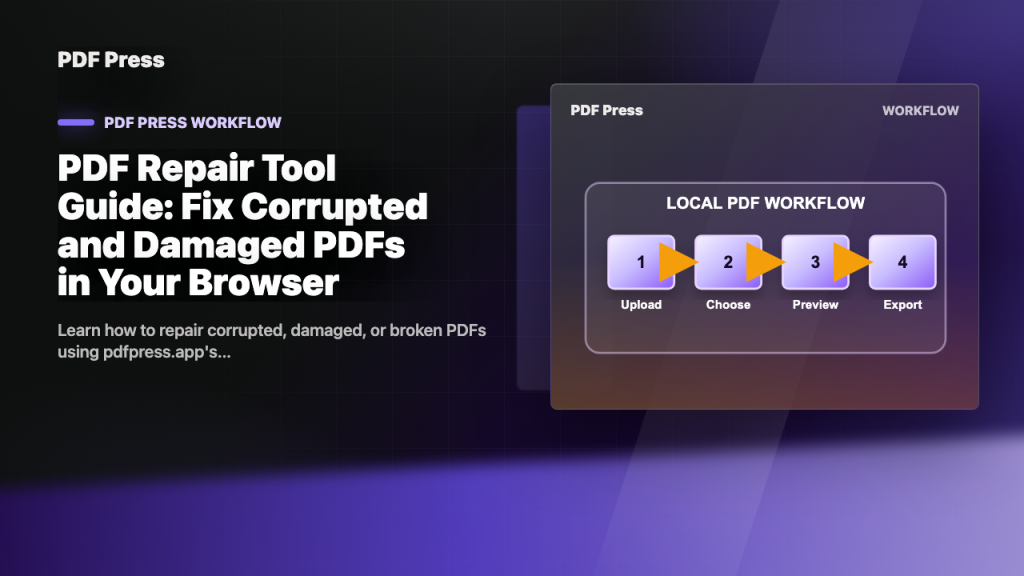
If Chrome opens the file but it looks weird, use its Print function (Ctrl+P) and choose ‘Save as PDF’ to generate a clean copy. This re-writes the PDF data from scratch, often fixing internal issues.
Step 2: Use Adobe Acrobat Reader’s Built-in Repair
Adobe Acrobat Reader has a hidden ‘Save As’ trick that can fix many errors. Open Reader, go to File > Open, select the corrupted PDF. Even if it fails to open, try File > Save As Other > Reoptimized PDF. This forces Reader to re-save the file with a clean structure. Alternatively, if Reader prompts you with ‘Do you want to repair the file?’, click Yes. Reader can sometimes reconstruct missing cross-reference tables or fix end-of-file errors.

For more severe cases, consider using a dedicated PDF repair checker tool to diagnose what’s wrong before attempting repairs.
Step 3: Try a Free Online PDF Repair Service
If the above fails, online tools can upload your file and attempt to repair it on their servers. Look for reputable services like ilovepdf.com, smallpdf.com, or sejda.com. They’re free for small files and often watermark-free. Upload your corrupted PDF, let the site process it, and download the repaired version. For deeper issues, some services offer PDF end-of-file error repair that truncates or rebuilds the file tail.
Be cautious with sensitive documents—online tools may store your file. For confidential PDFs, stick to offline methods.
Step 4: Use a Desktop PDF Repair Tool (Free Trial)
Desktop software often handles heavy corruption better than online tools. Programs like PDF Repair Kit or SysTools PDF Repair offer free trials that let you see what can be recovered. Install the software, load your PDF, and hit ‘Repair’. The tool scans for recoverable data—text, images, forms—and exports a cleaned file. If the trial only previews, you can at least check if it’s worth purchasing.
This method is the best way to recover a corrupted PDF if you have multiple files or recurring corruption issues.
Step 5: Manual Hex Editing (For Advanced Users)
If everything else fails, you can manually fix a PDF by editing its raw data with a hex editor. PDFs are text-based with binary parts, so common errors like an invalid header or truncated content can be patched. For example, if you see ‘PDF end-of-file error repair’ needed, you can append a valid %%EOF marker using a hex editor. Or if the header is missing, you can add ‘%PDF-1.4’ at the start. This method is delicate—always work on a copy.
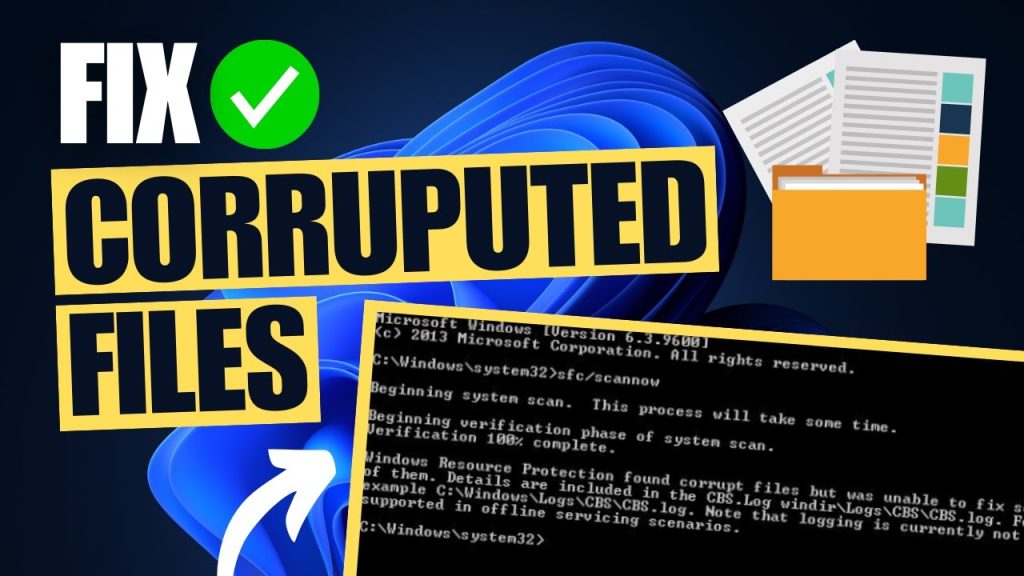
A common manual fix is to repair a PDF with an invalid header. Open the file in a hex editor, locate the beginning, and ensure it starts with ‘%PDF-1.x’ (where x is version). If not, insert it. Then search for the nearest %%EOF, and if missing, add it at the end. Save and try opening the PDF again.
Common Pitfalls
- Working on the original file without backup: Always copy the corrupted PDF before attempting repairs. A failed fix can permanently ruin the file.
- Using sketchy online tools: Some free online repair sites inject malware or watermarks. Stick to well-known services or desktop software.
- Expecting miracles from physical damage: If the PDF is on a failing hard drive or scratched CD, the corruption might be physical. Run disk recovery first.
Where to Next
Now that you’ve fixed your PDF, explore more tips. Check out our guide on the best way to recover a corrupted PDF for a deep dive into advanced recovery. Also, learn how to use a PDF repair checker to diagnose issues before they become emergencies. And if you keep getting end-of-file errors, our dedicated PDF end-of-file error repair guide has you covered.




