
So you’re trying to open a PDF in Firefox and nothing happens — or you get a blank screen, a download prompt, or an error message. You’re not alone. This issue can pop up for a bunch of reasons: a glitchy Firefox setting, a misbehaving extension, or even a corrupted PDF file. By the end of this guide, you’ll have a clear, tested path to get those PDFs opening smoothly in Firefox again.
I’ll walk you through the most common fixes step by step, from simple preferences tweaks to deeper troubleshooting with PDF repair tools. No technical degree required — just a few minutes and a willingness to click around.
What You’ll Need
- A computer running Firefox (any recent version)
- A PDF file you can’t open (for testing)
- Optional: a second browser (Chrome, Edge) to confirm the PDF works elsewhere
- Optional: a PDF repair tool (we’ll link to a free one)
Step 1: Check Firefox’s Built-in PDF Viewer Settings
Firefox has a built-in PDF viewer that sometimes gets turned off or overridden. Let’s make sure it’s enabled.
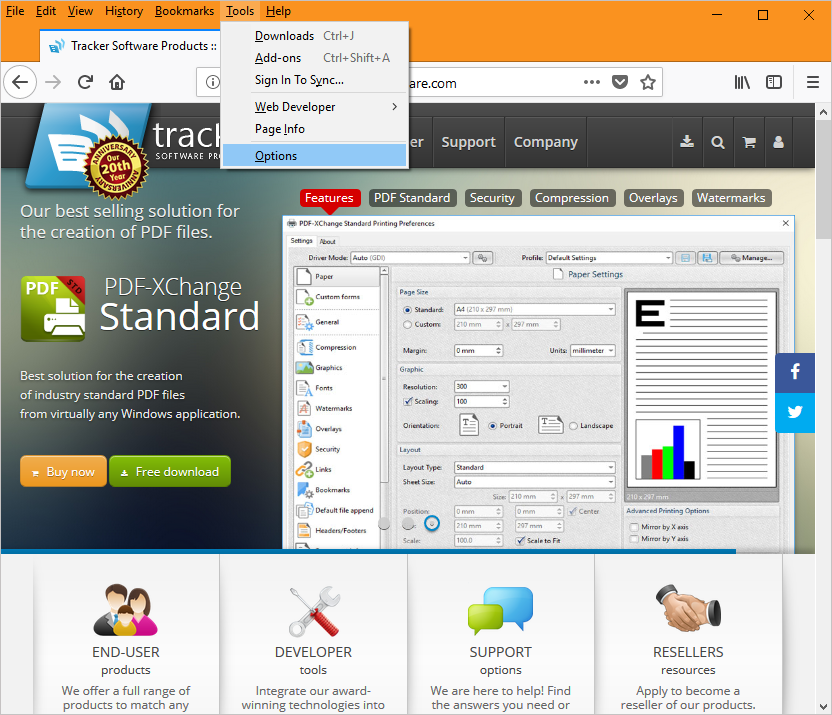
In the address bar, type about:preferences and hit Enter. Scroll down to the Applications section (or search for ‘PDF’ in the preferences search box). Find Portable Document Format (PDF) in the list. Click the dropdown next to it and select Preview in Firefox. If it’s already set to that, try switching to Always Ask or Use Firefox (depending on your version) and back again to reset the association.
Step 2: Disable Conflicting Extensions
Some extensions — especially PDF readers, download managers, or ad blockers — can hijack the PDF opening action. Try a quick extension check.
Click the menu button (three horizontal lines) and choose Add-ons and themes. Go to Extensions. Disable any extension that might affect PDFs, like Adobe Acrobat, PDF Viewer, or even uBlock Origin. Then try opening a PDF again. If it works, re-enable them one by one to find the culprit.

Step 3: Clear Firefox Cache and Cookies
A corrupted cache can sometimes prevent PDFs from loading. Clearing it is harmless and often fixes weird display issues.
Go to about:preferences#privacy and scroll to Cookies and Site Data. Click Clear Data…, uncheck Cookies and Site Data (unless you want to clear those too), and make sure Cached Web Content is checked. Hit Clear. Restart Firefox and test the PDF.

Step 4: Test the PDF in Another Browser
If the PDF still won’t open in Firefox, try it in Chrome or Edge. If it opens fine there, the problem is Firefox-specific (continue to Step 5). If it fails in other browsers too, the PDF itself is likely corrupted — head to the Common Pitfalls section for repair options.
Step 5: Reset Firefox to Default Settings
As a last resort, you can reset Firefox without losing your bookmarks and passwords. This clears all custom settings and extensions.
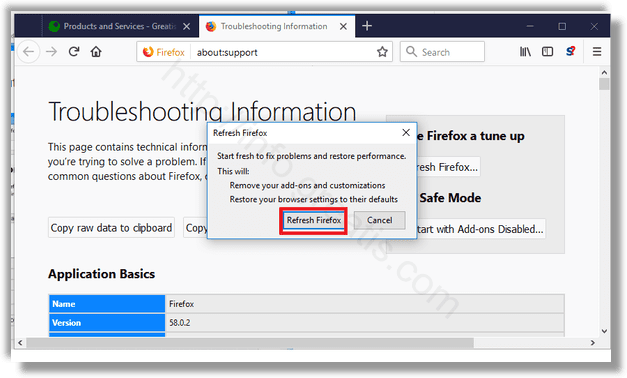
Type about:support in the address bar. Click Refresh Firefox… in the top-right corner. Confirm in the pop-up. Firefox will restart and create a backup of your old profile on the desktop. After refresh, test a PDF.
Common Pitfalls
- 1. Thinking it’s always Firefox’s fault. If the PDF won’t open in any browser, it’s probably corrupted. Use a fix for PDFs that won’t open or a PDF repair checker to diagnose the file. See our guide on how to fix a corrupted PDF for help.
- 2. Forgetting to restart Firefox after changes. Settings and extension toggles often require a full browser restart to take effect. Always close and reopen Firefox after making changes.
- 3. Overlooking the ‘Always Ask’ setting. If Firefox is set to download PDFs instead of previewing them, you might not see an error — just a download bar. Check the Applications setting (Step 1).
Where to Next?
If your PDF still won’t open after all these steps, it’s time to look at the file itself. Check out our detailed guide on why a PDF says damaged to understand error messages, or learn how to repair a PDF using free tools. For more advanced issues, our damaged PDF file recovery guide has you covered.



