Ever opened a PDF only to see a blank screen, a garbled mess, or an error message like “File is damaged”? I’ve been there, and it’s frustrating, especially when it’s an important document. This guide is for anyone—no tech skills needed—who has a corrupted PDF and wants it working again. By the end, you’ll have a clean, readable file saved on your computer.
We’ll walk through several methods, from simple viewer swaps to free online tools and even a manual fix. You won’t need to spend a dime unless you want to. So grab that broken PDF, and let’s fix it.
What You’ll Need
- A corrupted PDF file (the one you want to repair)
- A computer with an internet connection
- A PDF reader (like Adobe Acrobat Reader, Chrome, or Edge)
- Optional: a hex editor (like HxD for Windows or Hex Fiend for Mac)
Step 1: Try Opening It in Another PDF Viewer
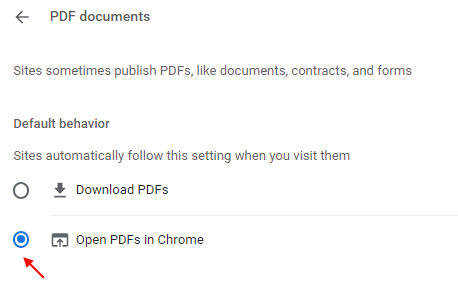
Sometimes the corruption is minor, and a different viewer can handle it. If your PDF won’t open in Adobe Reader, try Chrome or Edge. Right-click the file, select “Open with,” and pick your browser. If it opens, simply save a copy (Ctrl+S or Cmd+S) — that new copy might already be fixed. If not, move on.
Step 2: Use an Online PDF Repair Service
Several free websites can repair corrupted PDFs without installing anything. For a reliable option, try a service that offers fast pdf repair online. Upload your file, let it process, and download the repaired version. Another great choice is to repair pdf online without watermark if you want a clean file. These services work well for most common issues.
Step 3: Use Adobe Acrobat Reader’s Built-In Repair
If you have Adobe Acrobat Reader, it includes a repair feature. Open the program, go to File > Open, select your corrupted PDF, but don’t click “Open” yet. Instead, click the down arrow next to the Open button and choose “Open and Repair.” Acrobat will attempt to fix the file. If successful, save it immediately.
Step 4: Try a Dedicated PDF Repair Tool
For tougher cases, a dedicated tool is your best bet. Check out free damaged pdf recovery options online. Some tools are free for small files or offer trial versions. The best way to recover a pdf is often using a tool specifically designed for it. Download one, run it, and let it scan your file. Most tools will give you a preview before saving.
Step 5: Manual Fix with a Hex Editor (Advanced)
If all else fails, you can manually repair the file if the damage is at the beginning. Open the PDF in a hex editor. A valid PDF starts with “%PDF-“. If that’s missing, simply type it in. Also check for an “%%EOF” at the very end. If it’s missing, add it. This fix works when the corruption is just a missing header or footer.

Common Pitfalls
- Overwriting the original file without a backup. Always save the repaired version as a new file until you confirm it’s good.
- Using untrusted online tools that may store or leak your data. Stick to reputable sites or use desktop software for sensitive documents.
- Assuming the file is corrupted when the issue might be a viewer or system problem. Always test with another viewer first.
Where to Next?
Now that your PDF is working, take a moment to test pdf file integrity regularly to avoid future headaches. A simple integrity check can catch issues early. And if you ever run into a similar problem, you’ll know exactly what to do.




