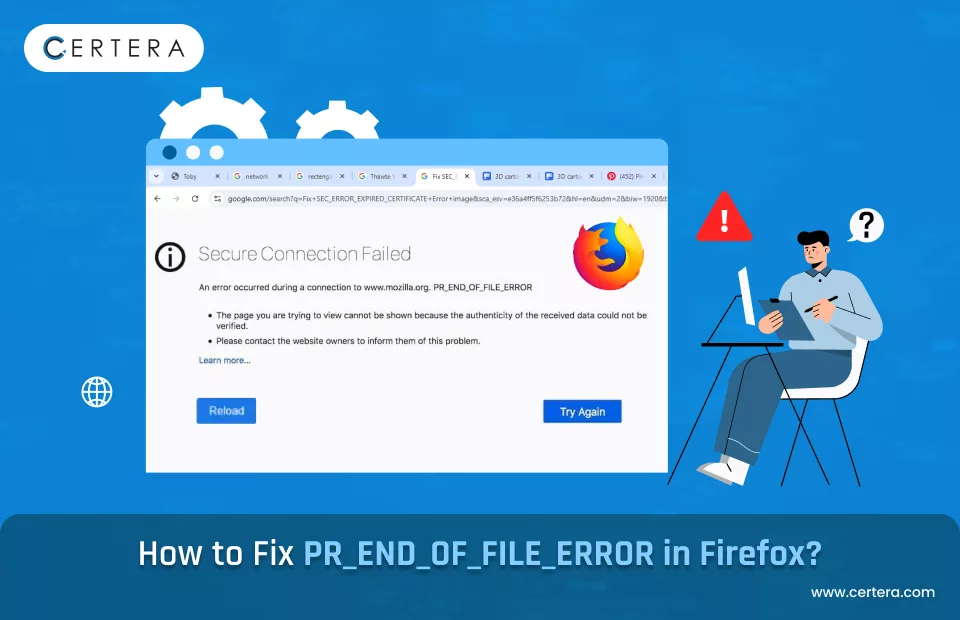
Ever tried opening a PDF and got an error like “End of file reached” or “Unexpected end-of-file”? It’s frustrating, especially when that file contains important data. This guide is for anyone who needs to fix a PDF that throws an end-of-file error—whether you’re a casual user or a tech-savvy person. By the end, you’ll have a working PDF again, using free tools and a few manual tricks.
We’ll cover automatic fixes with command-line tools like qpdf, online repair services, and even manual hex editing for stubborn cases. You won’t need any special skills, just a bit of patience. Let’s get that PDF back in shape.
What You’ll Need
- The corrupted PDF file (keep a backup copy)
- A text editor (Notepad++, VS Code, or even Notepad)
- A hex editor (optional, like HxD or Hex Fiend)
- qpdf command-line tool (free, available for Windows/Mac/Linux)
- Internet access (for online repair tools)
- A data recovery tool like Recuva (if the file is severely damaged)
Step 1: Identify the Error and Back Up Your File
First, confirm that the error is indeed an end-of-file issue. Open the PDF in Adobe Reader or your default viewer. If you see “End of file” or “Unexpected end of file,” that’s your clue. Before doing anything, make a copy of the file and work on the copy. This way, if you mess up, you still have the original.

Step 2: Quick Fix Using qpdf (Command Line)
qpdf is a free, powerful tool that can repair many structure issues, including missing end-of-file markers. Download it from the official site and install it. Open a terminal (Command Prompt on Windows, Terminal on Mac/Linux) and navigate to the folder with your PDF. Run these commands:
- `qpdf –check corrupted.pdf` (checks for errors)
- `qpdf –repair corrupted.pdf repaired.pdf` (creates a repaired copy)
If the repair succeeds, open repaired.pdf. If it still errors, move to the next step.
Step 3: Try Online Repair Services
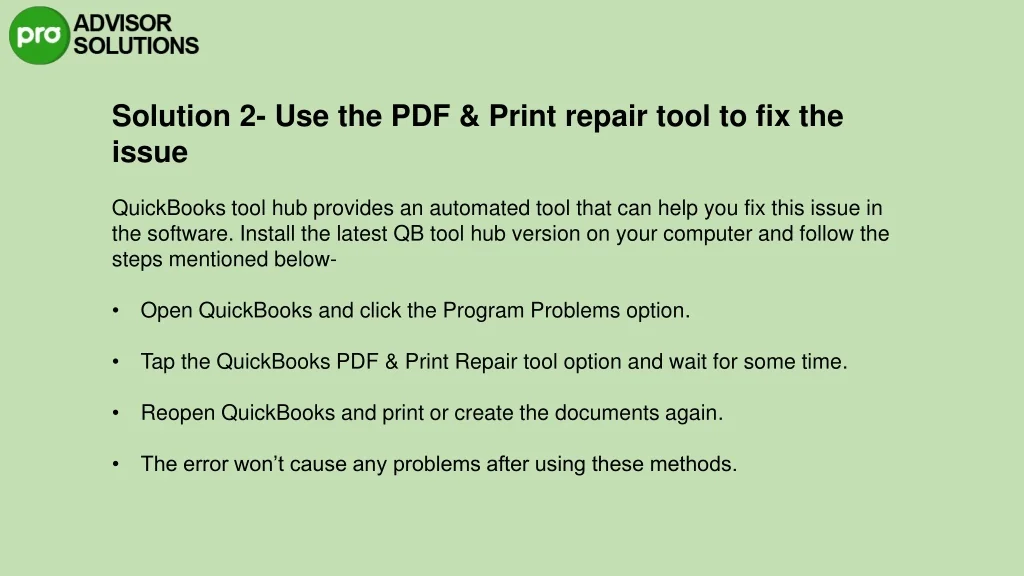
If qpdf doesn’t work, try an online repair tool. Many services offer free repairs, but be cautious about uploading sensitive files. For a safe option, use a tool that guarantees no watermark. Check our guide on pdf repair online no watermark for reliable services. Upload your PDF and download the repaired version. This step often fixes end-of-file errors caused by incomplete downloads or cloud sync problems.
Step 4: Manual Hex Editor Repair
When automated tools fail, you can manually fix the end-of-file marker. Open your PDF in a hex editor (like HxD on Windows or Hex Fiend on Mac). Scroll to the very end of the file. Every PDF must end with `%%EOF` on its own line. If it’s missing, type it in. If there are extra characters after it, delete them. If there is a partial marker (like `%%EO` or `%%E`), complete it. Save the file and try opening it.

Step 5: Recover from Disk Using Data Recovery Software
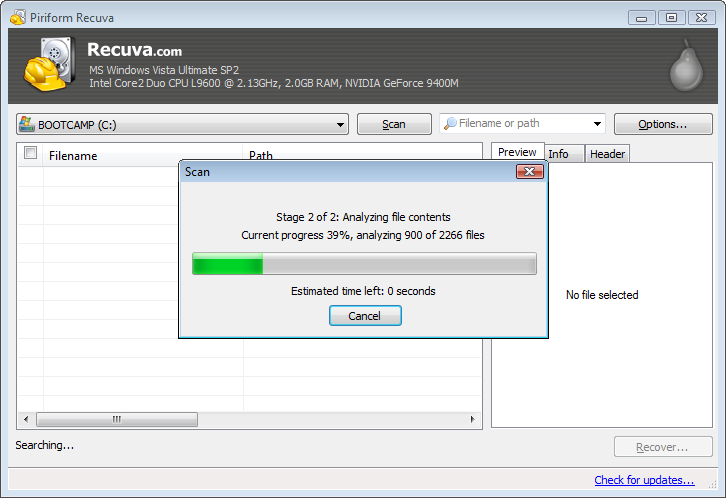
If the file is severely corrupted and the above steps didn’t work, the PDF might be beyond simple repair. In that case, you can try recovering an older version from your hard drive using a tool like Recuva (Windows) or TestDisk (cross-platform). These tools scan for deleted or damaged files. After recovery, try the previous repair steps again. For more thorough methods, check our article on free damaged pdf recovery.
Common Pitfalls
- Forgetting to back up the original file before attempting repairs. Always keep a copy.
- Using an online tool that adds watermarks or reduces quality. Stick to trusted services like those mentioned above.
- Overlooking cross-reference table corruption. Sometimes the end-of-file error is a symptom of a larger issue. If the PDF still doesn’t open after fixing the marker, try running `qpdf –repair` again or use a more comprehensive guide for corrupted PDFs.
Where to Next
Once you’ve repaired your PDF, verify its integrity. We recommend you test pdf file integrity with a tool like qpdf or an online checker to ensure no other hidden errors remain. If you’re dealing with recurrent corruption from cloud storage, check our guide on repairing PDFs after cloud sync. And if none of these methods worked, the best way to recover pdf is to look into professional recovery services or a more advanced manual approach.




