
You open a PDF you’ve been working on for hours, and some pages are just… gone. Maybe it’s a report missing the middle section, or a scanned document where half the images didn’t load. Before you panic, know this: missing pages are often recoverable. This guide is for anyone who’s lost pages in a PDF—whether from a corrupted file, a failed download, or a misbehaving editor. By the end, you’ll have a toolkit of methods to get those pages back, from quick checks to more advanced recovery.
We’ll walk through five steps, starting with the easiest (checking your viewer) and moving to repair tools and backup recovery. No expensive software required—most fixes are free or use tools you already have. Let’s bring those pages home.
What You’ll Need
- The PDF file with missing pages (make a backup copy first)
- A PDF viewer (like Adobe Acrobat Reader, browser, or Preview on Mac)
- Internet access (for online repair tools)
- Optional: A file recovery tool (like Recuva or PhotoRec) if you have a backup to dig through
Step 1: Check If Pages Are Hidden or Just Not Rendered
Before diving into repairs, make sure the pages aren’t simply hidden or failing to display. Open your PDF and look at the page thumbnails panel (View > Show/Hide > Navigation Panes > Page Thumbnails in Adobe Acrobat). If the thumbnails show all pages but the main view only shows blank or missing ones, it might be a rendering glitch. Try rotating the view (Ctrl+Shift+Plus) or zooming in and out. Also, check if the PDF contains layers—some layers may be turned off. Go to View > Show/Hide > Navigation Panes > Layers and ensure all layers are visible.

Step 2: Open the PDF in a Different Viewer
Sometimes the issue is with your PDF reader, not the file itself. Try opening the PDF in a different application. For example, drag the file into Google Chrome, Microsoft Edge, or Firefox. On a Mac, use Preview. If the missing pages appear in another viewer, your usual app may have a bug or missing plugin. If they’re still missing, the file likely has a structural problem. This is a common scenario where knowing how to fix corrupted pdf can help. Also, try the pdf repair online no watermark services if you’re in a pinch.

Step 3: Use an Online PDF Repair Tool
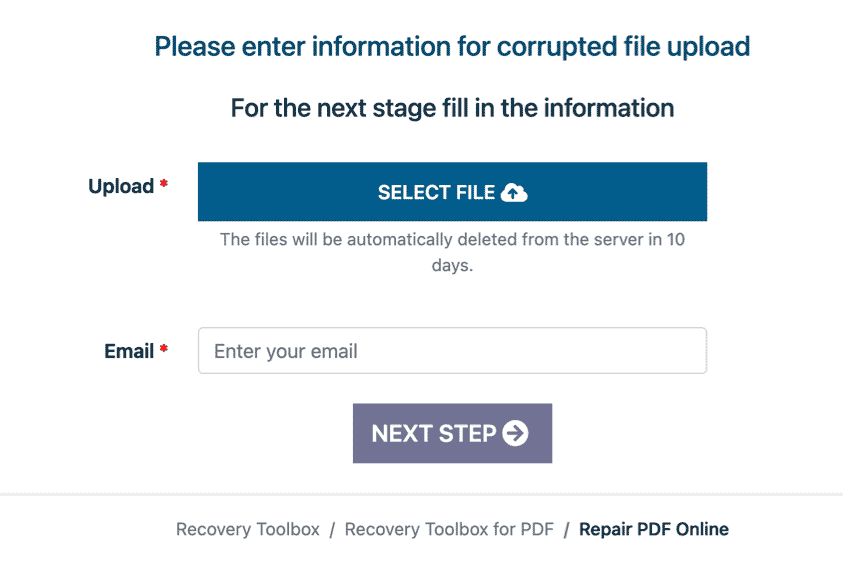
If different viewers don’t help, the PDF’s internal structure might be damaged. Online repair tools can fix corrupted cross-reference tables or object streams. Services like PDF24, Smallpdf, or Sejda offer free PDF repair. Upload your file, let them process, and download the repaired version. Be cautious with sensitive documents—read the privacy policy. For a no-hassle experience, try a dedicated pdf repair online no watermark tool that preserves quality. Most of these tools are straightforward: upload, wait, download. They often recover missing pages by rebuilding the file’s index.
Step 4: Repair with Dedicated PDF Software
When online tools aren’t enough, turn to local PDF repair software. Programs like PDF Repair Toolbox (Windows), qpdf (command line), or Adobe Acrobat Pro’s ‘Save As Optimized’ feature can fix deep structural issues. If you have access to Acrobat Pro, go to Tools > Optimize PDF > Advanced Optimization and try reducing the file size—sometimes that forces the PDF engine to rebuild internal links. For command-line users, qpdf can linearize the file: ‘qpdf –linearize original.pdf repaired.pdf’. This is one of the best way to recover pdf if you’re comfortable with a terminal. Alternatively, a dedicated damaged pdf file recovery tool may scan the file at a binary level.
Step 5: Recover from Backup or Use File Recovery
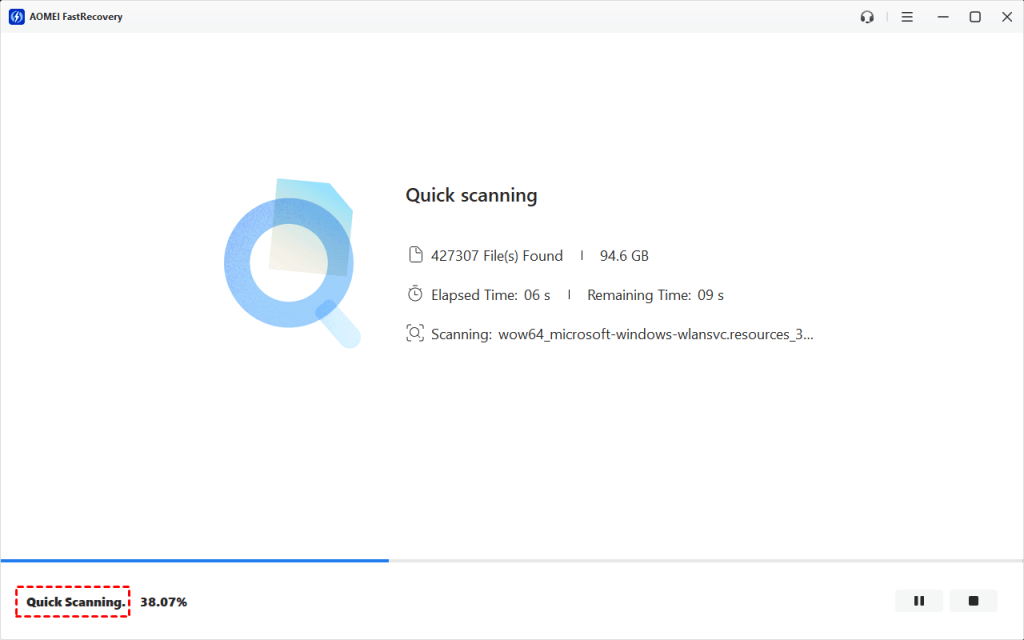
If your file is beyond repair, the next best bet is an older version. Check your computer’s backup (Time Machine, File History, cloud version history). Many cloud services like Google Drive and Dropbox keep previous versions for 30 days. Right-click the file and look for ‘Version history’ or ‘Restore previous version’. If that fails, try file recovery software (Recuva, PhotoRec) on the folder where the PDF was saved. These tools can sometimes retrieve deleted or overwritten chunks of the original PDF. This approach is essentially a free damaged pdf recovery option when you have no backups.

Common Pitfalls
- Working on the original file without a backup – always copy the file first. Repair attempts can make it worse.
- Using an untrusted online tool for sensitive documents – some services might store your data. Check privacy policies or use local software.
- Ignoring version history in cloud storage – many users don’t realize Google Drive or OneDrive keep automatic backups. Check before reaching for paid tools.
Where to Next
Missing pages can be a symptom of deeper corruption. If your PDF still has issues, check out our guide on how to fix corrupted pdf for a systematic approach. For advanced users, the best way to recover pdf often involves command-line tools like qpdf. And if you need a quick free fix, our free damaged pdf recovery article covers more options. Good luck!



