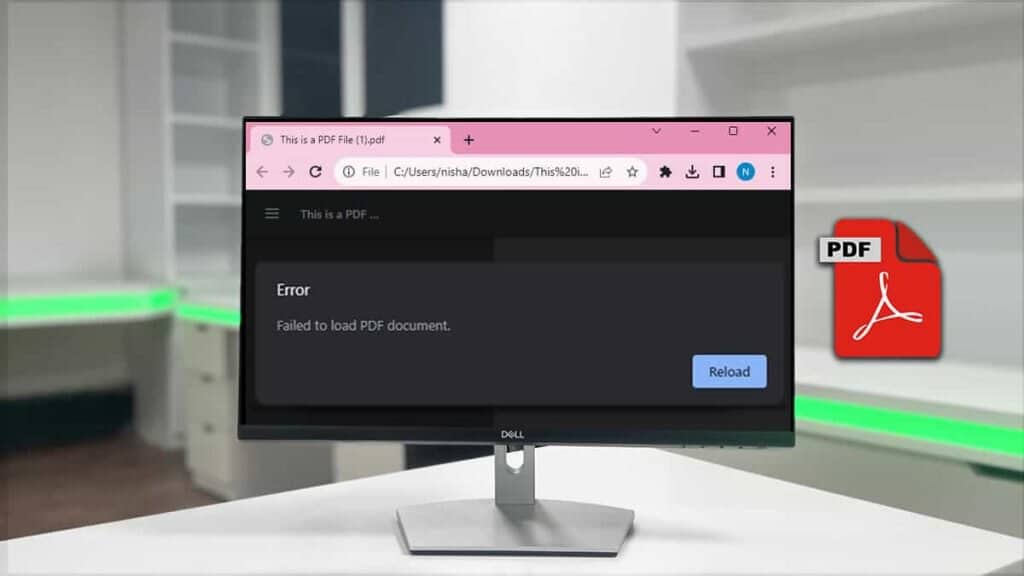
So you’ve got a PDF that just won’t open. Maybe you double-clicked and nothing happened, or you got a cryptic error message. This guide is for anyone who needs to open that file right now — no tech degree required. By the end, you’ll have a working PDF (or know exactly why it’s broken and what to do about it). We’ll cover quick checks, free tools, and a few advanced tricks that have saved my bacon more than once.
Let’s get that file open. We’ll start with the easiest fixes and move to more serious repairs. Most of these steps work on both Windows and Mac, so don’t worry about your operating system.
What You’ll Need
- A computer with internet access
- The PDF file that won’t open (keep a backup copy!)
- Adobe Acrobat Reader (free) or any PDF viewer
- A web browser (Chrome, Firefox, or Edge)
- Optional: Adobe Acrobat Pro (for advanced repair)
Step 1: Rule Out Simple Problems
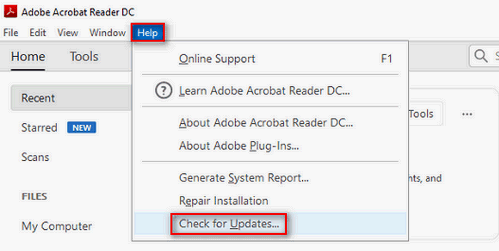
Before we assume corruption, let’s check the obvious. First, make sure your PDF viewer is up to date. Outdated software often can’t handle newer PDF features. Try opening the PDF in a web browser — just drag the file into Chrome or Edge. If it opens there, the issue is your default reader, not the file. Also check if the file size is suspiciously small or large — a 0 KB file is empty, while a huge file might be legitimately large but could also indicate corruption.
Step 2: Try a Different PDF Viewer
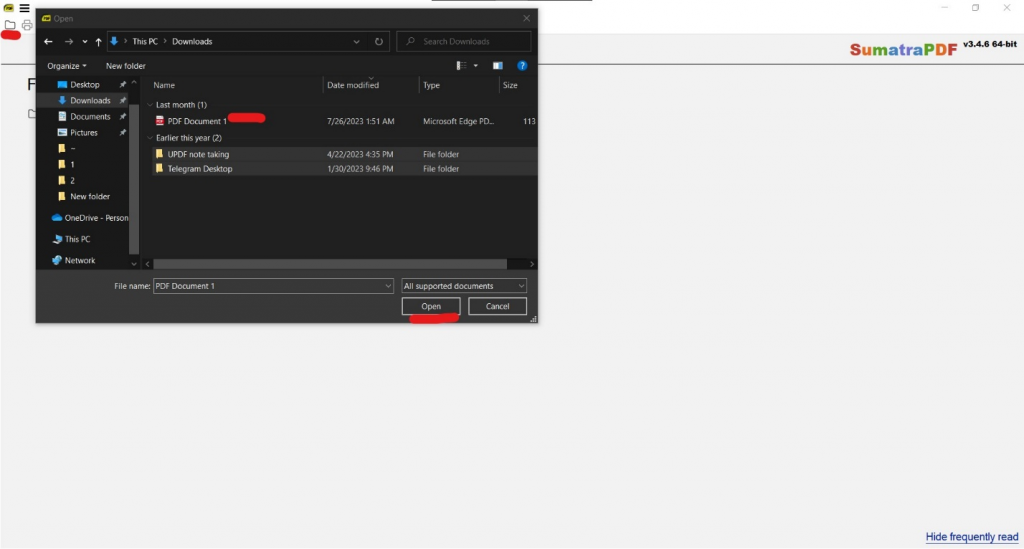
Sometimes the problem is the viewer, not the PDF. Download a free alternative like SumatraPDF (Windows) or Preview (Mac already has it). If the PDF opens in another program, you know the culprit. If not, move on. Have you ever done a free damaged pdf recovery? That’s essentially what we’re about to do next, but online.
Step 3: Use a Free Online PDF Repair Tool
If the file is corrupted, online repair tools are your best bet. They upload your PDF, try to fix the structure, and let you download a repaired version. I recommend using a service that’s fast and doesn’t require registration (like the one we wrote about for fast pdf repair online). Simply upload your broken PDF, let the tool work its magic, and download the fixed file. Always make sure you’re using a reputable site — avoid uploading sensitive documents.
Step 4: Repair Using Adobe Acrobat’s Built-In Feature
If you have Adobe Acrobat Pro (not just Reader), you can use its built-in repair. Open Acrobat, go to File > Open, select the broken PDF (it may show an error), then go to File > Save As Other > Optimized PDF. In the dialog, check “Clean up” options and click OK. This often fixes minor corruptions. If you don’t have Acrobat Pro, you can still find out how to repair pdf for free using other methods we’ve covered.
Step 5: Recover from a Backup or Re-download
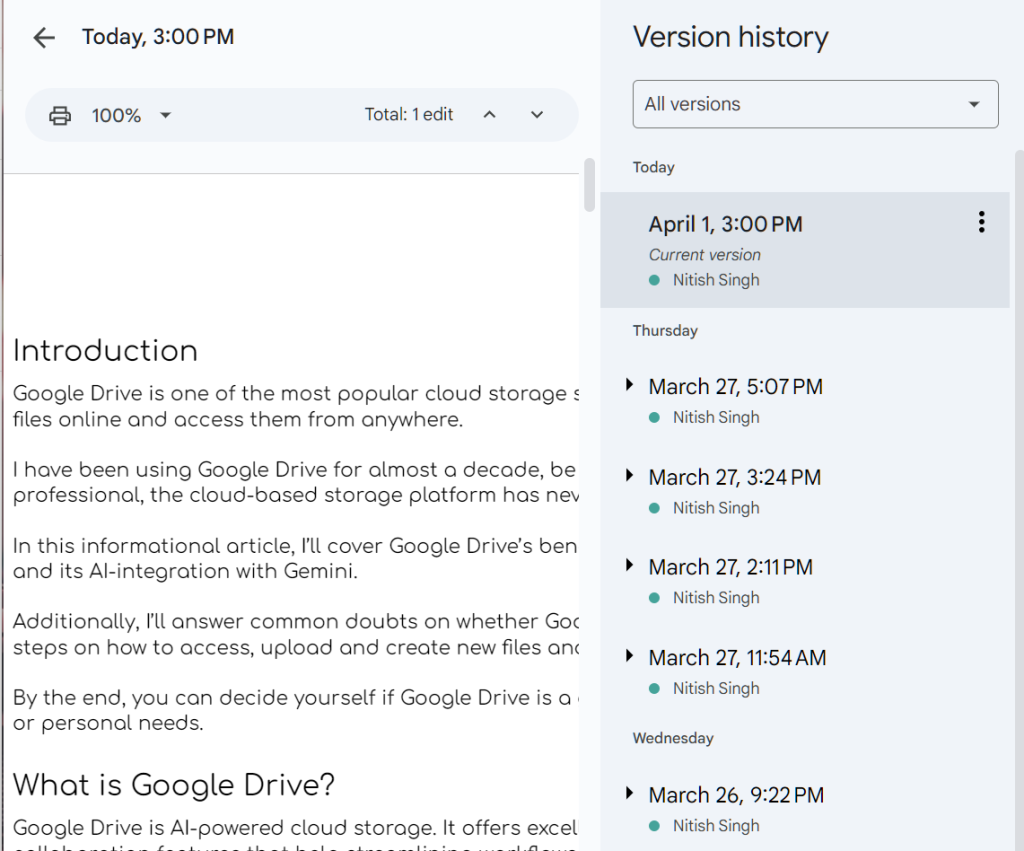
Sometimes a PDF is just too damaged to repair. If you have an older version in a backup, use that. Many cloud services (like Google Drive or Dropbox) keep file version history — right-click the file and look for “Version history” or “Previous versions.” If you downloaded the PDF from a website or email, try downloading it again. Corruptions often happen during transfer, especially over unstable connections. If you have multiple corrupted files, you can even repair multiple pdf files at once using specialized tools.
Common Pitfalls
- Overwriting the original file: Always work on a copy. If the repair makes things worse, you still have the original to try other methods. This is a classic case of pdf file corrupted and cannot be opened — don’t lose your only copy.
- Using sketchy online tools: Some free repair sites might inject malware or steal your data. Stick with well-known services or the ones we’ve tested, like the free online tool in Step 3.
- Ignoring error messages: A error like “Invalid header” or “Cross-reference table missing” tells you exactly what’s wrong. Our guide on fixing an invalid PDF format can help decode those messages.
Where to Next
If your PDF is still stubborn after all these steps, it might be time for deeper investigation. Check out our complete guide on fixing corrupted PDF files, which covers more advanced recovery techniques like hex editing. And remember, prevention is better than cure: always keep backups and use reliable cloud storage to avoid corruption in the first place. Good luck, and may your PDFs always open!




