Got a PDF that won’t open, shows garbled text, or throws errors? You’re not alone. Corrupted PDFs happen to everyone—whether from a bad download, a crash during saving, or a faulty transfer. The good news: you don’t need expensive software like Adobe Acrobat to fix it. This guide is for anyone who wants to repair a PDF absolutely free, using tools you probably already have or can download in minutes. By the end, you’ll have a working PDF, or at least know exactly what went wrong and how to avoid it next time.
We’ll walk through several methods: first with free online services (no install), then with desktop tools like Ghostscript and LibreOffice, and finally with Google Drive’s built-in repair. Each method is tested and works for common corruption types. You don’t need to be a tech wizard—just follow the steps in order. Let’s fix that PDF!
What You’ll Need
- Your corrupted PDF file (keep a backup copy!)
- A stable internet connection (for online tools)
- Optional: Ghostscript (free command-line tool) or LibreOffice (free office suite) if you want offline methods
- A free Google account (for the Google Drive method)
Step 1: Try Opening in Another PDF Viewer
Sometimes the problem isn’t the PDF file itself—it’s the viewer you’re using. Before diving into repair tools, try opening the file with a different program. For example, if you normally use Adobe Acrobat Reader, try opening it in your web browser (Chrome, Firefox, Edge) or in a lightweight viewer like SumatraPDF. If it opens fine, the issue is with your default viewer, not the file. You can then reinstall or update your viewer.
Step 2: Use a Free Online PDF Repair Tool
Online tools are the easiest option because they require no installation. Websites like PDF2Go, Smallpdf, and iLovePDF offer free PDF repair (with file size limits). Go to one of these sites, upload your corrupted PDF, and let their servers attempt a fix. These tools work best for minor corruption, like broken links or missing fonts. They’ll usually give you a downloadable repaired PDF within a minute.

One caveat: privacy-sensitive files (e.g., contracts, certificates) should not be uploaded to online services. For those, use the offline methods in the next steps.
Step 3: Repair PDF Using Ghostscript (Free & Offline)
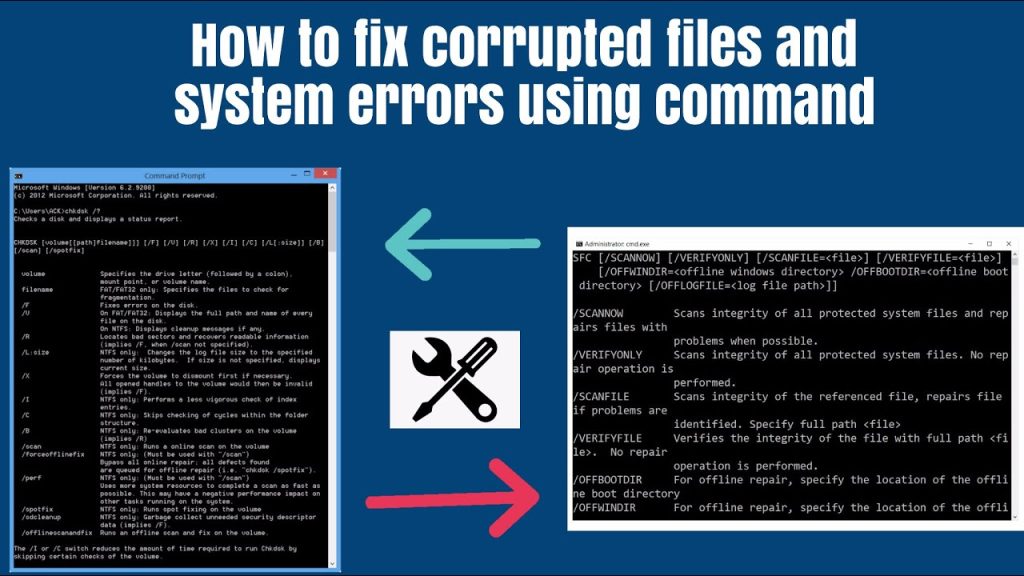
Ghostscript is a powerful free tool used by professionals. It can process and repair PDFs from the command line. First, download and install Ghostscript from the official site. Then, open Command Prompt (Windows) or Terminal (Mac/Linux). Use the following command, replacing “input.pdf” with your corrupted file and “output.pdf” with the desired new name:
gswin64c -o output.pdf -sDEVICE=pdfwrite -dPDFSETTINGS=/prepress input.pdf
Ghostscript PDF repair command
This command reinterprets the PDF’s content and writes a fresh, clean copy. It often fixes structural issues, blank pages, and text encoding errors. If you get an error, try the simpler command: gswin64c -o output.pdf -sDEVICE=pdfwrite input.pdf. The repaired file should open normally.
Step 4: Use LibreOffice to Re-Save the PDF
LibreOffice, a free office suite, can import PDFs and then export them as a new PDF, which often repairs corruption. Install LibreOffice (if not already), then open the program. Go to File > Open and select your corrupted PDF. LibreOffice will convert it to a temporary editable format. Then go to File > Export As > Export as PDF. In the dialog, use the default settings and click Export. This method is great for PDFs with scrambled text or missing images.

Step 5: Use Google Drive’s Built-in Repair
If you have a Google account, Google Drive can open and sometimes fix PDFs. Upload your corrupted PDF to Google Drive, then double-click it. Drive will try to display it using its own viewer. If it opens, you can download it again: click the three-dot menu and select “Download.” The download triggers a re-encoding that can fix minor corruption. This is also a good way to check if the file is salvageable at all.

Common Pitfalls
- Not backing up the original PDF: Always keep a copy of the corrupted file before trying any repair. Some tools may overwrite or further damage it.
- Using only one method: Different tools fix different types of corruption. If the first method fails, try the next one. Don’t give up after one attempt.
- Ignoring error messages: When a tool fails, it often gives a clue about the corruption (e.g., “syntax error” or “missing xref”). Note these and search online for specific fixes.
Where to Next
Now that you know how to repair a PDF for free, explore more specific guides for common issues. If your PDF is blank, check out our guide for a pdf file is blank. For broken PDFs that won’t open at all, see our broken pdf repair article. And if you’re on Windows, our pdf repair for windows guide has platform-specific tips. For deeper recovery options, the corrupted pdf file recovery guide covers advanced techniques.




