So you edited a PDF—maybe you added text, merged pages, or changed a signature—and now the file won’t open or looks scrambled. You’re not alone. Editing PDFs can sometimes break their internal structure, especially if you used a tool that wasn’t designed for heavy modifications. This guide is for anyone who’s had a PDF go corrupt right after an edit. Whether you’re a student, professional, or casual user, you’ll get practical, tested steps to recover your document.
By the end of this guide, you’ll have a working PDF again. We’ll start with simple checks, move to built-in repair features, then try free tools, and finally show you how to avoid the same problem next time. No advanced tech skills needed—just a few minutes and a bit of patience.
What You’ll Need
- The corrupted PDF file (keep the original, don’t overwrite it)
- A PDF viewer (like Adobe Acrobat Reader or Chrome)
- A backup or earlier version of the file, if available
- Internet access (to download tools or use online services)
- Optional: PDF repair software (we’ll recommend free ones)
Step 1: Confirm the Corruption and Identify the Issue
First, try opening the PDF in different viewers. If it opens in Adobe Reader but not in your browser, the file might be okay but your default viewer could be the problem. Check for specific error messages like “File is damaged” or “This PDF document is corrupted.” Note the exact wording—it can help you choose the right fix. If you’re lucky, a quick re-download or re-save from your editing program might solve it.
Step 2: Use Built-In Repair Features
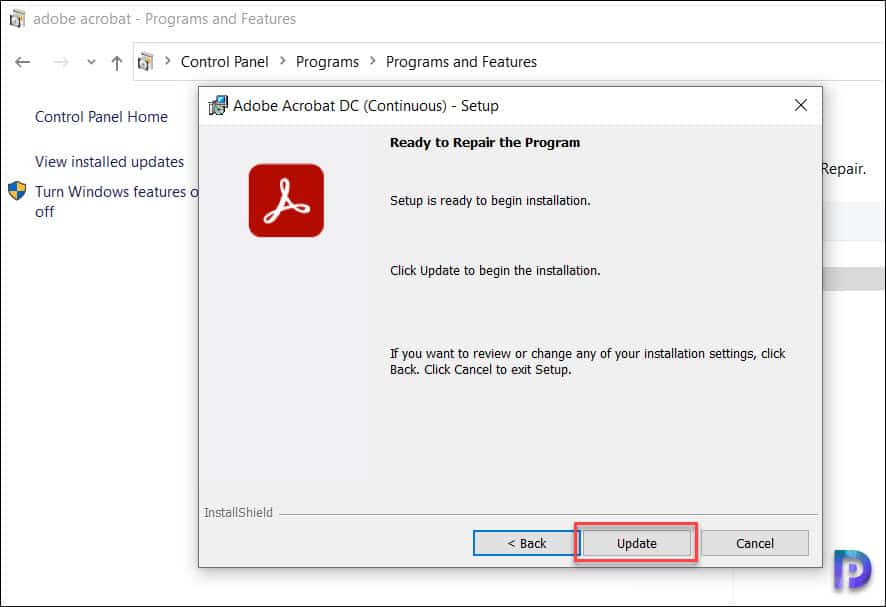
Many PDF editors have a built-in repair option. In Adobe Acrobat Pro, go to File > Repair (or under Advanced). This attempts to rebuild the cross-reference table and fix structural issues. If you don’t have Acrobat, try opening the PDF in Google Chrome or Microsoft Edge: drag the file into the browser, then print it to PDF (Ctrl+P, choose “Save as PDF”). This creates a fresh, clean copy. Also try the “Save As” trick: open the file in any editor (even Word) and save a copy—it can sometimes resolve minor corruption.
Step 3: Revert to a Previous Version
Did you save over the original? Check for autosaved versions. On Windows, right-click the file and select “Restore previous versions.” On macOS, use Time Machine. If you work in cloud storage (Google Drive, Dropbox, OneDrive), they keep version history. For example, in Google Drive, right-click the file and choose “Manage versions” to roll back to an earlier, uncorrupted state. This is the easiest fix if you have a backup.

Step 4: Use a Dedicated PDF Repair Tool
If the above steps fail, a dedicated tool can work wonders. Free options include PDF Repair Toolbox (online), PDF24 Creator, and Sejda. They scan the file structure and rebuild the PDF. For more stubborn cases, try iLovePDF’s repair tool. Upload your file, let it process, and download the repaired copy. Remember to never upload sensitive documents to unknown sites. If you prefer offline, check out our guide on pdf repair for windows for free software recommendations.
Step 5: Re-Edit Carefully and Save Incrementally
Once you recover the file, learn from the experience. Always keep an unedited backup. When editing any PDF, use reliable software (avoid random online converters). Save your work incrementally: make small changes, save as a new file each time. If you’re adding images or fonts, ensure they are standard and not corrupted themselves. For advanced users, you can explore programmatic fixes—like using Python libraries to repair the cross-reference table. Check our article on repair pdf using java for a code-based approach.
Common Pitfalls
- Not keeping a backup before editing. Always duplicate the original.
- Using unsupported fonts or non-embedded images that break the PDF structure when saved.
- Interrupting the save process (e.g., closing the editor or losing connection). This leaves the file in an inconsistent state.
Where to Next
Now that you’ve fixed your PDF, explore more advanced recovery methods. If you often work with PDFs, learning how to restore corrupted pdf files can save you hours. For severe damage, our corrupted pdf file recovery guide covers deep recovery. And if you’re into automation, check out broken pdf repair using scripting tools. Happy editing—and don’t forget to backup!




