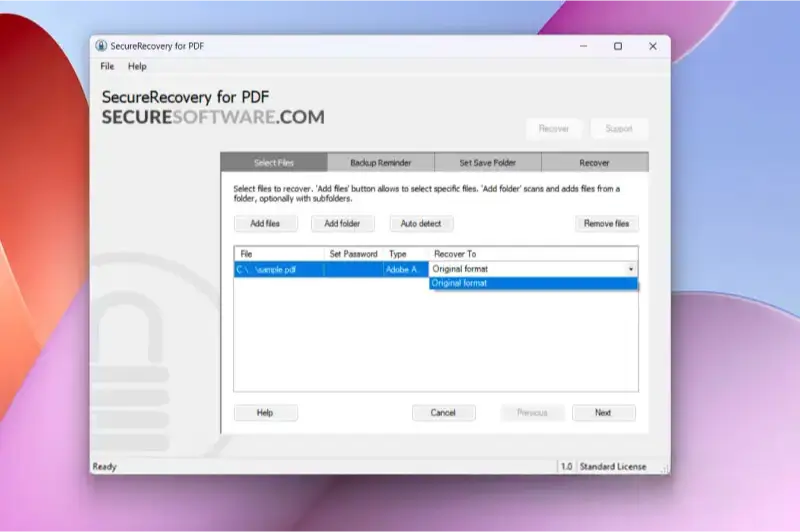
So your important PDF won’t open, or it looks like a glitchy mess? Don’t panic – corrupted PDF files are surprisingly fixable. This guide is for anyone who’s ever seen that dreaded “file is damaged” error, whether you’re a student, a professional, or just trying to open a form. By the end, you’ll have a working PDF (or at least know exactly what your options are).
We’ll walk through five practical recovery methods, from quick freebies to more powerful tools. You don’t need to be a tech wizard – just follow along step by step. Let’s save that file.
What You’ll Need
- The corrupted PDF file itself (keep a backup copy!)
- A computer with internet access
- A PDF reader (Adobe Acrobat Reader, Foxit, etc.)
- Optional: Adobe Acrobat Pro (paid, but has built-in repair)
- Optional: Ghostscript (free command-line tool for advanced repair)
Step 1: Try Opening in a Different PDF Reader
Sometimes the problem isn’t the PDF file itself – it’s the reader. Before going nuclear, test the file in other apps. Download a free alternative like Foxit Reader, SumatraPDF, or open it in your browser (drag it into Chrome or Edge). If it opens, great – you just need a different reader. If not, move on.
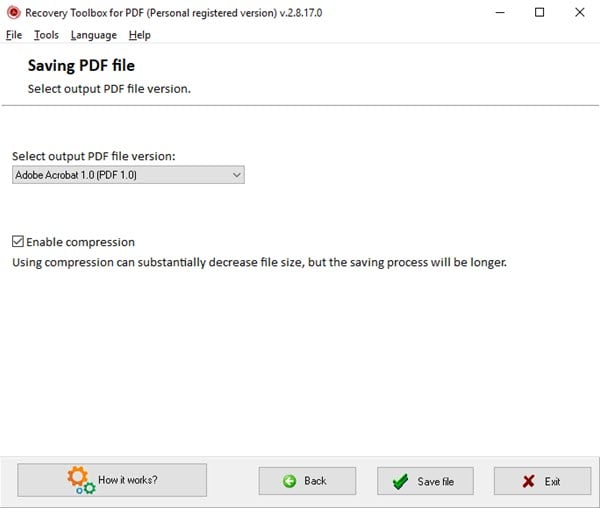
Step 2: Use an Online PDF Repair Tool
Several free online services can fix minor corruptions. Upload your file to a reputable site like Smallpdf, iLovePDF, or PDF2Go. They’ll attempt to rebuild the structure and let you download a repaired copy. Note: for sensitive documents, be cautious about privacy – check their policies first.
Step 3: Use Adobe Acrobat’s Built-In Repair
If you have Adobe Acrobat Pro, it includes a dedicated repair feature. Open Acrobat Pro, go to File > Open, select your corrupted PDF. The program will often detect issues and automatically repair during opening. If not, try File > Save As Other > Optimized PDF (it can fix some errors). You can also recreate the file by opening it and then using File > Export To > Image, then reassemble the images into a new PDF – but that loses text searchability.
Step 4: Recover with Ghostscript (Advanced)
Ghostscript is a free command-line tool that can process and repair PDFs. First, install Ghostscript from the official site. Then open Command Prompt (Windows) or Terminal (Mac/Linux). Run a command like: gswin64c -o repaired.pdf -sDEVICE=pdfwrite -dPDFSETTINGS=/prepress corrupted.pdf. This forces a clean rebuild. It may not recover everything, but often salvages readable content. Requires some comfort with typing commands.

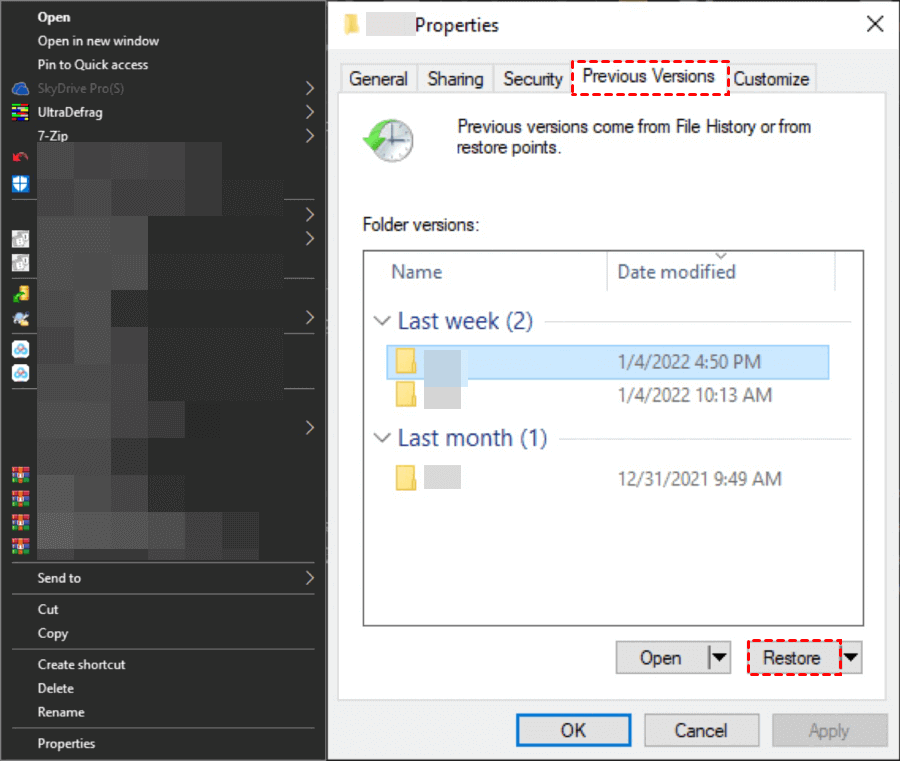
Step 5: Restore a Previous Version
If the PDF was saved to a service like Google Drive, Dropbox, or OneDrive, right-click the file and look for version history. Windows also has “Previous Versions” under file properties if you had File History or System Protection enabled. Restore an earlier version before the corruption occurred. This is the simplest fix if you have a backup.
Common Pitfalls
- Using untrusted online repair tools that may expose your private data – always check reviews and privacy policies.
- Working on the original file without making a backup – if repair makes things worse, you’ll lose the only copy.
- Expecting a perfect recovery – severe corruption may leave some data unrecoverable; aim for usable rather than perfect.
Where to Next
You’ve now got several ways to tackle a corrupted PDF. For deeper issues, check our guide on pdf file recovery for lost files. If the file structure is completely broken, our broken pdf repair article has more advanced techniques. And if you prefer not to install anything, see how to repair pdf without software. For Windows users, pdf repair for windows offers platform-specific tips. And if you’re facing a specific error code, like pdf error 135 repair, we’ve got that covered too.




