Ever opened a PDF only to see garbled text, missing pages, or an error message that the file is damaged? You’re not alone. A PDF’s internal structure can get messed up during downloads, transfers, or after a system crash. This guide is for anyone who needs to fix that mess — no technical background required. By the end, you’ll be able to repair a PDF’s structure using free online tools, dedicated software, and even manual edits for the stubborn cases.
We’ll walk through five step-by-step methods, from quick fixes to deeper repairs. Whether your PDF is just slightly off or completely unopenable, these techniques will help you recover your content. Let’s dive in.
What You’ll Need
- A corrupted or misbehaving PDF file
- A computer with internet access
- Optional: Adobe Acrobat Pro or a PDF editor like Sejda or PDFescape
- Optional: A hex editor (like HxD) for manual fixes
- Patience and a willingness to try a few methods
Step 1: Assess the Damage
First, figure out how bad the corruption is. Can you open the PDF at all? If yes, check for missing text, broken images, or weird fonts. If not, note the error message. This will help you choose the right repair approach. For instance, a completely unopenable file might need a serious tool, while a PDF with minor glitches could be fixed with a simple re-save. If you’ve already tried some basic steps like reopening or downloading again, you might want to check out our guide on corrupted pdf file recovery.
Step 2: Try an Online PDF Repair Tool
For many broken PDFs, a free online tool can fix the structure in minutes. Sites like iLovePDF, Sejda, or PDF Candy have repair features. Upload your file, let them process it, and download the repaired version. These tools work well for common issues like cross-references or wrong header structures. If the online tool fails, move on to step 3. And if you’re working on a Windows machine, our dedicated pdf repair for windows guide might offer additional tips.
Step 3: Use Desktop PDF Repair Software
When online tools aren’t enough, desktop software like Adobe Acrobat Pro or PDF Repair Toolbox gives you more control. Open the PDF in the software, use the “Repair” or “Save As” function — sometimes simply re-saving the file fixes structure issues. For severely damaged files, try the “Optimize PDF” or “Reduce File Size” option, which rewrites the internal structure. This is also a good time to explore our comprehensive broken pdf repair post for more techniques.
Step 4: Recreate the PDF from Scratch (If All Else Fails)
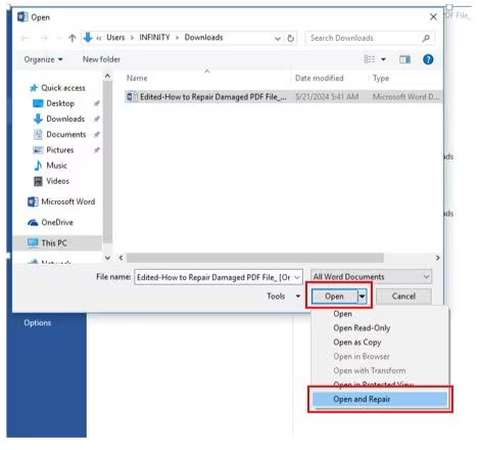
Sometimes the structure is so wrecked that repair tools can’t help. In that case, try extracting the content. If you can open it even partially, copy and paste text and images into a Word doc or Google Doc and re-export as PDF. Use OCR software if it’s a scanned document. This method is tedious but often works. For a software-free approach, check out repair pdf without software — it’s perfect for simple text PDFs.
Step 5: Advanced Manual Structure Repair (Hex Editing)
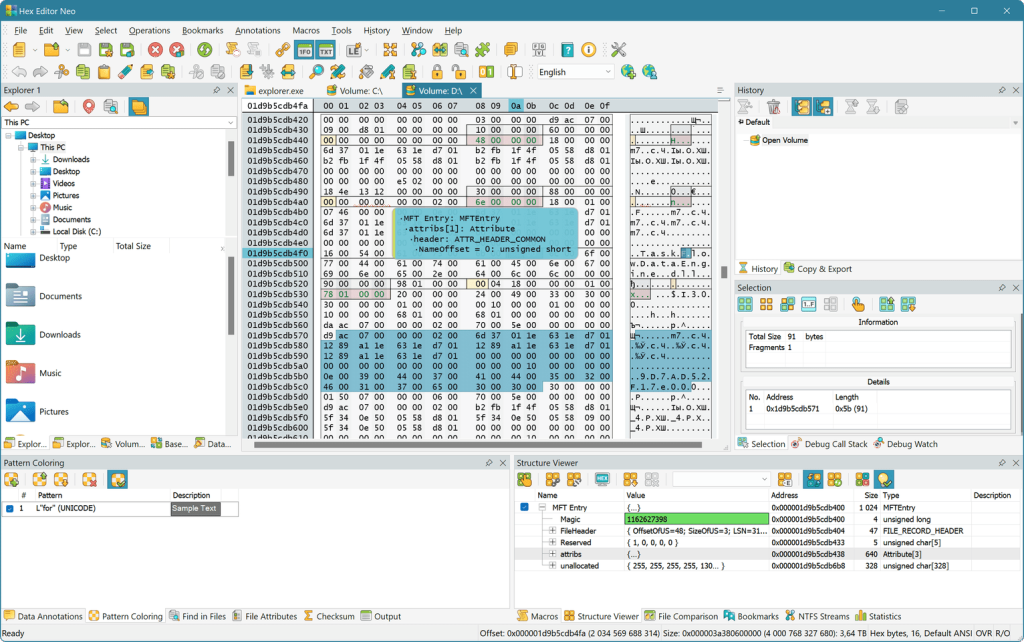
If you’re comfortable with technical stuff, you can manually edit the PDF’s raw structure using a hex editor. Open the file in HxD, look for the PDF header (“%PDF-1.x”) and the cross-reference table at the end. Fix missing or corrupted entries. This is risky — always work on a copy. For this kind of deep fix, our article on repair pdf after system crash provides a real-world example of manual recovery.
Common Pitfalls
- Making things worse: Using a hex editor without understanding the PDF spec can permanently destroy the file. Always back up the original.
- Relying on one method: Not all repair tools work for every type of corruption. Try at least two different approaches before giving up.
- Ignoring error messages: The error code often tells you exactly what’s wrong. Look it up (e.g., “PDF Error 135 repair”) to save time.
Where to Next?
You’ve successfully repaired a PDF’s structure. Now keep your files safe by storing backups and using reliable transfer methods. If you frequently deal with damaged PDFs, consider investing in a dedicated tool like Adobe Acrobat Pro. And if you ever run into password protection issues, our password protected PDF repair guide has you covered.




