So your PDF won’t open, shows garbled text, or throws an error. You don’t have Adobe Acrobat, and you’re not sure what to do. Don’t panic – there are plenty of free ways to recover your file. Whether you’re a student trying to retrieve an important paper or a professional dealing with a corrupted report, this guide has you covered.
By the end of this tutorial, you’ll have a working PDF – without spending a dime on software. We’ll walk through three practical methods: using an online repair tool, leveraging Google Drive’s built-in conversion, and a command-line approach for the tech-savvy. Let’s dive in.
What You’ll Need
- A corrupted PDF file you want to recover
- A computer with internet access
- Backup of the original file (just in case)
- Optional: A free online repair tool like PDF24 or Sejda
- Optional: A Google account (for the Drive method)
Step 1: Use a Free Online PDF Repair Tool
Online tools are the quickest fix. They work entirely in your browser, so no installation is needed. One of the most reliable is PDF24’s online repair tool. Simply visit their website, upload your broken PDF, let the service process it, and download the repaired version. If PDF24 doesn’t work, try Sejda’s repair tool or iLovePDF’s repair feature. These tools handle common corruption issues like missing cross-reference tables or broken streams. However, keep in mind that uploading sensitive documents to a third-party server may raise privacy concerns. For non-sensitive files, this method is fast and effective.
Step 2: Recover via Google Drive & Google Docs
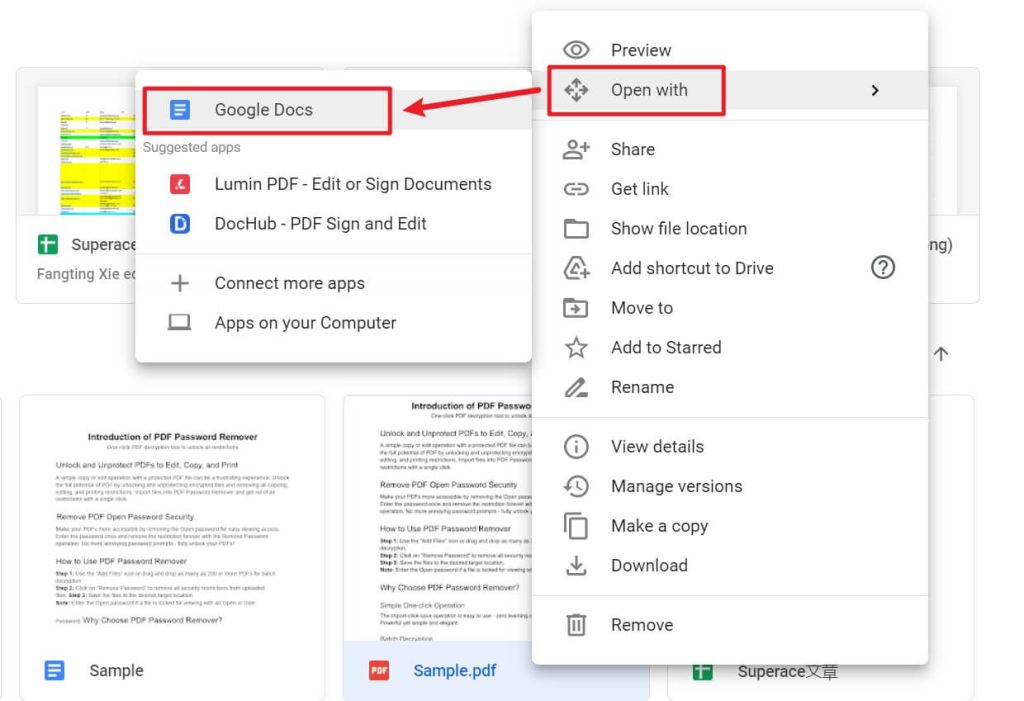
If you have a Google account, this is a brilliant workaround. Upload the corrupted PDF to Google Drive, then open it with Google Docs. Google Docs will attempt to convert the PDF to an editable document. Even if the PDF is damaged, Google’s parser often recovers the text content. Once the document loads, go to File > Download > PDF Document (.pdf). The newly exported PDF is usually clean and readable. This method works especially well for text-heavy PDFs, but note that complex formatting or images might not survive the conversion. For most everyday PDFs, though, it’s a lifesaver.
Step 3: Use Ghostscript (Command Line) for Stubborn Files
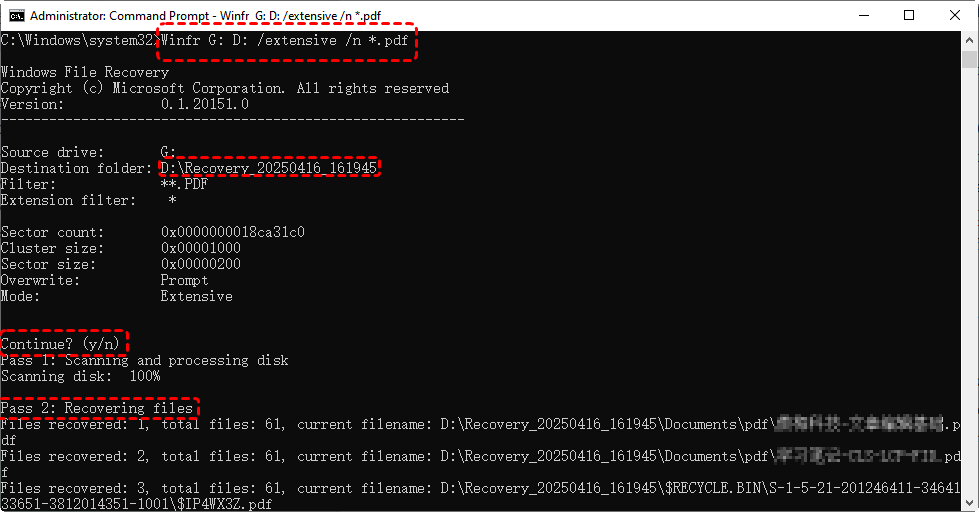
When online tools and Google Drive fail, Ghostscript is your heavy hitter. It’s a free, open-source interpreter for PostScript and PDF. You can use it to recompress or repair a PDF via a simple command. First, download and install Ghostscript from ghostscript.com. Then, open the command prompt (or terminal) and run: gswin64c -sDEVICE=pdfwrite -dCompatibilityLevel=1.4 -dPDFSETTINGS=/screen -dNOPAUSE -dQUIET -dBATCH -sOutputFile=repaired.pdf broken.pdf. This creates a new PDF file with minimal settings, often repairing structural issues. If the PDF has image-related corruption, you may need to adjust the settings. This method requires a bit of command-line comfort, but it’s incredibly powerful.
Common Pitfalls
- Not backing up the original file: Always keep a copy of the corrupted PDF before attempting any repair. Some methods might overwrite or further damage the file.
- Using untrusted online tools: Not all online PDF repair services are secure. Avoid uploading confidential documents to unknown sites. Stick with well-known platforms like PDF24 or Sejda.
- Expecting perfect recovery: Damaged PDFs may lose formatting, images, or complex elements. The goal is to recover the text content; accept that the layout might be altered.
Where to Next?
You’ve successfully recovered your PDF without Acrobat. For deeper PDF issues, check out our guides on repair pdf structure, corrupted pdf file recovery, and repair pdf without software. If you’re dealing with specific errors like pdf error 135 repair, we’ve got you covered. Keep your PDFs safe, and remember: free tools can work wonders.




