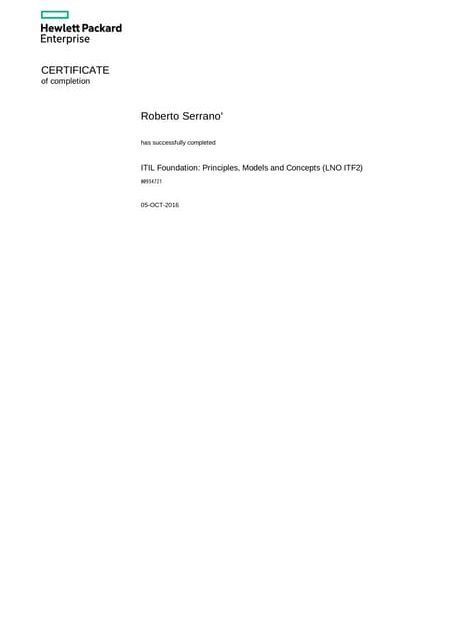
Hey there! So you’ve got a certificate PDF that’s gone missing, won’t open, or looks like a jumbled mess. Whether it’s your diploma, a professional certification, or an award, I feel your panic. But don’t worry — this guide is for anyone who needs to recover a certificate PDF, even if you’re not tech-savvy. By the end, you’ll have your file back in readable shape, or at least know exactly what options you have left.
We’ll walk through everything from quick checks to advanced recovery techniques. You’ll learn how to revive a corrupted PDF, restore a deleted one, and even how to prevent this headache in the future. Let’s get that certificate back where it belongs.
What You’ll Need
- Your certificate PDF file (or a backup location like email, cloud drive, or external hard drive)
- A computer or smartphone (most tools work on both)
- Internet connection (for online recovery tools)
- Basic file management skills (knowing how to save and open files)
- Optional: PDF repair software (like Adobe Acrobat Pro or free alternatives)
Step 1: Diagnose the Problem
Before you try to fix it, figure out what’s wrong. Is the file missing? Does it give an error when opening? Or does it open but show garbled text? Knowing the issue saves time. For example, if your certificate PDF won’t open at all, it might be corrupted. If you deleted it by accident, that’s a different kind of recovery.
Step 2: Try Opening in Another Viewer
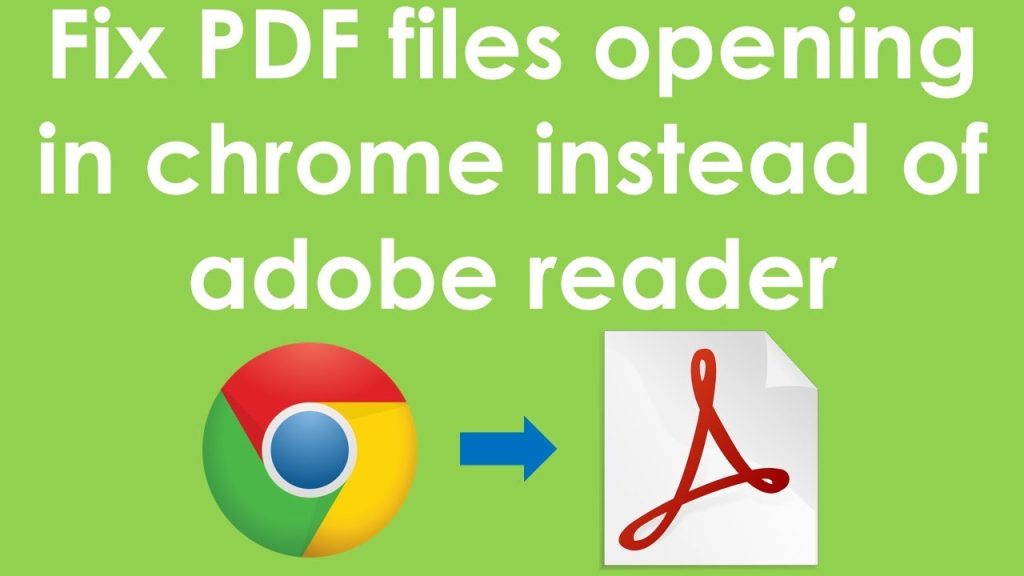
Sometimes the problem is with your PDF reader, not the file itself. Try opening the certificate in a different app — like Google Chrome, Microsoft Edge, or a free tool like Foxit Reader. If it works there, your usual reader might need an update. If nothing can open it, move to the next step.
Step 3: Use an Online PDF Recovery Tool
If the file is corrupted but still exists, free online tools can often repair it. Upload your certificate to a site like Smallpdf, ilovepdf, or PDF2Go. They’ll try to fix the structure and let you download a restored version. This is great for quick fixes and works for most common errors. For a detailed walkthrough of similar methods, check out our guide on corrupted PDF file recovery.

Step 4: Recover from Backups or Previous Versions
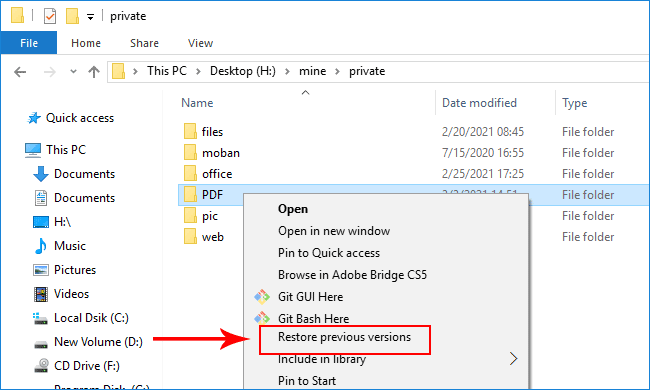
If online repair didn’t work, maybe a good copy exists elsewhere. Check your email (if you sent it to someone), cloud storage (Google Drive, Dropbox, OneDrive), or an external backup. On Windows, right-click the file folder and choose “Restore previous versions.” On Mac, use Time Machine. This method is often the simplest for lost files — our pdf file recovery guide covers it in more detail.
Step 5: Use Desktop PDF Repair Software
When online tools aren’t enough, desktop software can handle tougher corruption. Programs like Adobe Acrobat Pro (built-in repair), Stellar Repair for PDF, or SysTools PDF Repair can fix structural issues. Install one, open the certificate, and let it scan. Most offer a free preview before purchase. For more on fixing structure, see our article on repair PDF structure.
Step 6: Recover a Deleted Certificate PDF
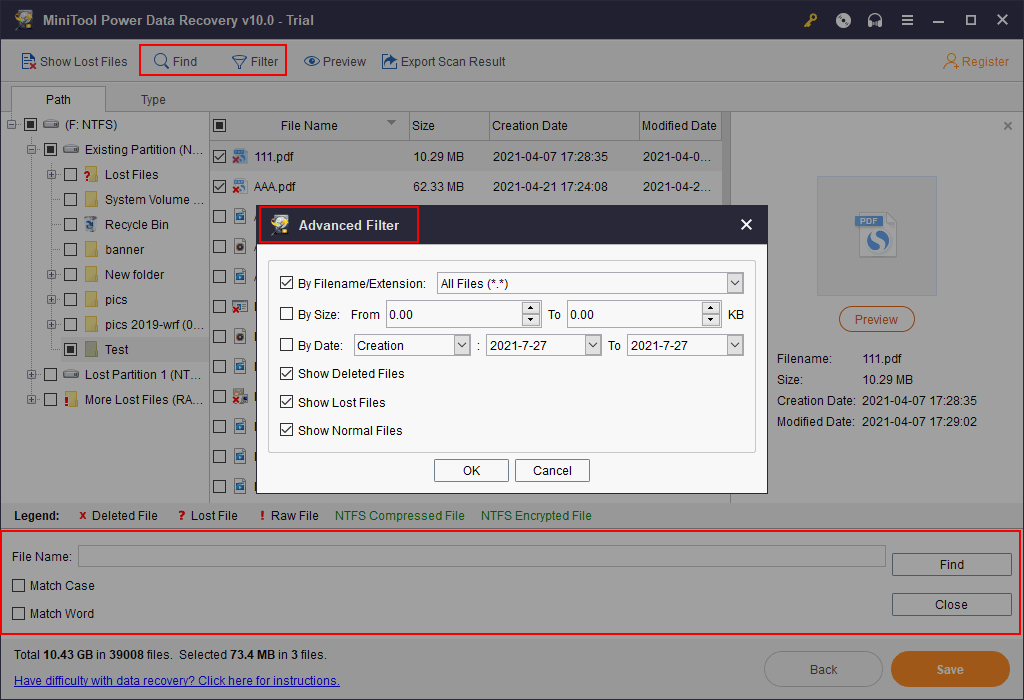
If you accidentally deleted the certificate, act fast. Check the Recycle Bin (Windows) or Trash (Mac). If it’s not there, use a file recovery tool like Recuva (free) or Disk Drill. Run the tool on the drive where the file was stored — the quicker you do it, the better the chance. This is a classic case of broken PDF repair that ends well if you haven’t overwritten the data.
Common Pitfalls
- **Saving a repaired file over the original:** Always save the recovered copy with a different name so you don’t lose the original if the fix fails.
- **Using shady “free” tools that install malware:** Stick to well-known services like Smallpdf or Adobe. Avoid random download sites that promise miracles.
- **Waiting too long to recover a deleted file:** The more you use your computer after deletion, the higher the chance the file’s space is overwritten. Act immediately.
Where to Next?
You’ve got your certificate back — great! To avoid this again, consider keeping a backup in multiple places (cloud + external drive). Also, learn how to repair PDF without software for quick fixes on the go. If you’re not sure why the corruption happened, our guide on why PDF cannot open can help you prevent future issues. Stay safe, and never lose a certificate again!




