So you’ve got a PDF that won’t open, shows garbled text, or throws errors. Maybe you’re on a restricted computer, or you just don’t want to install yet another piece of software. Good news: you can often fix a corrupted PDF using nothing but your browser, a free online tool, or features already built into your operating system. This guide is for anyone who needs a quick, software-free fix. By the end, you’ll have a working PDF (or at least recovered text) without installing a single program.
We’ll walk through five methods that rely on existing tools: your web browser, Google Drive, the print dialog, and even a plain text editor. No downloads, no registrations (except maybe a Google account), and no technical expertise required. Just follow along step by step.
What You’ll Need
- A computer with an internet connection (for online tools).
- The corrupted PDF file saved on your computer or accessible via cloud storage.
- A modern web browser (Chrome, Edge, Firefox, or Safari).
- A Google account (for the Google Drive method).
- A plain text editor like Notepad (Windows) or TextEdit (Mac) as a last resort.
- A bit of patience – not every PDF can be fully recovered without software.
Step 1: Try Opening the PDF in a Different Browser or Reader
Sometimes the problem isn’t the PDF itself – it’s the program trying to open it. If you’re using Adobe Acrobat or a third-party reader, switch to your browser’s built-in PDF viewer. Chrome, Edge, and Firefox all have excellent PDF engines that can handle mild corruption. Drag the PDF into a new browser tab or right-click it and select “Open with” > [Your Browser]. If it works, you’re done! If it still fails, move on to Step 2.

Step 2: Use a Free Online PDF Repair Tool
A whole category of websites exist specifically to repair damaged PDFs without any software. Services like Smallpdf, iLovePDF, and PDF2Go offer a repair or fix feature. Here’s how: go to one of these sites, click “Choose file,” upload your corrupted PDF, and hit the repair button. After a few seconds, download the fixed version. These tools work best for minor corruption like missing fonts or streaming errors. For more serious issues, try the next methods. If you’re worried about privacy, check the site’s privacy policy or skip this step for sensitive documents.
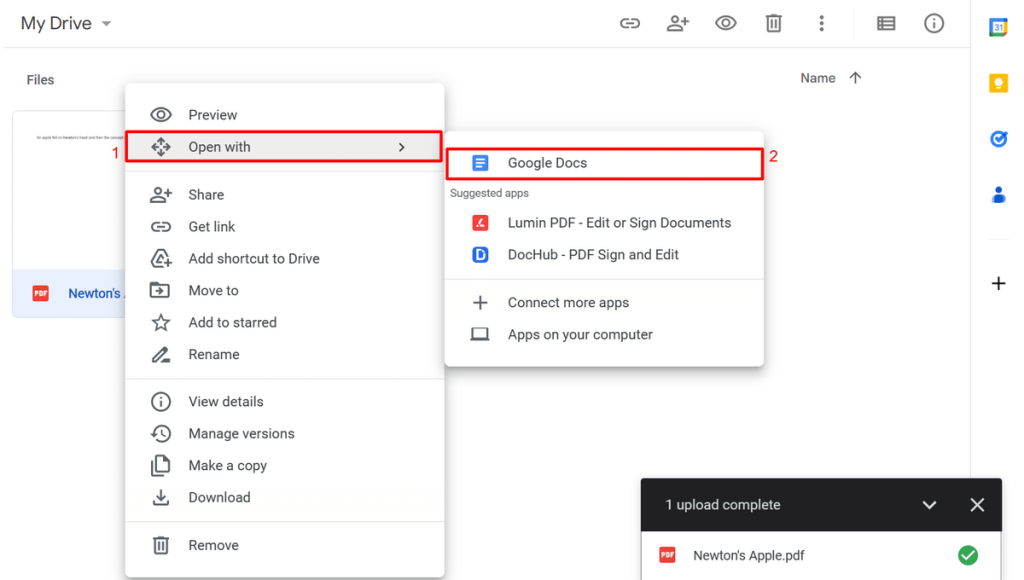
Step 3: Repair PDF Using Google Drive (Indirect Method)
Google Drive has a neat trick: it can convert PDFs to Google Docs, which often strips out corruption and re-renders the content. Upload the PDF to Google Drive, right-click it, and select “Open with” > “Google Docs.” Google will try to convert it. Once it opens (maybe with some formatting loss), go to File > Download > PDF document (.pdf). This new PDF is clean and should open in any reader. This method is especially good for text-heavy PDFs that have become unreadable.
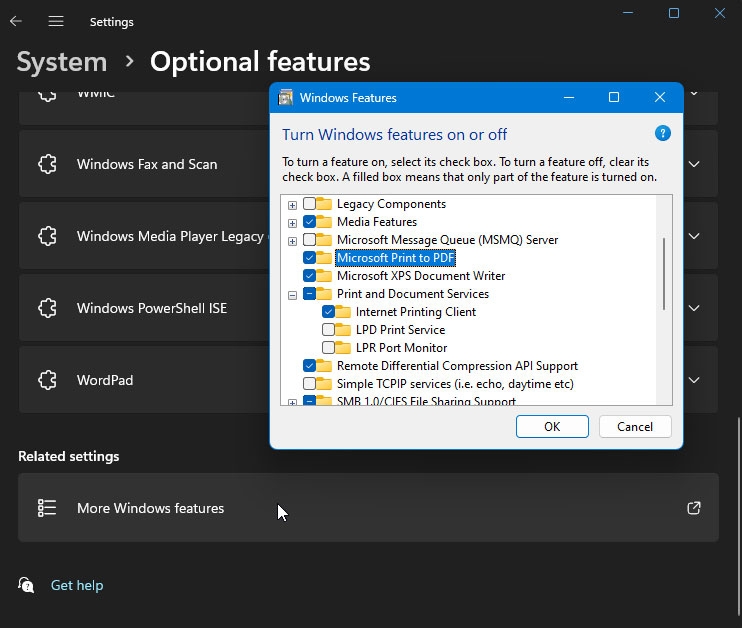
Step 4: Use Windows Built-in Print to PDF
If you can open the PDF but it looks scrambled or missing elements, the “Print to PDF” feature can rebuild it. Open the PDF in any reader (even if it looks bad), go to File > Print, and choose “Microsoft Print to PDF” as the printer (on Windows) or “Save as PDF” on Mac. Click Print, and you’ll be prompted to save a new PDF. This effectively re-renders the entire page using the operating system’s printing engine, fixing many display issues.
Step 5: Extract Content with a Text Editor (Last Resort)
When nothing else works, you can salvage at least the text content by opening the PDF in a plain text editor. Right-click the file, choose “Open with” > Notepad (Windows) or TextEdit (Mac). You’ll see a jumble of binary data and markers. Search through the mess for readable text between brackets or after “BT” and “ET” markers. Copy and paste that text into a new document. You’ll lose all formatting and images, but you won’t lose the words. This is a time-consuming fallback, but it’s completely software-free.

Common Pitfalls
- Uploading sensitive documents to free online tools – they may store or scan your files. Use only for non-confidential PDFs, or skip to the Google Drive method which is more private.
- File size limits – many free online repair tools cap uploads at 10–100 MB. For large PDFs, try the browser or Google Drive methods first.
- Assuming all PDFs are repairable – if the file structure is completely destroyed (e.g., zero bytes or empty), no amount of free tricks can recover it. In that case, consider professional software or data recovery services.
Where to Next
If none of these methods worked, your PDF might need a more powerful fix. Check out our guide on how to recover a PDF without software for additional tricks, or explore repair damaged PDF online tools for more advanced repairs. For persistent issues, you might want to fix a PDF file that won’t open using dedicated software – sometimes automatic PDF repair services can handle what manual methods can’t. Good luck, and don’t give up on your file!




