You just exported a PDF from your favorite app — maybe a notes app, a design tool, or a finance tracker — and when you open it, the text is garbled, pages are missing, or the file won’t even open. Frustrating, right? This guide is for anyone who’s ever dealt with a wonky PDF straight out of an app. By the end, you’ll have a clean, readable PDF that looks exactly as intended.
We’ll walk through a handful of proven fixes, from simple re-exports to using online repair tools. No technical wizardry required — just a few clicks. Whether you need to recover pdf without software or you’re ready to try something more advanced, these steps will get you there.
What You’ll Need
- The corrupted PDF file generated by your app
- A computer or smartphone (most steps are platform-agnostic)
- A stable internet connection (for online methods)
- Patience — some fixes require a couple of tries
Step 1: Re-export the PDF from the Original App
Before diving into repair tools, go back to the app that created the PDF. Open the original document, then export or save it again as a fresh PDF. Many times, the corruption is a one-time glitch — a bad export that a simple do-over fixes. Check the export settings: make sure you’re using the standard PDF preset, not something like “PDF/A” or “optimized for small size”. If the app offers a “high quality” option, use it.
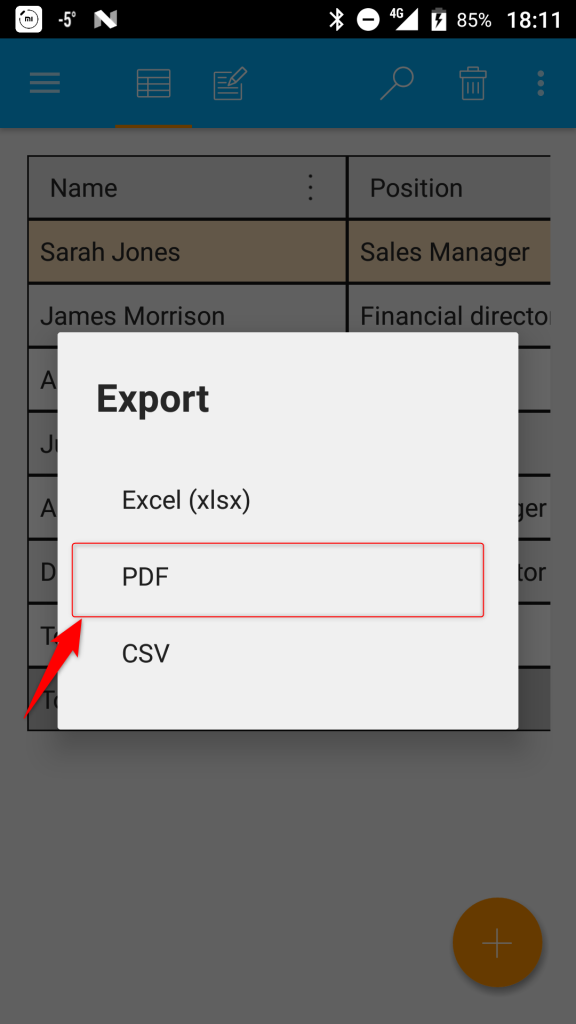
If the re-export works, great! Save the new file in a different location and test it. If not, move to the next step.
Step 2: Open the PDF in a Different Viewer
Sometimes the problem is the viewer, not the file. Try opening the PDF in a different program — like Chrome, Adobe Acrobat Reader, Firefox, or even Microsoft Edge. On mobile, try a third-party PDF reader like Xodo or Google PDF Viewer. If the file opens fine elsewhere, the original viewer was the issue. In that case, updating or reinstalling the viewer usually fixes it. This is a simple way to fix broken pdf file without any heavy lifting.

Step 3: Use a Dedicated Online PDF Repair Tool
If re-exporting and switching viewers don’t help, an online repair tool is your best bet. These tools can repair garbled pdf, fix missing text, and restore damaged structure. Head to a trusted site like PDFRepairs.click and upload your file. The process is usually drag-and-drop. After a few seconds, download the repaired version. This method works especially well for PDFs that show blank pages or random characters.
If you’re dealing with a file that came as an email attachment, check out our guide on how to repair pdf attachment — it covers fixes for attachments specifically.
Step 4: Convert the PDF to Another Format and Back
Another trick is to convert the corrupted PDF to a different format (like Word, HTML, or images) and then convert it back to PDF. This can strip out corruption in the original structure. Use a free online converter: upload the PDF, choose “Word” or “Images”, download the result, then convert that file back to PDF. It’s a roundabout but effective way to recover pdf without software on your machine. The final PDF may lose some interactivity, but the content will be readable.
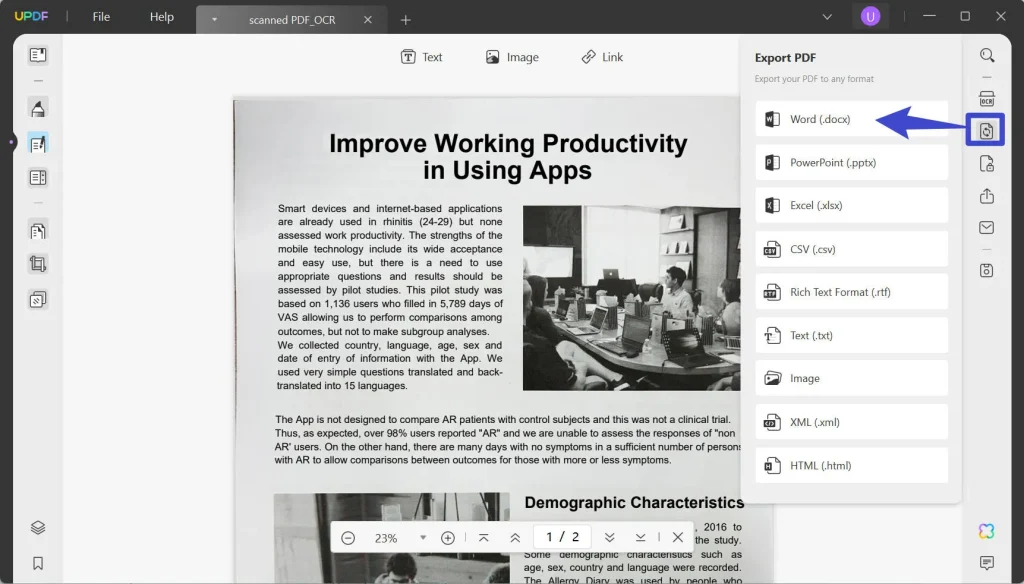
Step 5: Try a Desktop PDF Repair Application
If online tools aren’t cutting it — maybe the file is too large or contains sensitive data — a desktop application offers more power. Programs like Adobe Acrobat Pro, PDF Repair Toolbox, or Sysinfo PDF Repair can handle deeper corruption. Install one, open the damaged file, and run the repair function. These tools often have a preview mode so you can check the results before saving. The catch: most are paid, but many offer a free trial that can fix one file.
If you frequently work with app-generated PDFs, consider investing in a tool that can also handle pdf repair for office documents — they often overlap.
Common Pitfalls
- Saving over the original file: Always work on a copy. If the repair goes wrong, you’ll still have the original to try another method.
- Ignoring app-specific issues: Some apps add custom metadata or fonts that cause problems. Check the app’s export settings or try exporting as a different format first.
- Using too many tools without testing: Trying four different repair tools in a row can actually make the corruption worse. Test after each step.
Where to Next
Fixing a PDF from an app is usually straightforward, but if you keep hitting snags, explore more specific guides. Our guide on repair garbled pdf covers files with text scrambled into symbols, and if your PDF looks fine but won’t open, the instructions to fix broken pdf file will help. For files that were part of an email chain, the repair pdf attachment article is a must-read. And if you want to avoid software altogether, the recover pdf without software method has saved many users. Happy fixing!




