
Ever open an email attachment only to see a blank page or a cryptic error? You’re not alone. This guide is for anyone who’s received a corrupted PDF attachment—whether from a client, a colleague, or your own backup—and needs to get it working again. By the end, you’ll have a repaired PDF that opens smoothly and displays all its content.
We’ll cover saving the attachment properly, testing with different viewers, using online repair tools, and if needed, stepping up to desktop software. No technical skills required.
What You’ll Need
- A computer (Windows, Mac, Linux) with internet access
- The corrupted PDF attachment (downloaded from email or file system)
- A free online PDF repair tool (e.g., PDFRepairs.click)
- Optional: PDF repair software for stubborn files (trial or paid)
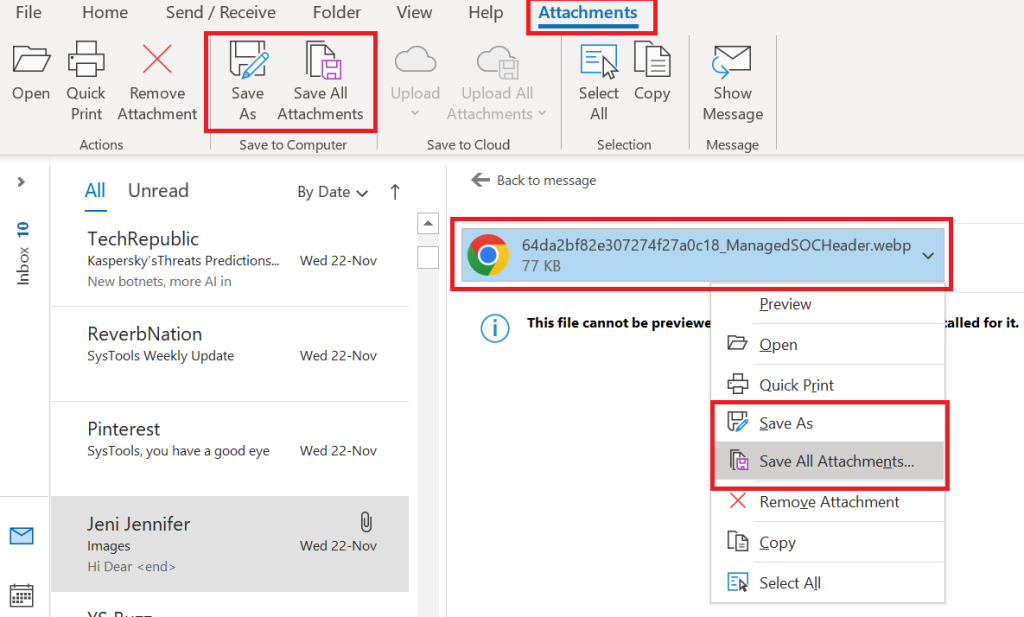
Step 1: Save the PDF Attachment Correctly
First, make sure you’ve saved the full PDF file, not just a shortcut or corrupted download. In your email client, click the download or save icon and choose a location you remember. Avoid ‘save as’ from within the preview pane—download the actual file.

Step 2: Confirm the Corruption
Try opening the PDF in another viewer. If it fails in Adobe Reader but works in your browser, the file might be fine. If both show errors like ‘This file cannot be opened’ or garbled text, the attachment is likely corrupted. Note the error type—it helps choose the right fix.
Step 3: Try an Online Repair Tool
The fastest fix is to use a free online service. Go to a site like PDFRepairs.click, upload the corrupted file, and click repair. In a few seconds, download the repaired version. This works for most common issues like missing page references or header corruption. For a more detailed walkthrough, check out our guide to repair PDF for free online.
Step 4: Use Drag and Drop PDF Repair
If the online tool fails, try a local drag and drop PDF repair tool. These programs let you drag the corrupted PDF onto their icon, and they rebuild the file structure automatically. Many are free for small files. Our drag and drop PDF repair guide covers the best options.
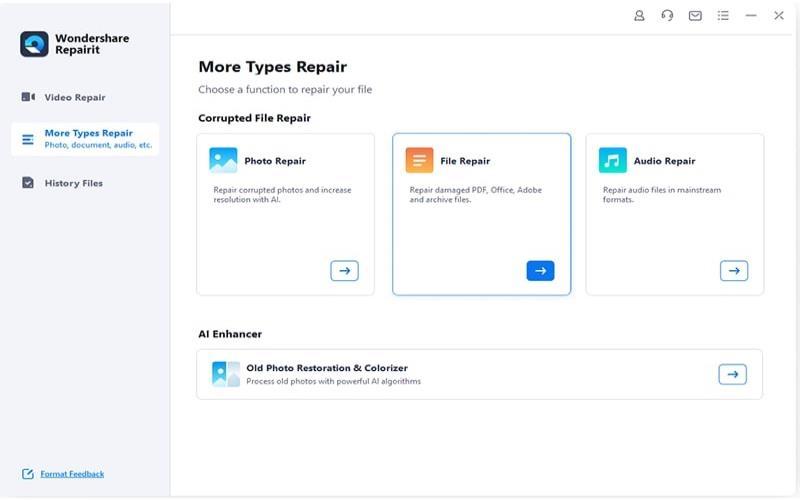
Step 5: Use Dedicated PDF Repair Software
For severely corrupted files, you may need professional PDF repair software. Download a trial version from a reputable vendor (many offer a free scan), add the file, and run the repair. The software attempts to recover content even from broken structures. See our roundup of the best PDF repair software for recommendations.
Common Pitfalls
- Not downloading the full attachment: Sometimes the email client truncates large PDFs. Check the file size matches the original.
- File size limits on free online tools: Many services cap uploads at 50 MB. If your attachment is larger, use desktop software instead of an online tool.
- Ignoring text encoding: If the PDF opens but shows gibberish, you may need to fix PDF text encoding issues rather than repair the file structure.

Where to Next
Now that your attachment is fixed, dive deeper into PDF troubleshooting. Learn how to repair a damaged PDF from scratch, or explore more advanced recovery scenarios like recovering images from PDFs.




