
Ever opened a PDF only to see a mess of random characters, question marks, or boxes? That’s a text encoding issue. It happens when the font used in the PDF isn’t embedded or the character mapping gets corrupted. This guide is for anyone—students, office workers, or casual users—who needs to get readable text back from a garbled PDF. By the end, you’ll have a clean, properly encoded PDF that you can search, copy, and edit.
We’ll walk through four methods: using a PDF repair tool, re-encoding with command-line tools like pdftotext and Ghostscript, fixing font embedding, and extracting text with OCR as a last resort. No deep technical knowledge required—just follow along and you’ll save that important document.
What You’ll Need
- A gHoubled PDF file (the one with encoding issues)
- A computer (Windows, Mac, or Linux)
- Optional: Free PDF repair tool or online service
- Optional: Terminal/command-line access for advanced methods
- Optional: OCR software if text is truly lost
Before you start, make a backup copy of your original PDF. Some fixes are destructive, and you don’t want to lose the only copy. Now, let’s dive in.
Step 1: Try an Online PDF Repair Tool
The easiest fix is to use a dedicated online service. Upload your PDF and let it analyze and re-encode the text. Many of these tools are free for small files. For example, you can use a PDF repair website that specializes in encoding fixes. Look for options like ‘repair text encoding’ or ‘fix mojibake’.
If you prefer desktop software, try a drag and drop PDF repair tool. Simply drop your file onto the app and it will attempt to reconstruct the text layer. This works well for mild encoding glitches.
After processing, download the fixed PDF and check if the text is readable. If it’s still garbled, move to Step 2.
Step 2: Use Command-Line Tools to Re-encode Text
For more control, use command-line tools. On any OS, you can install Ghostscript and poppler-utils. First, try extracting text with pdftotext:
pdftotext -layout garbled.pdf output.txt
Terminal command
Open output.txt. If the text is correct, you can then rebuild the PDF using Ghostscript:
gs -sDEVICE=pdfwrite -o fixed.pdf garbled.pdf
Ghostscript command
This re-encodes the entire PDF, often fixing encoding issues. If that doesn’t help, try specifying a font:
gs -sDEVICE=pdfwrite -dEmbedAllFonts=true -o fixed.pdf garbled.pdf
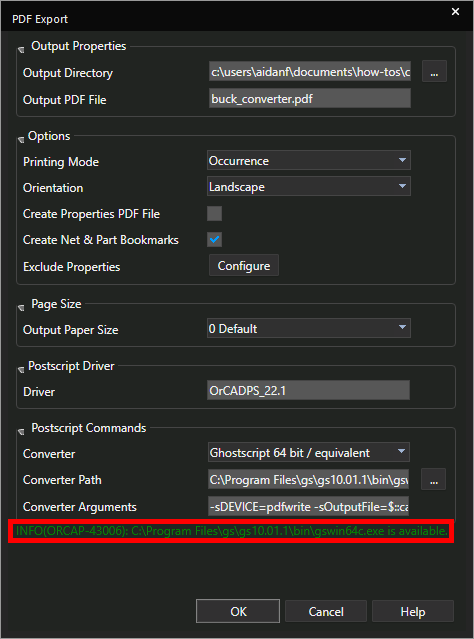
After running the command, check the new PDF. If the text is still broken, the issue might be missing fonts.
Step 3: Embed Missing Fonts
Many encoding issues stem from unembedded or subsetted fonts. You can use a PDF editing tool like Adobe Acrobat Pro to embed fonts, but there’s a free method using Ghostscript:
gs -dNOPAUSE -dBATCH -sDEVICE=pdfwrite -dEmbedAllFonts=true -sOutputFile=fixed.pdf garbled.pdf
If you don’t have the original fonts, Ghostscript will substitute common ones. For more complex font issues, try a PDF integrity checker that can identify missing fonts.
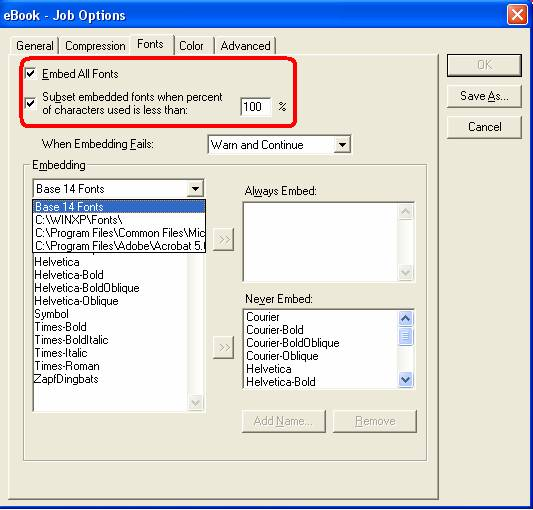
After embedding, test the PDF. Still garbled? Proceed to Step 4.
Step 4: OCR as a Last Resort
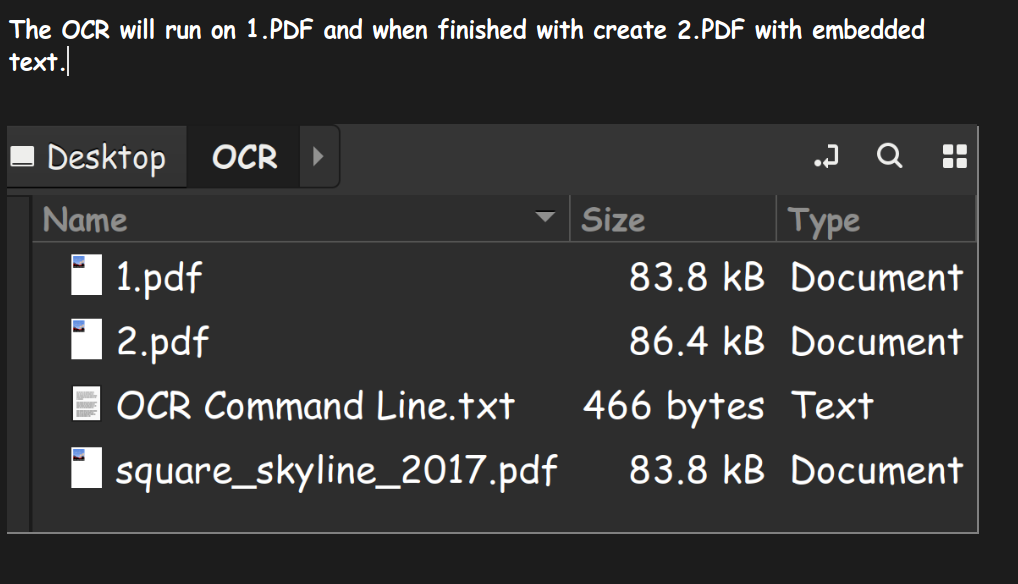
When all else fails, the text may be irretrievable. Use OCR (Optical Character Recognition) to extract text from the visible characters. Free tools like Tesseract OCR can process PDF images. First, convert your PDF to high-resolution images:
gs -dNOPAUSE -dBATCH -sDEVICE=png16m -r300 -o page%d.png garbled.pdf
Then run Tesseract on each image:
tesseract page1.png output -l eng
Combine the text files into a new PDF using LibreOffice or an online converter. This recovers the text content but may lose formatting. It’s a reliable way to recover a damaged PDF when encoding is completely broken.
Common Pitfalls
- Not making a backup – some repairs can make the PDF worse. Always keep the original.
- Using wrong command-line flags – double-check syntax. A missing dash can break the command.
- Assuming OCR fixes everything – OCR works only if the characters are visually distinct. Scrambled images won’t help.
If you’re stuck, remember you can also use a PDF repair website or try a different tool. For specific file types, like contracts, consider a targeted PDF repair for contracts approach.
Where to Next
Now that your PDF text is fixed, you might want to check its overall health with a PDF integrity checker. Or if you often deal with encoding issues, learn how to repair malformed PDFs directly. For future prevention, always ensure fonts are embedded when creating PDFs. Happy reading!




