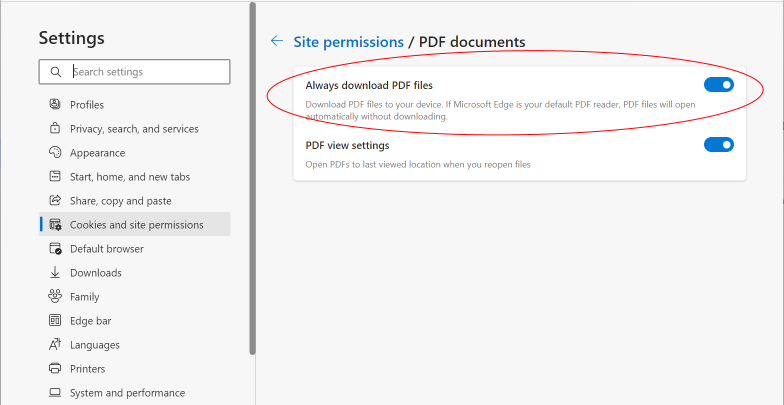
Are you frustrated when you click a PDF link in Microsoft Edge and nothing happens, or you get a blank page or an error message? You’re not alone. This guide is for anyone who’s ever had a PDF refuse to open in Edge—whether it’s a work document, a school assignment, or a personal file. By the end, you’ll have a PDF that opens smoothly, and you’ll know how to prevent this from happening again.
We’ll walk through simple checks like testing other browsers, then move into clearing Edge’s cache, resetting settings, and dealing with extensions. If the PDF itself is damaged, we’ll show you how to use online tools to fix it. No tech expertise needed—just follow each step in order. Let’s get that PDF open.
What You’ll Need
- A PDF file that won’t open in Edge (keep the file handy)
- Access to Microsoft Edge settings (you’re already using Edge if you’re here)
- An internet connection for online repair tools
- Optionally, another PDF viewer like Adobe Acrobat Reader or a different browser for testing
Step 1: Test the PDF in Another Browser or App
Before diving into Edge settings, rule out the PDF itself. Try opening the file in Google Chrome, Firefox, or Adobe Acrobat Reader. If it opens fine elsewhere, the problem is likely Edge-specific. If it fails everywhere, your PDF may be corrupted—use a pdf integrity checker to confirm or skip to Step 5 for repair options.
Step 2: Clear Edge Cache and Cookies
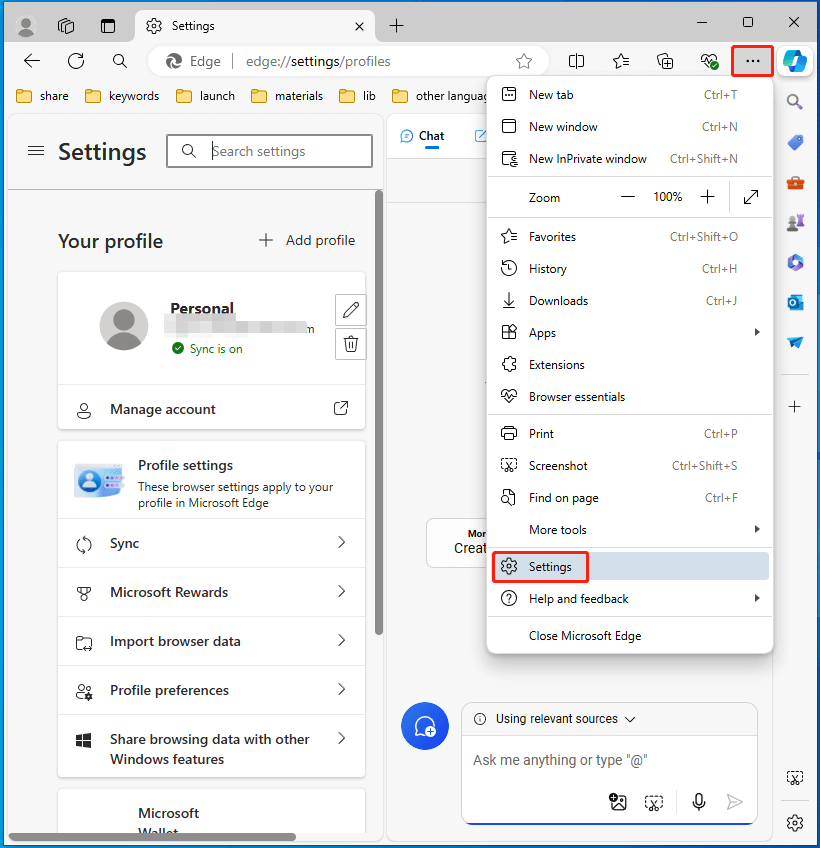
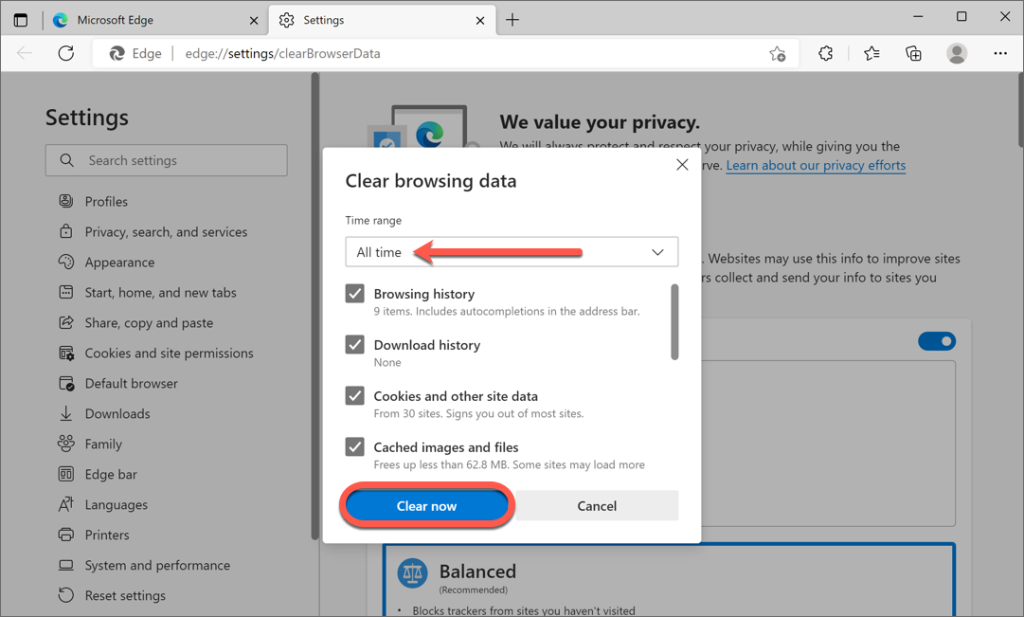
Over time, cached data can interfere with Edge’s PDF viewer. Go to Edge’s settings (three dots top right > Settings > Privacy, search, and services > Clear browsing data). Choose ‘All time’ for time range, check ‘Cached images and files’ and ‘Cookies and other site data’, then click ‘Clear now’. Restart Edge and try opening the PDF again.
Step 3: Reset Edge Settings
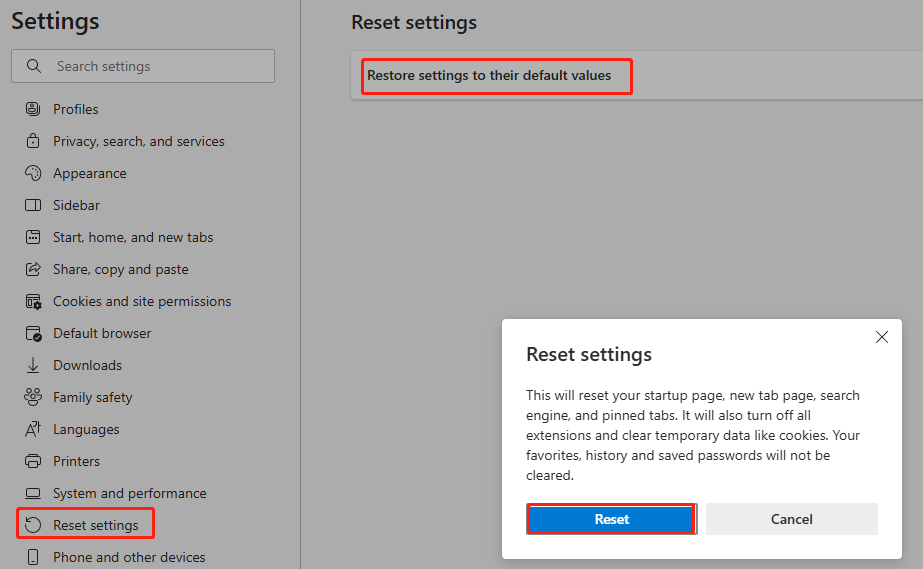
If clearing cache didn’t help, resetting Edge to defaults can undo any misconfigurations. Go to Settings > Reset settings > Restore settings to their default values > Reset. Warning: This will reset your startup page, new tab page, search engine, and pinned tabs, but it won’t delete your bookmarks or passwords. After the reset, reopen Edge and test the PDF.
Step 4: Disable PDF Extensions
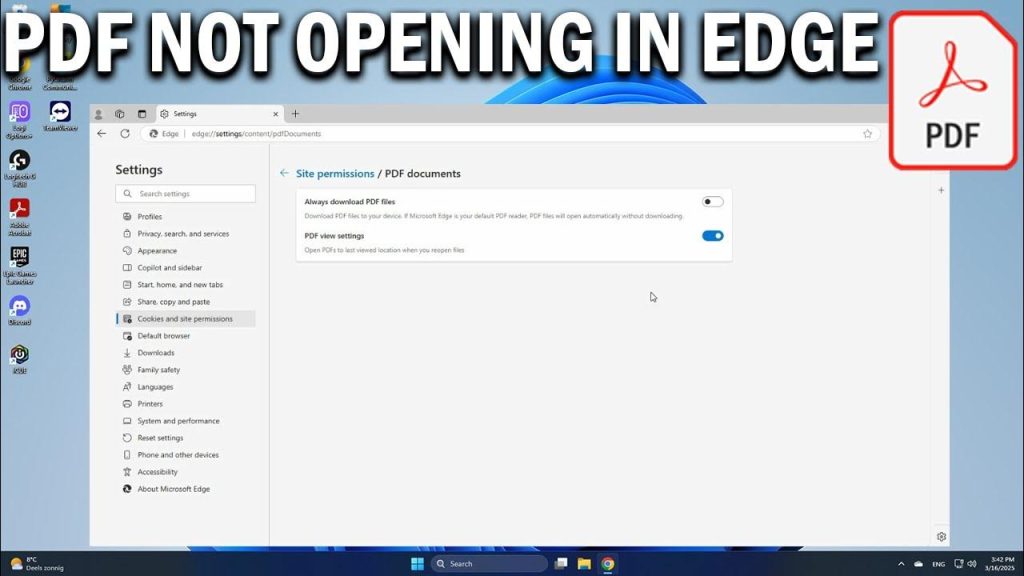
Third-party PDF extensions (like Adobe Acrobat extension or PDF viewers) can conflict with Edge’s built-in PDF reader. Go to Edge’s extensions page (type edge://extensions in the address bar). Look for any extension related to PDF and toggle it off. Restart Edge and try again. If the PDF opens, you’ve found the culprit—either leave the extension disabled or remove it.
Step 5: Use an Online PDF Repair Tool
If the PDF is corrupted (and you confirmed it won’t open in other apps), online tools can often fix it. A quick search for a reliable pdf repair website like PDFRepairs.click will let you upload the file. Many services offer a drag and drop pdf repair interface—just drag your file into the box and process it. For a free fix, choose the option to repair pdf for free online. After repair, download the fixed PDF and open it in Edge. This step solves most corruption-related issues.
Step 6: Update Microsoft Edge
An outdated browser can have bugs that break PDF viewing. Go to Settings > About Microsoft Edge. Edge will automatically check for updates and install them. After updating, restart the browser and try your PDF. If it still doesn’t open, consider using a different PDF viewer temporarily, like Adobe Acrobat Reader, while troubleshooting.
Common Pitfalls
- Not checking if the PDF is truly corrupted first: Skipping Step 1 can waste time tweaking Edge settings when the file itself is broken. Always rule out corruption by testing in another app.
- Accidentally disabling essential extensions: Some PDF extensions are actually needed for certain workflows. If disabling breaks a work process, try updating the extension instead.
- Overlooking system or PDF reader updates: Sometimes the issue isn’t Edge—it’s outdated Windows or a missing update for your PDF viewer. Run Windows Update and update any PDF software you use.
Where to Next?
Now that your PDF opens in Edge, keep your files healthy by learning how to check for corruption early with a pdf integrity checker. If you frequently encounter broken PDFs, explore our guide on how to recover a damaged PDF online for free. And if you’re dealing with specific types like invoices or contracts, we have targeted repair guides for those too.




