Ever downloaded a PDF that wouldn’t open, or got a file that looked fine but had missing pages? That’s a corrupted PDF, and it can be a nightmare—especially if it’s an important document. This guide is for anyone who needs to verify that a PDF is intact before relying on it. By the end, you’ll know several ways to check PDF integrity, from quick online checks to command-line verification, so you can catch problems before they cause trouble.
We’ll keep things practical and casual. You don’t need to be a tech wizard—just follow the steps. I’ll show you free methods that work on Windows, macOS, and Linux. Ready? Let’s make sure your PDFs are healthy.
What You’ll Need
- The PDF file you want to check (obviously).
- An internet connection for the online method.
- Optional: Access to a terminal/command prompt for the advanced method.
- Optional: A free tool like qpdf or PDFtk (we’ll cover installation).
Step 1: Quick Visual Check with a PDF Reader
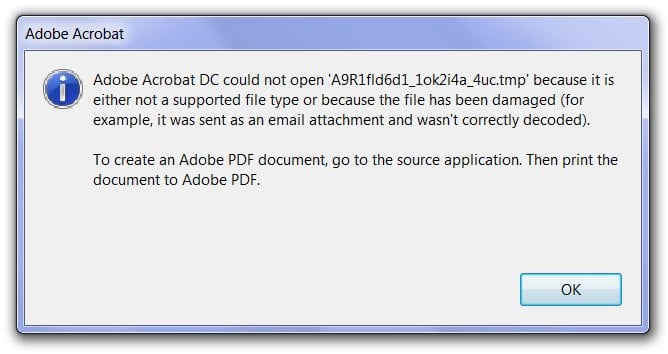
The simplest way to spot obvious corruption is to open the file in a standard PDF reader. If the reader throws an error like “Couldn’t open PDF” or “File is damaged”, that’s a red flag. Even if it opens, flip through all the pages, zoom in on graphics, and try selecting text. Missing images or glitchy rendering indicate corruption.
If the file opens fine but you suspect hidden issues, move to the next step.
Step 2: Use an Online PDF Integrity Checker
Several free websites can check your PDF for structural problems without installing anything. Sites like PDFaid, iLovePDF, or Smallpdf offer integrity checks. Here’s how:
- Go to your chosen online tool (I’ll use PDFaid as an example).
- Upload your PDF file (most sites accept files up to 50 MB).
- Click the ‘Check Integrity’ or ‘Validate’ button.
- Wait a few seconds for the analysis.
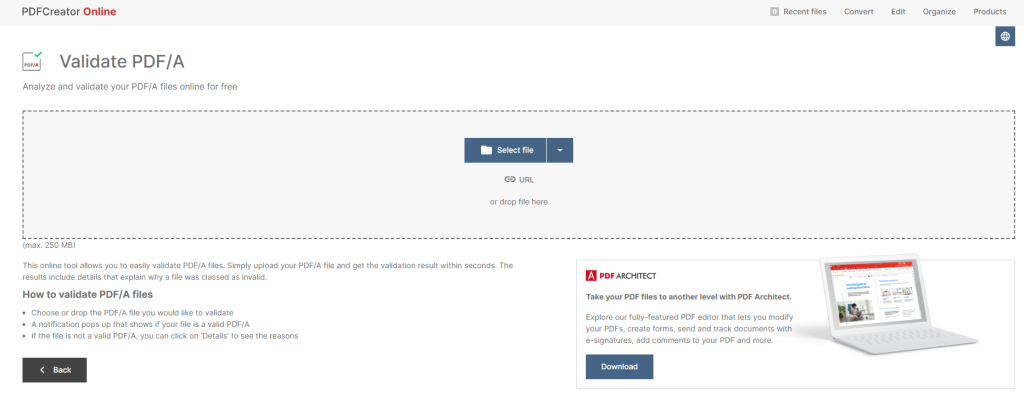
The tool will report whether the PDF is valid or list specific errors like “/Root object missing” or “Cross-reference table trashed”. If it fails, you’ll need to attempt a corrupted pdf repair using a dedicated tool.
Step 3: Command-Line Verification with qpdf
For a deeper check, use qpdf—a free, open-source command-line tool. It can detect subtle corruption that online tools miss. Install it first:
- Windows: Download from sourceforge and add to PATH.
- macOS: `brew install qpdf` (requires Homebrew).
- Linux: `sudo apt install qpdf` on Debian/Ubuntu.
Then run this command in the terminal (replace ‘yourfile.pdf’ with the actual path):
qpdf –check yourfile.pdf
qpdf documentation
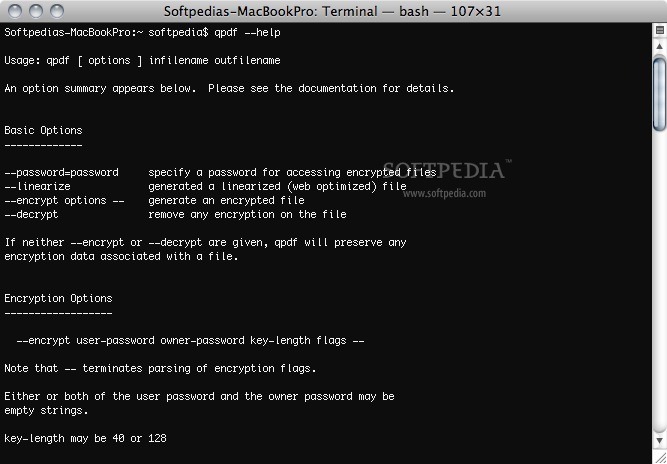
qpdf will output warnings or errors. A clean file returns no errors. If you see issues, qpdf can also attempt to fix them. But for now, we’re just checking. If the file is beyond repair, you might need to recover incomplete pdf or try a pdf file repair solution.
Step 4: Inspect the PDF Structure Manually (Optional)
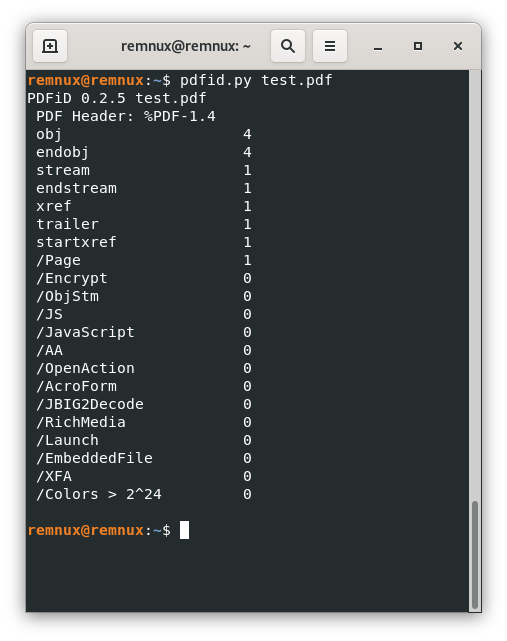
If you’re tech-savvy, you can open the PDF in a text editor (like Notepad++) and look for telltale signs of corruption. PDFs start with ‘%PDF-1.x’ and contain objects. Missing ‘%EOF’ at the end is a common issue. But this is mostly for troubleshooting; skip if you’re not comfortable.
Common Pitfalls
- False positives from online tools: Some online checkers may flag a file as corrupt when it’s actually fine, especially for complex PDFs. Always cross-check with another method.
- Relying on visual check alone: A file can open normally but have hidden errors that will cause issues later (e.g., missing cross-references). Always run an integrity checker.
- Command-line intimidation: Many users avoid terminal-based tools. But qpdf is simple—just one command. If you can’t install it, use an online checker instead.
Where to Next
Now you know how to check a PDF’s integrity. If you find corruption, don’t panic. You can try fix pdf without software using built-in browser viewers, or use dedicated repair tools. For severe cases, check out our guide on corrupted pdf repair. And if the file was damaged during download, see recover incomplete pdf. Remember, prevention is key—always verify your PDFs before sharing or archiving.




