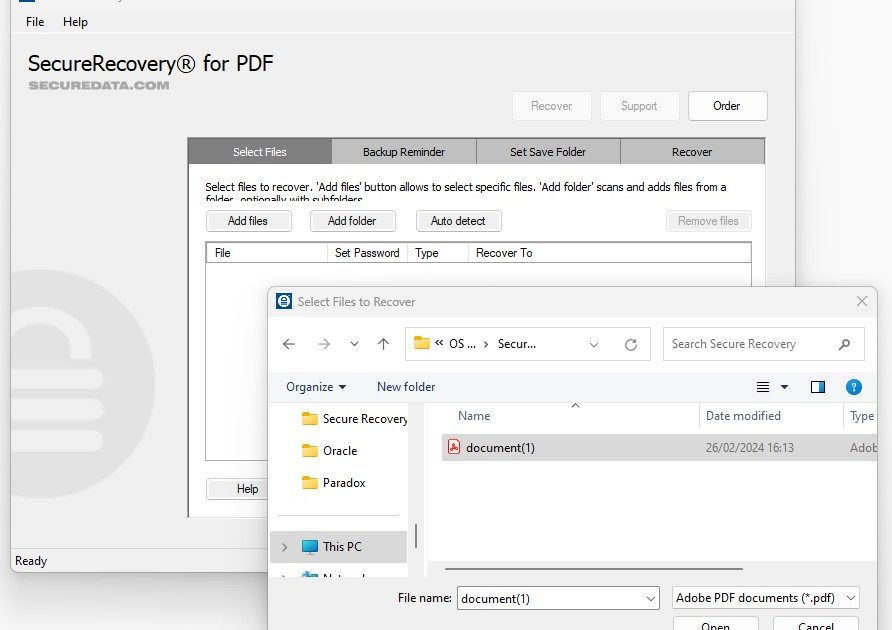
Ever opened a PDF only to be greeted by an error message, blank pages, or garbled text? You’re not alone. PDF corruption happens more often than you’d think—whether from an interrupted download, a crashed system, or just a bad file transfer. This guide is for anyone who needs to get their document back without pulling their hair out. By the end, you’ll have a working PDF (or at least know exactly what to try next).
We’ll cover several methods: free online tools that let you repair pdf without signup, desktop apps like Adobe Acrobat, and even command-line magic with Ghostscript. No matter your technical level, there’s a solution here that will work for you.
What You’ll Need
- A computer with an internet connection
- The corrupted PDF file (keep a backup!)
- Optional: Adobe Acrobat Pro (paid, but powerful)
- Optional: Ghostscript installed (free, open-source)
- A web browser for online tools
Step 1: Assess the Corruption
First, try opening the PDF in a few different viewers (Adobe Reader, Chrome, Edge). Note the error message—does it say “file is damaged” or “missing pages”? Different problems need different fixes. For example, a cross-reference table error might need a tool that rebuilds the xref table, while blank pages could be a rendering issue. Check our guide on corrupted pdf repair for specifics.
Step 2: Try an Online Repair Tool (Fast & Free)
Many online tools can fix common issues without any installation. Sites like Smallpdf, iLovePDF, or PDF2Go let you upload your file, hit repair, and download the fixed version. Best of all, most of them allow you to repair pdf without signup—just upload and go. Upload your corrupted PDF, wait a few seconds, and check the result. If the file was damaged during a network transfer, this often does the trick. For more serious cases, see our article on how to fix pdf after network transfer.
Step 3: Use Adobe Acrobat Pro’s Built-In Repair
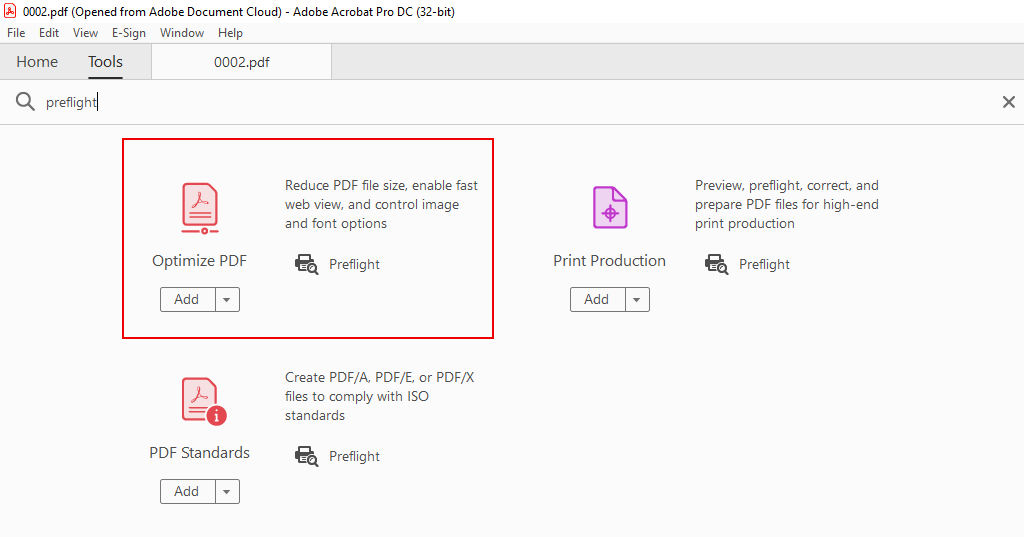
If you have Adobe Acrobat Pro, open the file and go to File > Open, select the corrupted PDF, then click the arrow next to Open and choose “Repair PDF”. Alternatively, run a Preflight check (Tools > Print Production > Preflight) and use the “Repair PDF” fixup. This can fix many structural errors. For files that won’t open at all, try extracting pages or content first.
Step 4: Repair with Ghostscript (Command Line)
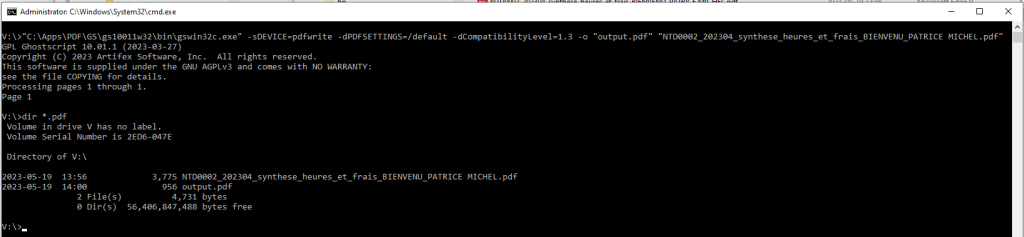
Ghostscript is a free, powerful tool for PDF processing. If you’re comfortable with the command line, open a terminal (or Command Prompt) and run: gs -o fixed.pdf -sDEVICE=pdfwrite -dPDFSETTINGS=/prepress corrupted.pdf. This re-writes the PDF, often fixing xref table errors and other corruption. For a full walkthrough, check our guide on how to repair pdf with ghostscript.
Step 5: Extract Content as a Last Resort
If repair fails, consider extracting what you can. Use online tools to extract images or text from the damaged PDF. Follow our guide on how to extract images from damaged pdf to salvage visual content. For text, try opening the PDF in Word (it may convert the text) or use a Python script with PyPDF2. Even a partial recovery is better than nothing.
Common Pitfalls
- Not keeping a backup: always save the original corrupted file before attempting repair.
- Re-uploading the same corrupt output: if the tool fails, don’t use its output as input for another tool—start fresh.
- Ignoring the error message: different errors need different approaches. For example, if the PDF is incomplete because of a partial download, see our guide on how to recover incomplete pdf.
Where to Next
Repairing a PDF can feel like detective work, but with the right tools you can save most files. If you don’t have Adobe Acrobat, check out our methods to fix pdf without acrobat. And if your PDF is still misbehaving, browse our other guides for specific problems like blank pages, missing pages, or signed document issues.




