
Ever opened a PDF only to see garbled text, missing images, or a ‘file is damaged’ error? You don’t need Adobe Acrobat to fix it. This guide is for anyone who needs a quick, free fix—whether you’re on Windows, Mac, or just want a browser-based solution. By the end, you’ll have a working PDF and know exactly which tools to use next time.
We’ll cover four methods: an online PDF fixer for instant repairs, Ghostscript for heavy-duty recovery, macOS Preview for simple Mac issues, and Google Docs as a last resort. All are free and don’t require expensive software.
What You’ll Need
- Your corrupt PDF file (keep a backup!)
- Internet connection (for online tools)
- Optional: Ghostscript (free, for Windows/Mac/Linux)
- Optional: Google account (for Google Docs method)
Step 1: Try an Online PDF Fixer
The fastest fix is an online pdf fixer. These tools run in your browser—no install needed. I recommend a safe pdf repair online service that doesn’t watermark your files. Upload your PDF, wait a few seconds, and download the fixed version. This works for most minor corruption like broken links or missing fonts.
If the file is severely damaged, don’t worry—move to Step 2.
Step 2: Use Ghostscript to Rebuild the PDF

Ghostscript is a free command-line powerhouse. To repair pdf with ghostscript, download and install it from the official site. Then open your terminal (Command Prompt on Windows, Terminal on Mac) and run this command:
gswin64c -o output.pdf -sDEVICE=pdfwrite -dPDFSETTINGS=/default input.pdf
Windows users replace gswin64c with gs on Mac/Linux
This re-creates the PDF from scratch, often fixing cross-reference tables, streams, and object errors. It’s especially good for files that fail to open at all.
Step 3: Repair on Mac with Preview
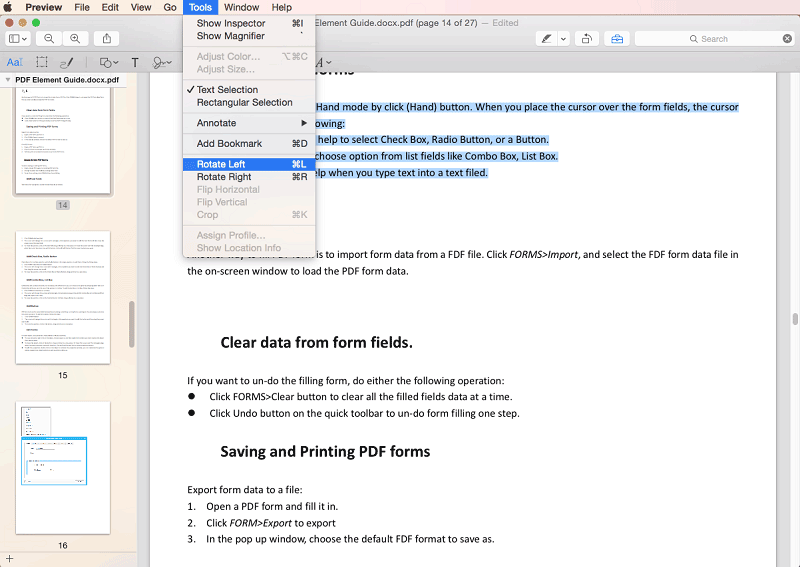
Mac users can repair pdf on mac using the built-in Preview app. Open the corrupt PDF in Preview—it may show a warning, but often it loads partially. Go to File > Export, choose PDF format, and save a new copy. This re-encodes the file and can fix rendering issues.
If Preview can’t open the file at all, try importing it into Preview via File > Import from Scanner (then choose the PDF file) — this sometimes bypasses corruption.
Step 4: Convert via Google Docs (Last Resort)

Google Docs can open PDFs and convert them to editable documents. Upload your PDF to Google Drive, right-click, and select ‘Open with Google Docs’. It will convert the text and images (layout may shift). Then go to File > Download > PDF Document to get a fresh PDF. This isn’t perfect for complex layouts but works for text-heavy documents.
Common Pitfalls
- Skipping the backup. Never work on the only copy. A repair tool might make things worse.
- Using suspicious online tools. Some upload your private files to insecure servers. Stick to well-known services or use the offline methods above.
- Expecting a miracle on severely damaged files. If the PDF is completely blank or only 1 KB, no tool can restore what wasn’t saved. Try to find an original source.
Where to Next
Now you’ve got a working PDF without spending a dime. If you need more advanced fixes, check out our guide to repair pdf free no watermark for a permanent offline solution. Or learn how to recover fillable PDFs if your forms lost their fields. Happy fixing!




