We’ve all been there: you open an email attachment that looks important, but the PDF refuses to open — or opens as gibberish. Before you panic, know that most corrupted email attachments can be repaired. This guide is for anyone who needs to rescue a PDF that arrived broken in their inbox, whether you’re a student missing lecture notes or a professional with a critical contract. By the end, you’ll have a working, readable PDF.
Email corruption can happen for many reasons: interrupted downloads, server encoding issues, or antivirus software mangling the file. The good news is you don’t need to be a tech wizard to fix it. We’ll walk through several methods — from quick online repairs to robust desktop solutions — that cover the most common problems. Grab the file and let’s get started.
What You’ll Need
- The corrupted PDF file saved to your computer
- A stable internet connection for online tools
- A web browser (Chrome, Firefox, or Edge)
- Optional: Adobe Acrobat Reader or Pro installed
- Optional: Command-line tools like Ghostscript (for advanced users)
Before diving in, make sure you’ve actually saved the attachment, not just opened it in your browser email client. That simple step can avoid many headaches.
Step 1: Save the Attachment and Try a Different Viewer
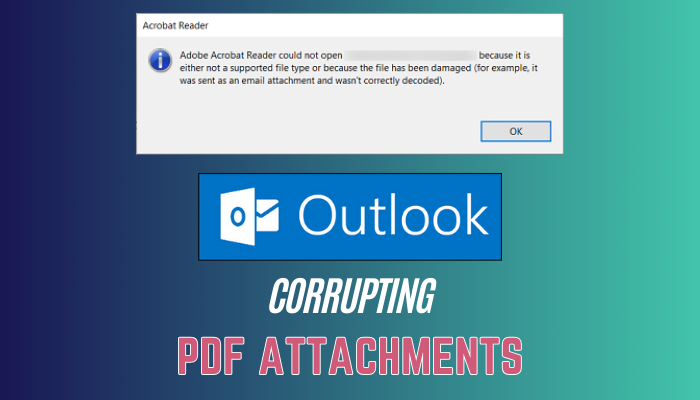
First, download the attachment to your local drive. Right-click the attachment link and choose “Save As” (or similar). Once saved, try opening it in a different PDF reader. Sometimes the problem is the viewer, not the file. For example, if your default is a browser, try a dedicated app like Adobe Acrobat or Foxit Reader. If it opens fine, you’re done.
If the file still appears broken, check its file size. A corrupted attachment might be 0 KB or unusually small. In that case, ask the sender to re-send the file first.
Step 2: Use an Online PDF Repair Tool
For a quick fix, use a reputable online repair service. Sites like PDFRepairs.click offer a free tool that can handle many common corruption issues. Simply upload your file, wait a few seconds, and download the repaired version. This method works best for minor header errors or encoding problems.
I recommend using a safe option like the safe pdf repair online tool if you’re worried about privacy. For a hassle-free experience, try an easy pdf repair online service that doesn’t require sign-ups. And if you want to avoid watermarks, look for a repair pdf free no watermark option.
Step 3: Repair with Ghostscript (Advanced)
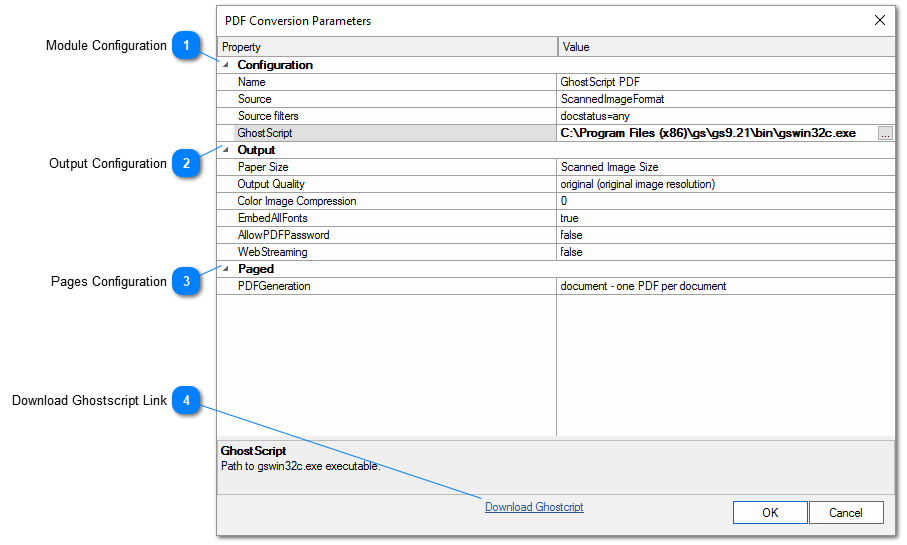
If online tools don’t cut it, Ghostscript is a powerful command-line utility that can rebuild corrupted PDFs. Download and install Ghostscript, then open a terminal or command prompt. Run this basic command: gswin64 -dSAFER -dBATCH -dNOPAUSE -sDEVICE=pdfwrite -dCompatibilityLevel=1.4 -sOUTPUT=output.pdf input.pdf. Replace “input.pdf” with your file’s path. This often fixes deep structural issues.
For a more detailed walkthrough, check our pdf repair guide on using Ghostscript. The process is the same for email attachments.
Step 4: Use Adobe Acrobat’s Built-In Repair

If you have Adobe Acrobat (not Reader), you can try its repair feature. Open the file, then go to File > Save As Other > Optimized PDF. In the dialog, click “Audit space usage” — this may reveal issues. Then choose a high-quality preset and save. Alternatively, use File > Properties > Fonts to check for missing fonts. Adobe Acrobat Pro also has “Reduced Size PDF” that can sometimes recompress a damaged file.
Step 5: Ask the Sender to Re-Send
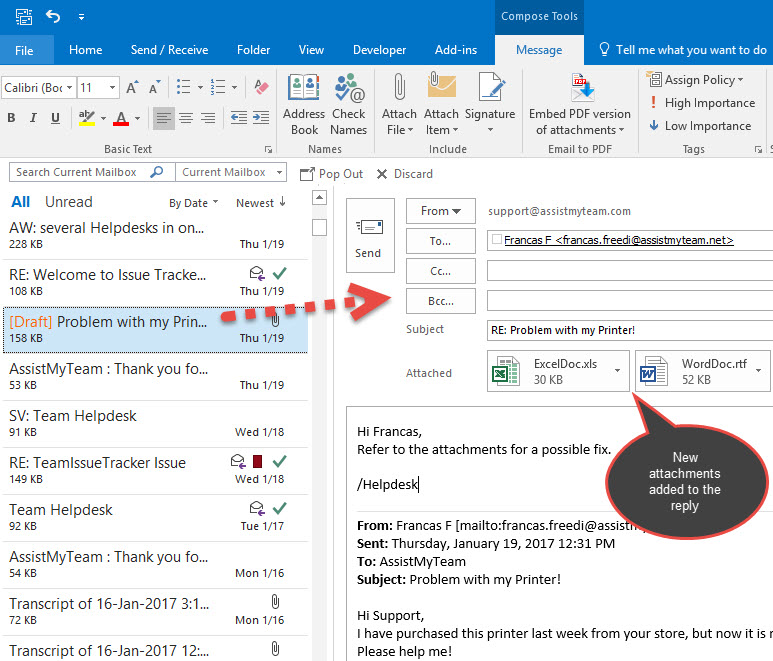
Sometimes the easiest fix is to ask the sender to re-attach the file. Corruption can happen during transmission, especially with large attachments or unstable connections. A simple resend using a different method (e.g., zipping the file or using a cloud link) often solves the problem. If the sender uses Outlook, suggest they use “Save & Send” rather than drag-and-drop.
Common Pitfalls
- **Not saving the attachment first**: Opening the file directly from the email can cause temporary corruption. Always save to disk.
- **Using an untrusted online repair tool**: Avoid uploading sensitive documents to sketchy sites. Stick to well-known services like the recommended online pdf fixer.
- **Ignoring file size limits**: Many online tools cap files at 50 MB. For larger files, use desktop software like Ghostscript or Adobe Acrobat.
Where to Next
Now that your PDF is repaired, you might want to explore more ways to keep your documents safe. Check out our guides on recover legal pdf files, or learn how to repair pdf with ghostscript for more complex issues. And if you ever need a quick fix again, you know where to find an easy pdf repair online solution.




