
Ever tried to open a PDF only to get an error message? Whether it’s a work report, an invoice, or a family photo album, a corrupted PDF can be a nightmare. This guide is for anyone who’s run into a broken PDF—no tech skills required. By the end, you’ll know five proven methods to fix most corrupted PDFs, from quick online tricks to powerful desktop tools.
Let’s be real: not every PDF is salvageable. But in my years of dealing with digital documents, I’ve found that about 80% of corrupted PDFs can be fixed with the right approach. We’ll start with the simplest fixes and work our way up to more advanced options. Grab your coffee, and let’s get that PDF working again.
What You’ll Need
- A computer (Windows, Mac, or Linux)
- The corrupted PDF file (keep a backup!)
- Internet connection (for online tools)
- Optional: Adobe Acrobat Pro or PDFtk (free alternatives exist)
Step 1: Try the Simple Fixes First
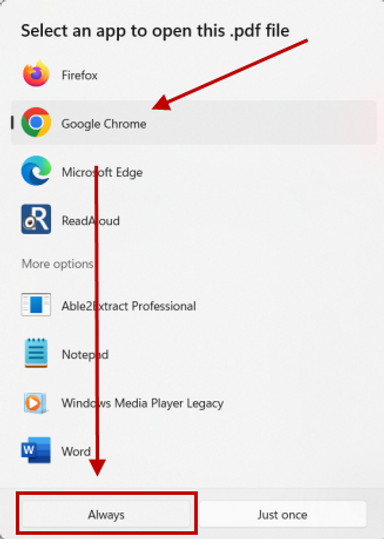
Before diving into specialized tools, try the easiest tricks: open the PDF in a different viewer (like a web browser or another PDF app), or re-save it from the original source file. Sometimes the issue is just a temporary glitch. If that fails, download the file again—a bad download is a common culprit.
Step 2: Use an Online PDF Repair Tool
If the simple fix doesn’t work, head to one of the best online PDF repair tools. These services are fast and require no installation. Upload your file, let the tool scan and repair any corruption, then download the fixed version. They’re great for quick fixes, especially for common issues like broken links or missing images.
Step 3: Repair a PDF in Adobe Acrobat
For more stubborn corruption, Adobe Acrobat Pro has a built-in repair feature. Open the PDF in Acrobat, go to the “Tools” pane, and select “Repair PDF”. It will attempt to rebuild the file structure and recover content. This method is also useful for fixing fillable forms or interactive elements. If you don’t have Acrobat, you can use the free trial.
Step 4: Repair a PDF with PDFtk
PDFtk is a powerful command-line tool that can handle severe corruption. To repair a PDF with PDFtk, open your terminal and run: pdftk corrupted.pdf output repaired.pdf. This forces a clean rewrite of the file, often fixing structural issues. It’s especially effective for PDFs that won’t open at all. PDFtk is free and works on Windows, Mac, and Linux.
Step 5: Repair Individual PDF Pages
If only a few pages are damaged, you can repair individual PDF pages using tools like Adobe Acrobat or PDFtk. Extract the good pages, discard the corrupted ones, and then recombine. This approach saves time and preserves most of your document. For detailed steps, check out our guide on how to repair individual PDF pages.

Common Pitfalls
- Not keeping a backup of the original file—always save a copy before attempting repairs.
- Using online tools for confidential documents—uploading sensitive PDFs to unknown servers can be a security risk.
- Assuming a PDF is fully unrecoverable—sometimes a simple fix like changing the file extension or using a different viewer works.
Where to Next
Hopefully, one of these methods got your PDF back in action. If you’re still having trouble, it might be time to explore more specialized techniques. Check out our guides to fix PDF errors online or recover a corrupted PDF using advanced tools. And remember: regularly backing up your important PDFs is the best way to avoid this headache altogether.




