You know that sinking feeling when you double-click a PDF and nothing happens—or worse, you get an unhelpful error message? If you’re using Adobe Acrobat (the paid Pro version, not just Reader), you already have some seriously powerful repair tools at your fingertips. This guide is for anyone who’s got a balky PDF and a copy of Acrobat Pro. By the end, you’ll know exactly how to diagnose corruption, fix it using built-in features, and get your file back in working order.
We’re going to cover five concrete methods, from the quick ‘Save As’ trick to the heavy-duty Preflight tool. Whether your PDF shows garbled text, images that won’t load, or simply refuses to open, these steps will save you from having to start from scratch. And if you’re dealing with a file that’s just partially broken, we’ll show you how to salvage what you can.
What You’ll Need
- Adobe Acrobat Pro (DC or 2020+) – not Acrobat Reader. You can download a free trial if you don’t have it.
- The corrupted PDF file you want to repair.
- A few minutes of patience. Some repairs are instant, others may take a bit.
Step 1: Try the Quick ‘Save As’ Fix
Before diving into advanced tools, try the simplest trick: open the PDF (it might open partially) and then go to File > Save As > Adobe PDF. Save it under a new name. This forces Acrobat to re‑interpret the PDF structure, often smoothing out minor corruption. If the file doesn’t open at all, move on to Step 2.

Step 2: Use the Built-in ‘Repair’ Tool (Document Processing)
Acrobat Pro has a dedicated repair function hidden in the Document Processing tools. Go to Tools > Document Processing > Repair PDF. If you don’t see that option, click on the ‘Tools’ tab, expand the ‘Protect & Standardize’ section, and look for ‘Repair PDF’. Select your file and let Acrobat scan for issues. It will fix structural problems like cross-reference table errors.

Step 3: Optimize and Re-Save
Sometimes corruption is caused by inefficient or bloated file structure. Use File > Save As Other > Optimized PDF. In the dialog, you can tweak settings like discarding unused objects or compressing images. The key is to let Acrobat completely rebuild the file. Check ‘Make compatible with’ a newer version (e.g., Acrobat 6.0 and later) to strip old baggage. This often fixes PDFs that show blank pages or odd formatting.

Step 4: Run Preflight to Find and Fix Errors
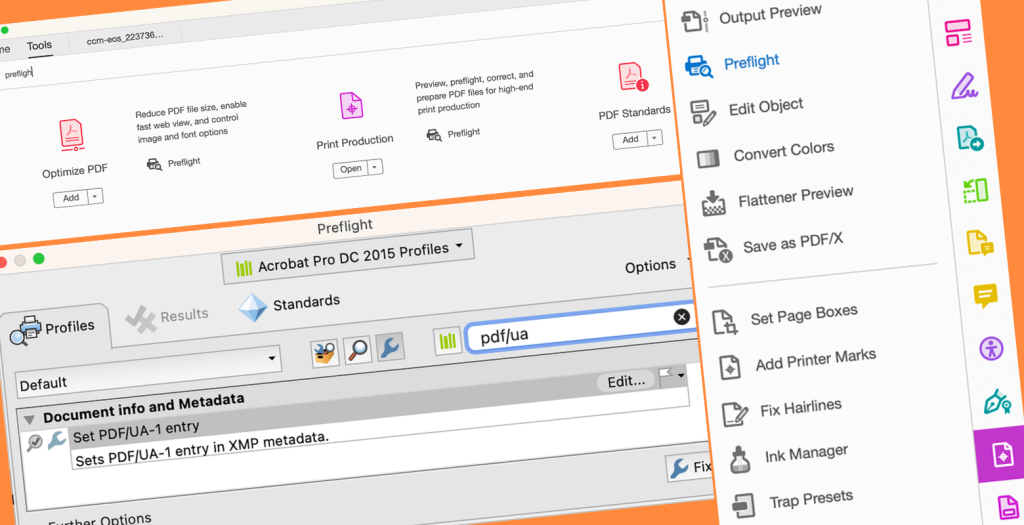
Preflight is Acrobat’s most powerful repair feature. Go to Tools > Print Production > Preflight. Click ‘Fix’ instead of ‘Analyze’. Choose a profile like ‘Fix common PDF problems’ or create a custom fixup. Preflight can repair missing fonts, damaged images, and syntax errors. Run the fix and save the output as a new file. This step works wonders for files that display ‘Error: PDF is damaged’.
Step 5: Recover Pages from a Corrupted PDF
If the PDF is only partially broken, you might be able to extract the good pages. Open the file (even if it shows errors), go to Tools > Organize Pages, and drag the usable page thumbnails into a new document. Alternatively, use the ‘Extract’ function. This is a lifesaver when you have a 50‑page document but only pages 1‑10 are readable. For a deeper dive, check out our guide on how to repair pdf for adobe acrobat.

Common Pitfalls
- Saving over the original file. Always work on a copy. If the repair makes things worse, you still have the original to try other methods.
- Skipping the ‘Save As’ first step. Many problems are solved just by re‑saving, so don’t jump straight to advanced tools.
- Assuming all corruption is fixable. Sometimes the damage is too severe for automated tools. In that case, try a dedicated service like the best online pdf repair tools for a second opinion.
Where to Next
Now that you’ve got your PDF back, consider preventing future issues. Regularly backup your important files and avoid editing PDFs in unstable environments. If you frequently deal with corrupted PDFs, learn how to recover corrupted pdf or use bulk pdf repair tools for efficiency. And if you’re ever stuck with a file that’s only partly damaged, our guide on repair partially corrupted pdf has you covered. Happy fixing!




