Ever opened a PDF only to find half the text missing, images broken, or the layout a jumbled mess? You’ve got a partially corrupted PDF. Don’t worry—it’s usually fixable. This guide is for anyone whose PDF opens but isn’t fully readable. By the end, you’ll have a salvaged, clean PDF you can actually use.
Partial corruption can happen from interrupted downloads, file transfer errors, or software glitches. The good news is that the underlying data is often still there—just jumbled. We’ll walk through free tools and manual tricks to recover your content, step by step.
What You’ll Need
- Your partially corrupted PDF file
- A backup copy of the corrupted file (just in case)
- A computer with internet access
- Optional: Adobe Acrobat Reader, a web browser (Chrome, Edge), free PDF repair software (qpdf, pdftk), or an online repair service
Step 1: Make a Backup
Before doing anything else, copy your corrupted PDF to a safe location. This way, if something goes wrong, you can always go back to the original and try another method. Rename the backup something like “original_backup.pdf” so you don’t confuse it.
Step 2: Open in a Different PDF Reader
Sometimes the issue isn’t the PDF—it’s your viewer. Try opening your file in a different reader like Google Chrome, Microsoft Edge, Foxit Reader, or even Adobe Acrobat if you haven’t already. Each reader handles file inconsistencies differently. If the PDF looks fine in another reader, you’re done—just use that reader.

Step 3: Use a PDF Repair Tool
If switching readers doesn’t help, it’s time for a repair tool. You have two solid free options: a command-line tool like qpdf or an online service like Sejda or ILovePDF. For qpdf (available on Windows, Mac, Linux), open a terminal and run: qpdf --repair corrupted.pdf fixed.pdf. This rebuilds the PDF’s internal structure. If you prefer online, upload your file to Sejda’s Repair PDF tool—no registration needed.
Step 4: Extract Content with pdftotext or pdfimages
If the repair fails, you can still salvage text and images individually. Use pdftotext (part of Poppler) to extract all text: pdftotext corrupted.pdf output.txt. For images, use pdfimages: pdfimages -j corrupted.pdf image (extracts JPEGs). Then reconstruct the document by pasting text into a new PDF or inserting images manually. This works even for severely corrupted files.
Step 5: Use the “Print to PDF” Trick
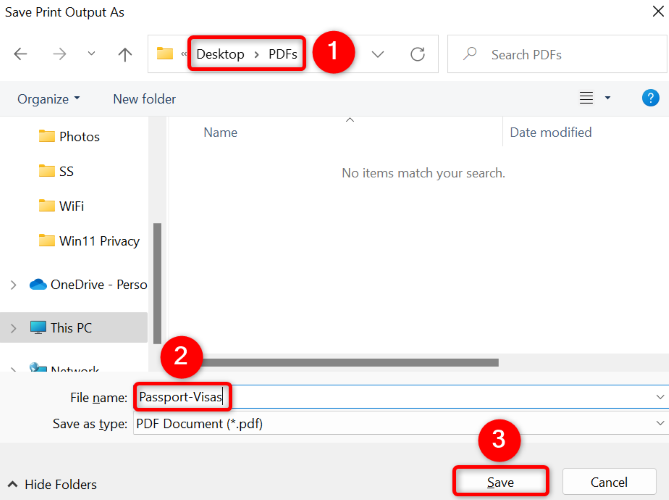
Another quick fix: open the PDF in Chrome or Edge, go to Print (Ctrl+P), and choose “Save as PDF” as the destination. This re-renders the entire file, discarding broken internal references. You’ll often end up with a perfectly readable new PDF. This trick is especially effective for fixing linearized PDF issues.
Step 6: Try an Online Repair Service (Last Resort)
If nothing else works, consider a reputable online repair service like PDFaid or ILovePDF’s repair tool. Be cautious with sensitive documents—use them only for non-confidential files. Upload your corrupted PDF, let the service process it, and download the repaired version. This method can recover even the most stubborn partial corruptions, but it’s not recommended for bank statements or contracts unless you trust the service.
Common Pitfalls
- Not keeping the original corrupted file – once you overwrite it with a failed repair, you can’t go back. Always keep a backup.
- Using the same reader repeatedly – if Adobe Acrobat fails, try Chrome or Foxit. Different engines handle errors differently.
- Assuming online services are safe for sensitive PDFs – even trustworthy sites may store your files temporarily. For private documents, use offline tools like qpdf.
Where to Next?
If your PDF is still giving you trouble, check out our detailed guides on more specific issues: pdf read error 109 repair, repair bank statement PDF, and repair PDF created by scanner. For multiple files, see our bulk PDF repair article. And if you’re dealing with a speed issue, learn how to fix linearized PDF.




