
So you’ve got a linearized PDF that won’t open properly, or maybe it loads super slowly and throws errors. Linearized PDFs are optimized for fast web viewing — they let you read page one while the rest downloads in the background. But that optimization can get corrupted during download, transfer, or from a buggy creator tool. This guide is for anyone who has a linearized PDF that’s acting up: you might see “An error exists on this page” in Adobe Reader, or the PDF opens but shows blank pages. We’ll walk you through several ways to fix it.
By the end of this tutorial, you’ll have a repaired linearized PDF that opens smoothly in any viewer. You’ll learn how to use the command-line tool qpdf to strip and rebuild the linearization, how to use Adobe Acrobat’s built-in optimization, and a couple of free online tools as a last resort. No matter your technical comfort level, there’s a method here that’ll work for you.
What You’ll Need
- Your corrupted linearized PDF file (make a backup first!)
- Option A: qpdf command-line tool (free, works on Windows, macOS, Linux) – download from qpdf.sourceforge.net
- Option B: Adobe Acrobat Pro DC (paid, but trial available)
- Option C: An internet connection for free online tools (iLovePDF, PDF24, etc.)
- Basic comfort with using Terminal / Command Prompt (for qpdf method)
Step 1: Check If Your PDF Is Really Linearized
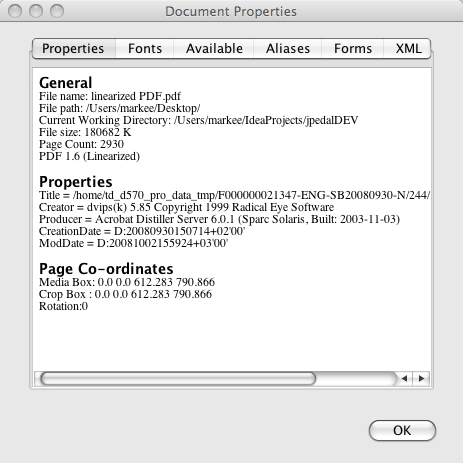
Before you start repairing, confirm that your PDF is actually linearized. Not all PDFs are, and the fix is different if it’s just a general corruption. The quickest way is to open the file in a text editor or use qpdf’s check command.
In Terminal / Command Prompt, run: qpdf --show-linearized yourfile.pdf. If it prints information about linearization parameters, the PDF is linearized. If it says “file is not linearized,” then this guide might not be what you need — check out the pdf repair workflow instead.
Step 2: Fix Linearized PDF Using qpdf (Recommended)
qpdf is a powerful PDF manipulation tool that can accurately rebuild a corrupted linearized PDF. The idea is to first create a non-linearized copy (which strips the linearization structure) and then re-linearize it from scratch. This effectively fixes any corruption in the original linearization.
Run these commands in your terminal (replace input.pdf with your file name):
- Step 2a: Create a non-linearized copy:
qpdf --linearize=no input.pdf temp.pdf - Step 2b: Now re-linearize that copy:
qpdf --linearize temp.pdf fixed.pdf - Step 2c: Test the result: open
fixed.pdfin your PDF viewer. If it works, you’re done! Deletetemp.pdf.
If you get any errors during the process, your PDF may have deeper issues — try adding --no-check flag to bypass certain validation, but be aware that might produce a still-broken file. For a thorough fix, you may also need to cross reference table repair pdf separately.

Step 3: Fix Using Adobe Acrobat Pro DC (Alternative)
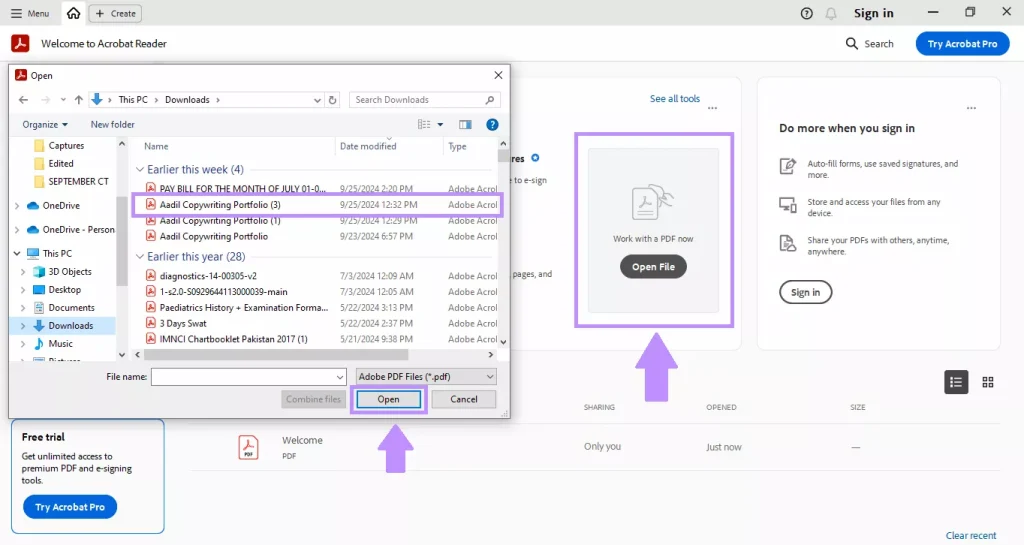
If you have Adobe Acrobat Pro (not just Reader), you can use its built-in optimizations to re-linearize the PDF. Open the file, then go to File > Save As Other > Optimized PDF. In the dialog, click on the ‘Advanced’ category and check ‘Optimize for fast web view’. That forces Acrobat to rebuild the linearization. Click OK to save the optimized copy. This method often fixes common linearization issues.
Note that this doesn’t always work if the PDF’s internal structure is severely corrupted — in that case, try a fix pdf structure approach first. Also, if the problem is missing fonts, you might need a pdf font error fix.
Step 4: Free Online PDF Repair (Easiest, but Less Control)
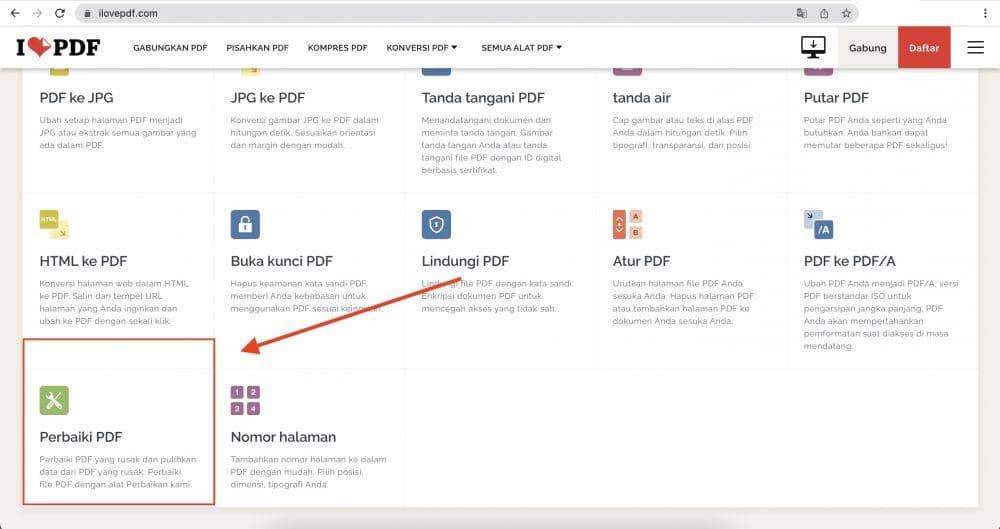
For a quick fix without installing anything, try a free online pdf repair tool. Upload your linearized PDF to services like iLovePDF’s Repair PDF, PDF24’s PDF Repair, or Smallpdf. They rebuild the file and often remove linearization errors. Be aware of privacy concerns — avoid uploading sensitive documents.
Common Pitfalls
- Not making a backup: Always keep the original file. Some repair tools (especially online) may overwrite or corrupt your file further. Save a copy before you start.
- Using the wrong tool for the job: Linearization corruption is different from simple file corruption. If the PDF isn’t linearized, these steps won’t help. Confirm first with Step 1.
- Forgetting about fonts and images: After repair, you might see missing fonts or images. That’s usually not a linearization issue. Check our guide on pdf font error fix if text looks wrong, or use a different recovery approach.
Where to Next?
Hopefully your linearized PDF is now fixed and loads instantly. If you ran into deeper corruption, explore our full pdf repair workflow for a systematic approach. And if your PDF still has issues, try the fix pdf structure guide — it covers cross-references and object streams. Happy repairing!




