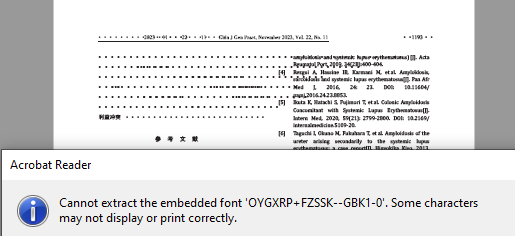
Ever opened a PDF only to see garbled text, missing characters, or a warning about a missing font? That’s a font error, and it’s super annoying — especially when you’re trying to print or share a professional document. This guide is for anyone who’s hit this wall, whether you’re using Adobe Acrobat, free viewers, or even command-line tools. By the end, you’ll know exactly how to diagnose the issue and fix it for good.
The good news? Most font errors are fixable without starting from scratch. You’ll learn how to re-embed fonts, substitute missing ones, and even repair corrupted font streams using free online services or desktop apps. I’ll show you the straightforward steps that work whether you’re on Windows, Mac, or Linux. Let’s get your PDF looking crisp and correct again.
What You’ll Need
- The PDF file with the font error
- Adobe Acrobat Reader (free) or Adobe Acrobat Pro (trial works)
- A computer with internet access (for online tools)
- Optional: A font management tool like FontBase or a PDF repair tool
- Basic knowledge of how to install fonts
Step 1: Identify the Font Error
First, figure out what kind of font error you’re dealing with. Open the PDF and look for error messages like ‘Cannot find or create font X’ or ‘Font X is not embedded.’ Sometimes text shows up as boxes or question marks. Screenshot the error or note the exact font name — you’ll need it.
If you’re unsure, try opening the PDF in different viewers (Edge, Chrome, Acrobat). If one viewer works and another doesn’t, it’s likely a missing system font. If all fail, the font stream might be corrupted. Using a pdf recovery tool can help in the latter case.
Step 2: Install the Missing Font
If the error mentions a specific font name, you can often fix it by installing that font on your computer. Search for the font (e.g., ‘ArialMT’ or ‘HelveticaNeue’) and download a legitimate copy from a trusted source like Google Fonts or the font creator’s site. Install it system-wide, then reopen the PDF.
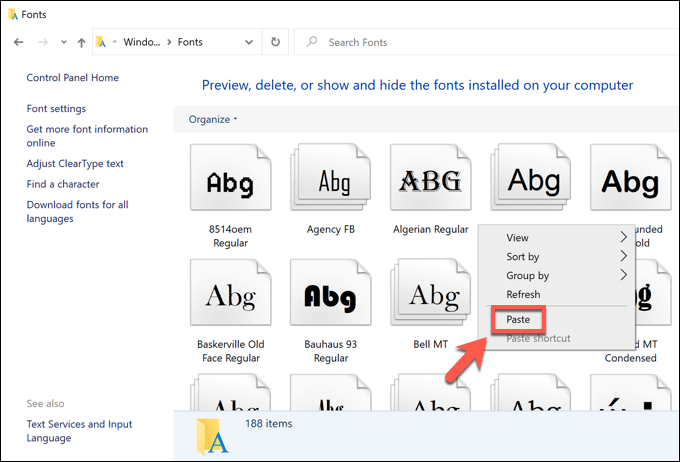
If the font is commercial and you don’t have a license, check if the PDF allows font substitution — more on that in Step 4. For common fonts like Arial, Times New Roman, or Calibri, make sure they’re actually present on your system; sometimes corporate IT locks them down.
Step 3: Re-embed Fonts in Adobe Acrobat Pro
If you have access to Adobe Acrobat Pro, you can force re-embedding of fonts. Open the PDF, go to File > Properties > Fonts tab. Note which fonts are not embedded. Then go to Tools > Print Production > Preflight. Under ‘PDF fixups,’ select ‘Embed all fonts’ or ‘Embed missing fonts.’ Save the PDF as a new file.
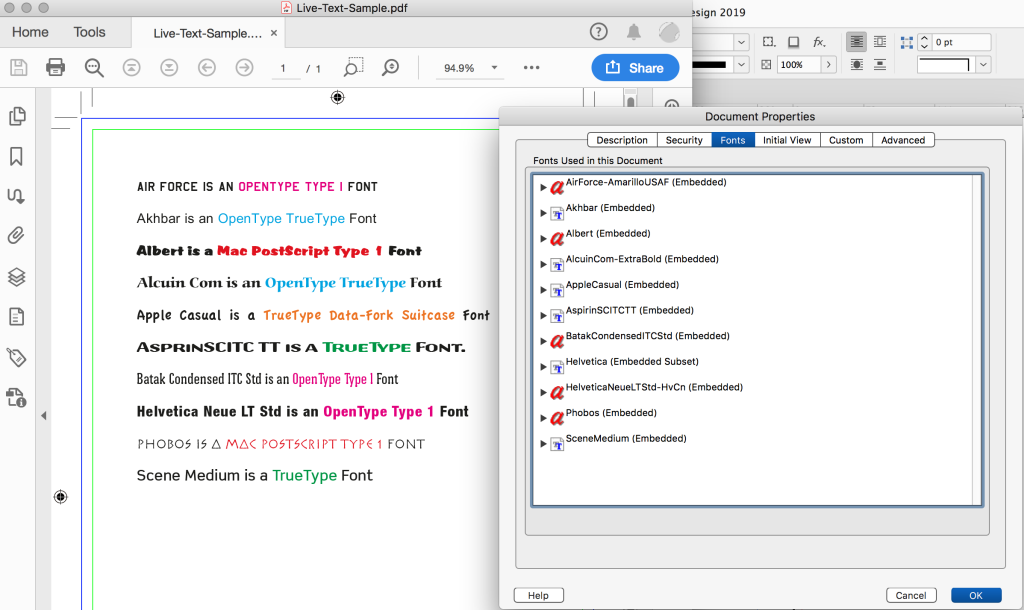
This step often resolves font substitution issues and ensures the PDF displays correctly on any device. If Preflight isn’t available in your version, you can try the pdf fix tool method as an alternative.
Step 4: Use a PDF Repair Tool or Online Service
When the font stream inside the PDF is corrupted (e.g., after a bad download or virus), you’ll need a specialized tool. I’ve had great luck with free online pdf repair services that rebuild the font data. Alternatively, desktop tools like PDF Fix Tool or QPDF can extract and re-embed fonts. For severe corruption, refer to our guide on repair damaged pdf.
Upload your PDF to a trusted online repair site, wait for processing, and download the fixed version. Always check the output for any remaining issues. Some font errors stem from the original creation software — especially if the PDF came from a pdf corrupted during download repair scenario.
Step 5: Convert to PDF/A or Recreate the PDF
As a last resort, convert the PDF to a different format (like Word or HTML) and then back to PDF. This strips out problematic font data and regenerates it with clean embeddings. Many word processors and online converters can do this. Or use a PDF printer driver to print the file to a new PDF.
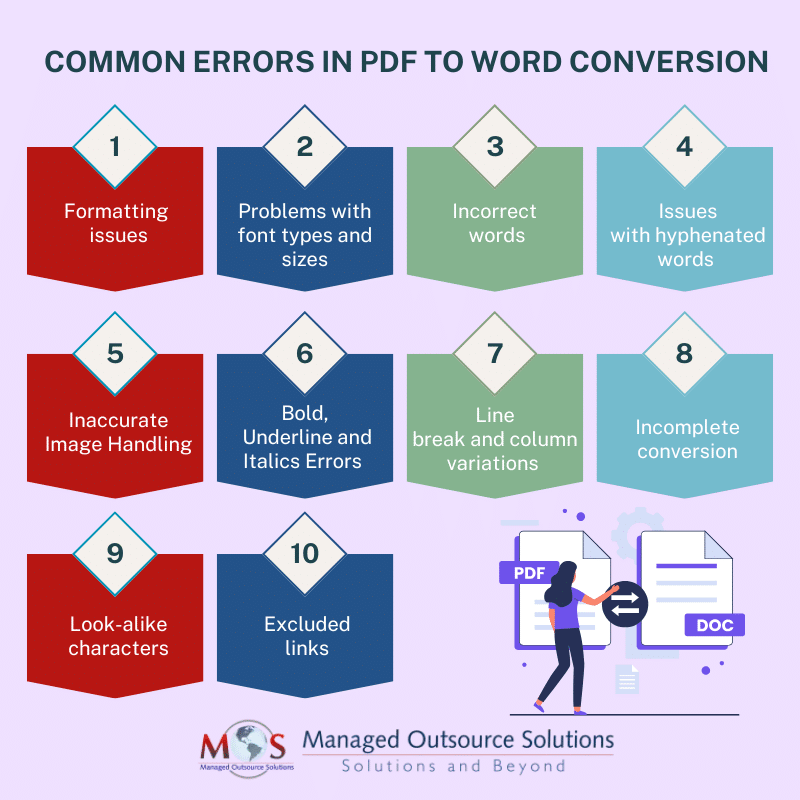
This step is particularly useful if the font error is widespread and other methods fail. Keep in mind that some formatting may shift, but the text will be readable. For complex layouts, try the PDF/A format, which requires all fonts to be embedded.
Common Pitfalls
- Ignoring system font restrictions: Corporate laptops often block custom fonts. Use portable apps or online tools instead.
- Choosing wrong embedding method: Some PDF viewers ignore subset embedding; use full embedding when possible.
- Overlooking font licensing: Commercial fonts may not allow embedding. Check the license or use a substitute font to avoid legal issues.
Where to Next?
Font errors are just one type of PDF headache. If you run into other issues like upload failures or corrupted files, our pdf recovery tips page has more solutions. For a deeper dive into font troubleshooting, check the Adobe forums or try a dedicated font viewer. Happy fixing!




