
Ever had that sinking feeling when you try to open an important PDF and get an error message instead of your document? Maybe it was a download that cut out halfway, a file that got corrupted by a virus, or just a random glitch. Don’t panic—there’s a good chance you can still recover your data with a PDF recovery tool. This guide is for anyone who’s staring at a corrupted PDF and needs a simple, practical way to get it back. By the end, you’ll have a fully functional PDF that you can open, edit, and print.
We’ll walk you through using a dedicated PDF recovery tool step-by-step. No technical jargon, just clear instructions and screenshots to follow. You won’t need any special skills—just a computer and a bit of patience. Let’s turn that corrupted mess into a readable document.
What You’ll Need
- A corrupted PDF file that you want to recover
- A computer running Windows or macOS
- A PDF recovery tool (we’ll use Stellar Repair for PDF in this guide, but the steps are similar for most tools)
- Administrator permissions to install software (if using Windows)
- About 15 minutes of your time
Step 1: Download and Install the PDF Recovery Tool
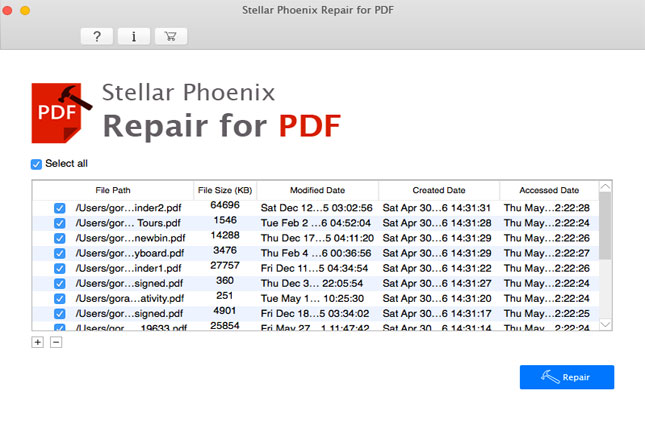
First, download a reliable PDF recovery tool. For this tutorial, we’re using Stellar Repair for PDF because it’s user-friendly and powerful. Go to the official website and download the installer. Run it and follow the installation wizard—just keep clicking “Next” and accept the default settings. Once installed, launch the software. You’ll see a clean interface with a big “Add File” button. That’s where we’ll start.
Step 2: Add Your Corrupted PDF File
Click the “Add File” button. A file explorer window will pop up. Navigate to the location of your corrupted PDF and select it. You can add multiple files if you have several to recover. After selecting, the file will appear in the list with its name, size, and status. Make sure the checkbox next to it is ticked, then click “Repair” to start the recovery process. The tool will scan the file and attempt to reconstruct the data.
Step 3: Preview Your Recovered PDF
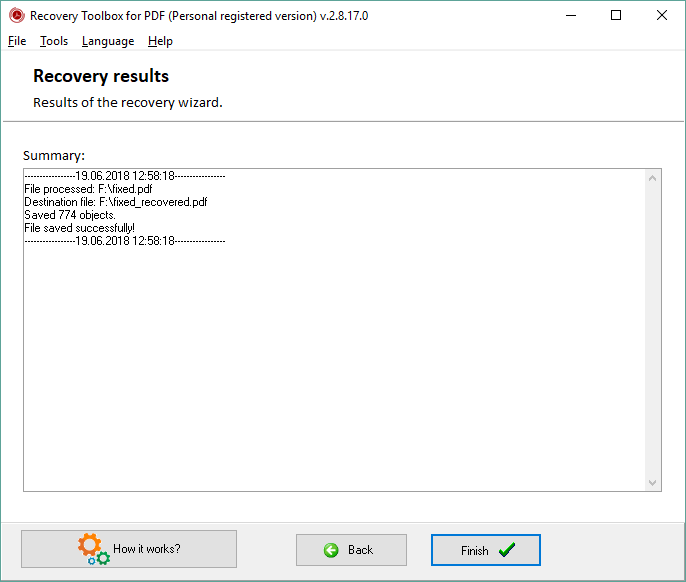
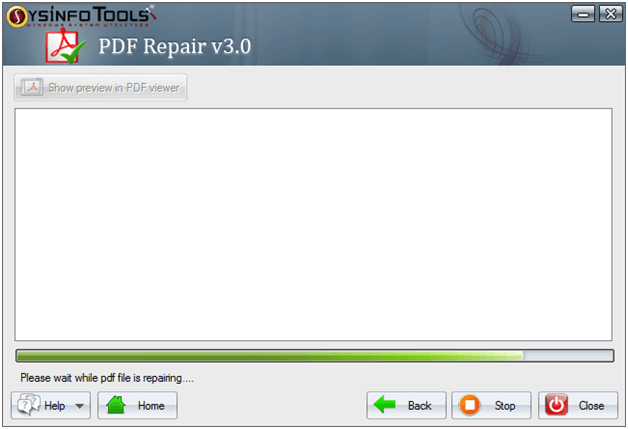
Once the repair is done, the tool will show a preview of the recovered PDF. You can browse through the pages to see if everything looks correct. Check for missing text, broken images, or garbled characters. Most tools also let you preview specific pages. If the preview looks good, you’re ready to save. If not, don’t worry—some tools have advanced options to try a deeper scan. For more general pdf recovery tips, check out our comprehensive guide.
Step 4: Save the Recovered PDF
Click the “Save” button. You’ll be prompted to choose a destination folder and filename. I recommend saving it with a different name (e.g., “recovered_report.pdf”) to avoid overwriting the original file. Choose a location you’ll remember, then click “Save”. The tool will export the recovered PDF in a fully functional format. Open it in your usual PDF reader to confirm it works. If you prefer not to install software, you can also try free online PDF repair options for simpler cases.
Step 5: Perform Additional Repairs If Needed
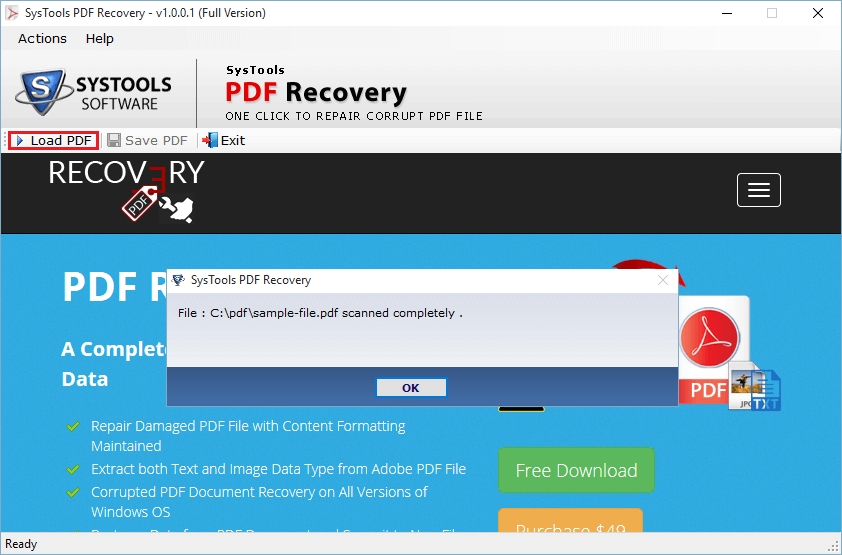
Sometimes the first repair attempt doesn’t get everything. If your PDF still has issues, try using the tool’s advanced options. For example, Stellar Repair for PDF has a “Select Repair Option” that lets you choose between simple and advanced scanning. You can also use other tools like a PDF fix tool to try different recovery algorithms. If you’ve already saved a partial recovery, you can run it again on the same file. These steps help you fix PDF documents that are still partially readable.
Common Pitfalls
- Saving the recovered file in the same location as the corrupted one. Always save to a different folder or use a new filename to avoid losing both copies.
- Ignoring the preview step. Always preview before saving—sometimes the tool recovers pages but with heavy corruption that you can spot in preview.
- Using a tool that adds watermarks. Some free tools add watermarks to recovered PDFs. Always check the tool’s policy before starting.
Where to Next
You’ve successfully recovered your corrupted PDF! Now that you know the process, you can handle similar issues in the future. If the tool couldn’t fully recover your file, you might need to repair a damaged PDF using alternative methods. Also, consider backing up your important PDFs to avoid this stress again. For more advanced scenarios, check out our other guides on PDF repair.




