
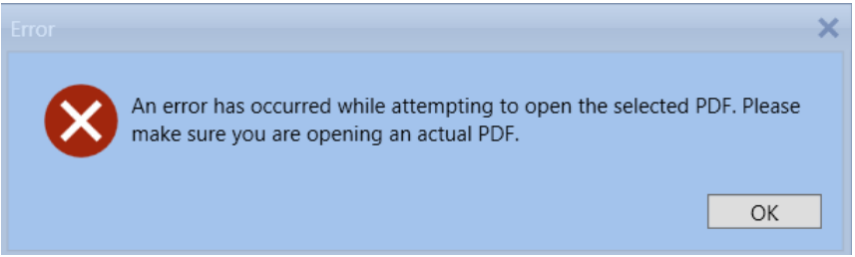
Ever tried opening a PDF only to see a scary “Read Error” message? You’re not alone. This guide is for anyone who’s hit that wall—whether it’s a work document, a school file, or something personal. By the end, you’ll have a working PDF or at least know exactly what to try next.
PDF read errors are usually caused by corruption during download, transfer, or saving. The good news? Most are fixable with the right tools. We’ll walk through several methods, from simple to advanced, so you can get back to reading (or printing) that file.
What You’ll Need
- The corrupted PDF file (keep a backup copy!)
- A computer with internet connection
- Optional: Adobe Reader or Acrobat installed
- Optional: qpdf (free command-line tool) if you’re comfortable with terminal
Step 1: Try a Different PDF Reader
Sometimes the error is reader-specific. Before diving into repair, open the file in another PDF viewer—like your web browser, Google Drive preview, or a lightweight app like SumatraPDF. If it opens fine, the problem is your default reader, not the file.
Step 2: Use a Free Online PDF Repair Tool
If a different reader fails, try a dedicated free online pdf repair tool. Upload your file to a trusted website, wait a few seconds, and download the repaired version. This works for many common corruption issues. Just avoid uploading sensitive documents to unknown sites.
Step 3: Use Adobe Reader’s Built-in Repair
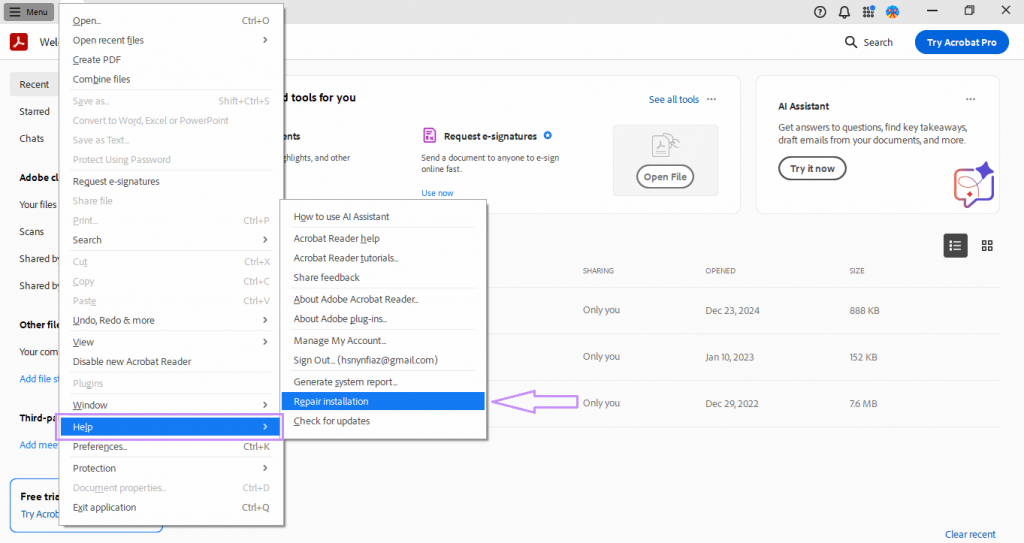
If you have Adobe Reader or Acrobat, it has a repair feature that can fix minor corruption. Go to Help > Repair Installation (Windows) or Adobe Reader > Repair Installation (Mac). This doesn’t directly repair files but can fix reader issues. For deeper fixes, try opening the file in Adobe Acrobat and using the Save As option to re-save it as a new PDF. That’s a simple Adobe Reader’s built-in repair trick.
Step 4: Use the qpdf Command-Line Tool
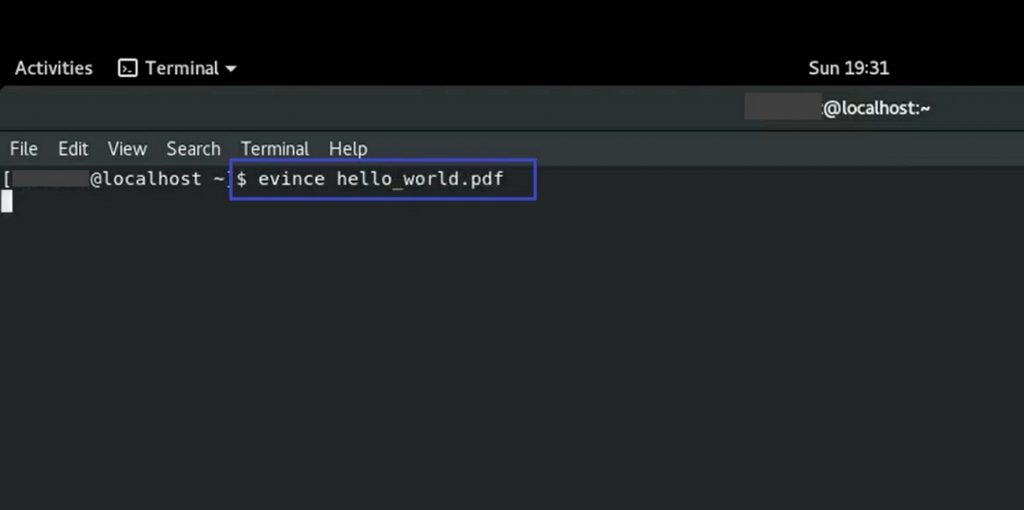
For stubborn errors, the qpdf command-line tool is a powerful option. It can linearize, encrypt, decrypt, and repair PDFs. Install it from qpdf.sourceforge.net. Then run: qpdf –replace-input –linearize broken.pdf. This rebuilds the file structure. Many users find this effective when other methods fail—it’s my go-to qpdf command-line tool for read errors.
Step 5: Explore PDF Recovery Tips
If the file still won’t open, try advanced PDF recovery tips: open the PDF in a text editor to check for readable content, then copy-paste into a new document. Or use tools like pdftotext to extract text. These methods work even if the file is structurally damaged. For visual content, try opening it in an image viewer like GIMP—it may show each page as an image.
Common Pitfalls
- Working on the original file without a backup – always keep a copy before attempting any repair.
- Using online tools for confidential documents – the site might store your file. Use local tools if privacy matters.
- Assuming every PDF can be fully repaired – some corruption is too severe, but you can often salvage text or images.
Where to Next
If these steps didn’t work, your file might have deeper issues. Check out our guide on how to repair a damaged PDF for more advanced techniques. And if you still can’t open it, consider that the original source might need to resend the file. Good luck!




