You’ve got a PDF that won’t open, shows garbled text, or throws an error. Maybe it says the file is damaged or corrupted. Before you give up on that important document, know that there are free online tools that can fix it. This guide is for anyone who needs to repair a PDF quickly without installing software or paying for a subscription. By the end, you’ll have a working PDF downloaded to your computer, ready to use.
I’ll walk you through three tested methods using popular free online PDF repair services. These tools work in your browser and can handle most common issues: missing pages, broken links, syntax errors, and even partial corruption. No technical skills required—just follow along.
What You’ll Need
- A corrupted PDF file (the one you want to fix)
- A stable internet connection
- A web browser (Chrome, Firefox, Edge, or Safari)
- About 5–10 minutes of your time
- Optional: a backup of the original file (in case something goes wrong)
Step 1: Upload Your Corrupted PDF to a Free Online Repair Service
The first step is getting your file into one of the free PDF repair tools. I recommend starting with iLovePDF’s Repair PDF tool because it’s reliable and handles most corruption types. Open your browser and go to the iLovePDF website. Look for the ‘Repair PDF’ tool under the ‘All Tools’ section. Once there, click the ‘Select PDF file’ button and choose your corrupted PDF from your computer. You can also drag and drop the file into the upload area.
If iLovePDF doesn’t work for your file, try an alternative like Smallpdf’s Repair PDF or PDF2Go. The process is similar—upload the file and let the tool analyze it. These services are free for files up to a certain size (usually around 100 MB). If your file is larger, you may need to try a different tool or split the PDF first.
Step 2: Start the Repair Process
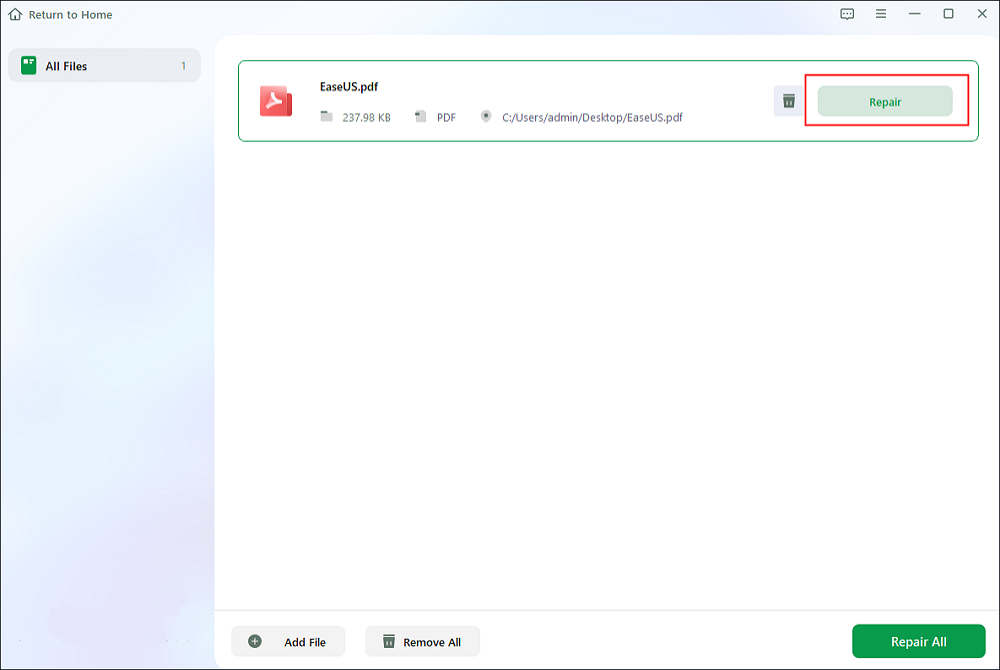
After uploading, click the ‘Repair’ or ‘Start’ button. The tool will begin scanning your file for errors. This usually takes a few seconds to a minute, depending on the file size and severity of corruption. You’ll see a progress bar or processing animation. Don’t close the tab or refresh the page—let it finish.
If the repair is successful, you’ll get a preview or a download button. Some tools show a success message. If it fails, try a different service from the list. For more stubborn cases, you can also try a specialized tool like the pdf fix tool we covered in another guide.
Step 3: Download and Verify Your Repaired PDF
Once the repair is done, click the ‘Download’ button to save the fixed file to your computer. Name it something different from the original so you don’t overwrite it. Open the downloaded PDF with any reader (like Adobe Acrobat Reader or your browser’s built-in viewer) to check that it looks correct. Scroll through all pages, test any links, and look for missing content. If everything is good, you’re all set!
If the repaired file still has issues, don’t panic. You can try another service or use pdf recovery tips to salvage what you can. Sometimes a second pass with a different tool catches what the first missed.
Common Pitfalls
- File too large: Many free online tools have a size limit (often 100 MB). If your PDF exceeds it, try compressing it with a free compressor first, or use a desktop tool. Some sites allow larger files if you create a free account, but the basic repair should be free.
- Temporary server errors: Occasionally the online tool might fail due to server load. Wait a few minutes and try again, or switch to an alternative like Smallpdf or PDF2Go.
- Privacy concerns: Uploading sensitive documents to a third-party server can be risky. If your PDF contains confidential info, consider using a local tool instead. Check our guide to fix pdf document offline for more options.
Where to Next
Now that you’ve successfully repaired your PDF, you might want to learn how to prevent corruption in the future. Check out our guide on pdf recovery tips for best practices. If you run into a repair pdf upload error, we have a dedicated solution for that too. And if you prefer offline methods, our article on how to repair damaged pdf using desktop software can help. Happy fixing!




