Ever had a PDF that just won’t open? Maybe it throws errors like ‘Root object is missing’ or the pages look like scrambled text. You’re not alone – corrupted PDFs happen more often than you’d think. This guide is for anyone who needs to quickly repair a damaged PDF without diving into complex command-line tools. By the end, you’ll have a clean, readable PDF file saved on your computer, using a free PDF fix tool that works for most common corruption issues.
We’ll cover two methods: an online tool (no install) and a desktop app for offline use. Both handle problems like broken headers, missing cross-reference tables, and stream errors. If you’ve already tried basic fixes like opening in another reader, this tool is your next step. Let’s get that file back in shape.
What You’ll Need
- The corrupted PDF file (make a backup first)
- An internet connection if using an online tool
- A basic PDF fix tool like PDF Repair Toolbox or an online service (we’ll recommend free options)
- Optional: qpdf for a command-line alternative (see our separate guide on qpdf repair PDF)
Step 1: Choose Your PDF Fix Tool
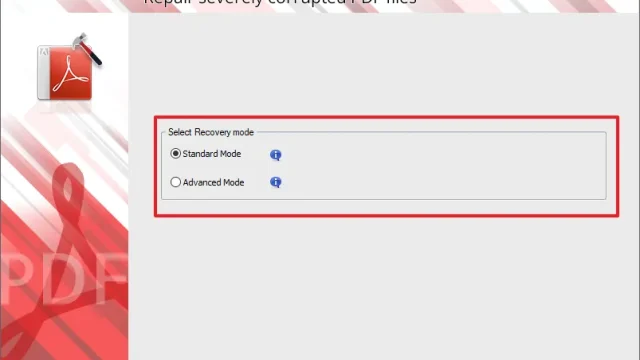
First, decide whether you want an online fix or a local app. Online tools are great for quick fixes without installing anything, but they have file size limits and you upload your document. Local tools like PDF Repair Toolbox are free, open-source, and work offline. For this guide, we’ll use the online tool PDFFixer (free, no watermark) as an example, but the steps are similar for most.
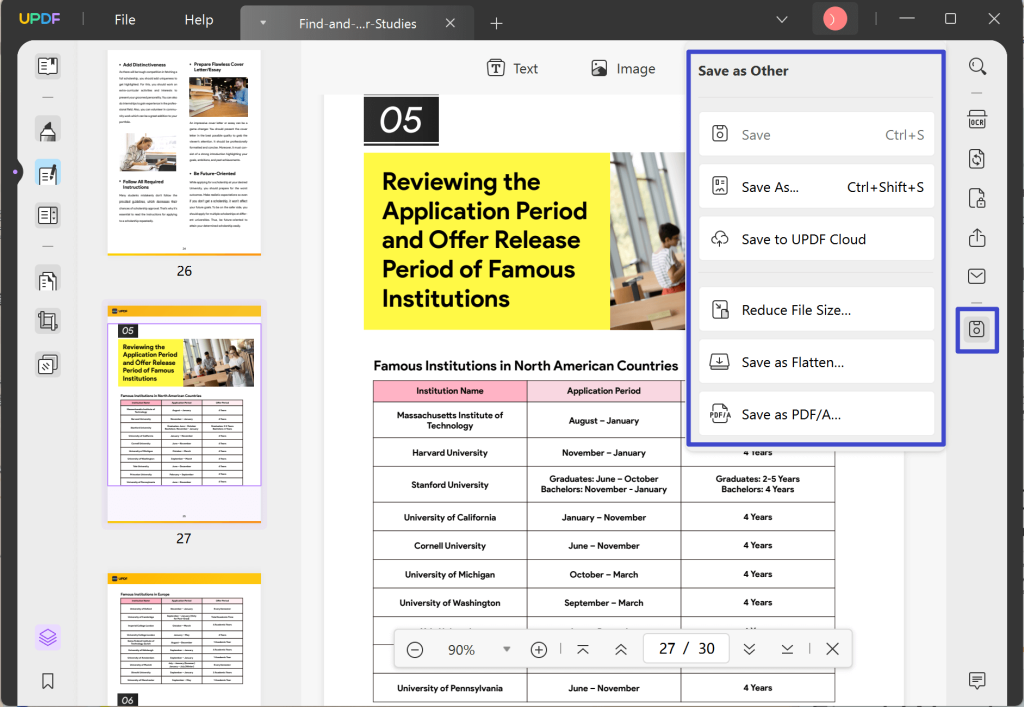
If you prefer a desktop option, check out our guide on repair PDF file online free no watermark for more choices. For command-line fans, qpdf repair PDF is a powerful alternative that fixes many structural issues.
Step 2: Upload Your Corrupted PDF
Click the upload button and select your damaged file. Most tools accept PDFs up to 50 MB for free. If your file is larger, you might need to split it first or use a desktop app. Once uploaded, the tool will analyze the file to detect corruption types – watch for messages like ‘Repairing PDF syntax errors’ or ‘Fixing missing xref table’.
If you’re dealing with a PDF that came from messaging apps, see our tutorial on fix PDF from WhatsApp – those files often have incomplete downloads causing corruption.
Step 3: Run the Repair Process
After upload, click the ‘Repair’ or ‘Fix’ button. The tool will work its magic – this usually takes a few seconds. You’ll see a progress bar or a spinning indicator. During this phase, the tool attempts to reconstruct the PDF’s internal structure: fixing the header, rebuilding the cross-reference table, and uncompressing streams if needed. For advanced errors like ‘Root object is missing’, the tool uses a heuristic to recreate the object tree.

If the repair fails, you might need a more specialized tool. Our article on PDF syntax repair covers deeper fixes for syntax-level issues.
Step 4: Download the Repaired PDF
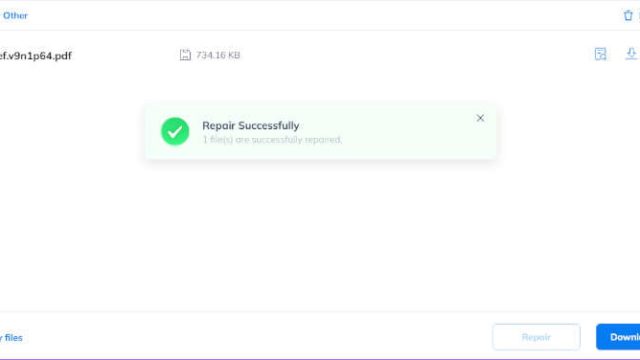
Once the process finishes, the tool will offer a download link. Click it and save the repaired file to a new location (don’t overwrite your original yet). Open it in a PDF reader to check if all pages look correct. If some pages are still missing or garbled, try a different tool or revisit the original file – it might be beyond simple repair.

Common file naming conventions add ‘-repaired’ to the filename. That’s fine. Now you can safely delete the original corrupted copy if the new one works perfectly.
Common Pitfalls
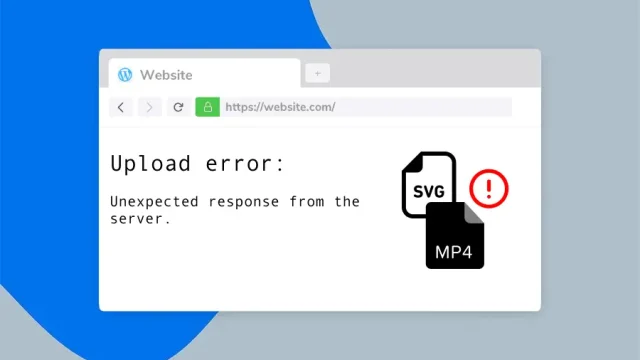
- Upload limit exceeded: If your PDF is too large for the online tool, try compressing it first or use a desktop app like PDF Repair Toolbox. Also check our guide on repair pdf upload error for more tips.
- Partial repair only: Some tools fix headers but leave content streams broken. In that case, combine with a command-line tool like qpdf for a second pass.
- Security warnings: If the PDF was encrypted or password-protected, most free tools can’t open it. Remove the password first using dedicated software.
Where to Next
Now that you’ve repaired your PDF, consider learning how to prevent future corruption. Check out our PDF recovery tips for best practices on backing up and handling PDFs. If you frequently deal with damaged files, you might also want to explore automated solutions like a PDF repair library for batch processing. Happy fixing!