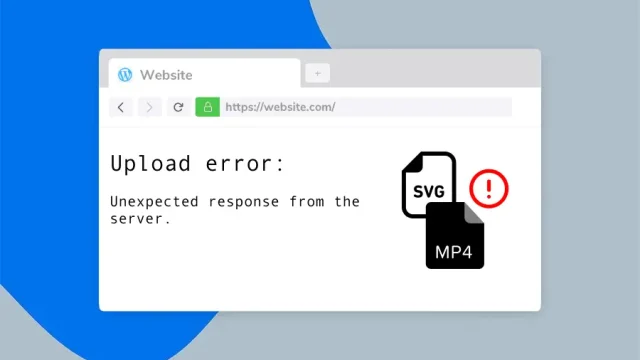
Ever received a PDF on WhatsApp that just won’t open? You’re not alone. WhatsApp compresses files to save data, and sometimes that compression messes up your PDF. But don’t worry—fixing it is easier than you think. By the end of this guide, you’ll have a working PDF ready to view or share.
This guide is for anyone who’s ever tapped a PDF in WhatsApp only to see a blank screen or an error message. Whether you’re on Android, iPhone, or desktop, these steps will help you recover that important document. Let’s dive in.
What You’ll Need
- The corrupted PDF file (still in your WhatsApp chat)
- A computer (optional but makes things easier)
- A stable internet connection
- A free PDF tool like Adobe Acrobat Reader, qpdf, or an online repair service
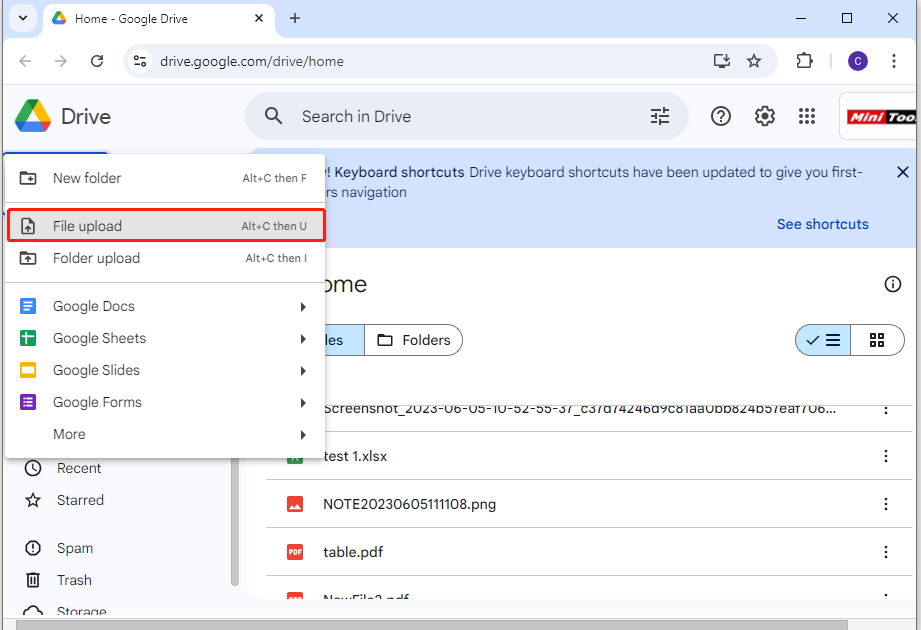
Start by saving the PDF from WhatsApp to your device. On mobile, tap the download icon. On desktop, click the file to download it. Now, let’s fix it.
Step 1: Check the File Extension
WhatsApp sometimes renames files or strips extensions. A file named “document” might actually be a PDF, but your phone doesn’t recognize it. On a computer, right-click the file and select Properties. Under file type, it should say “.pdf”. If not, rename it with a .pdf at the end. Also check the file size—if it’s 0 bytes, the transfer failed.
Step 2: Open with Adobe Acrobat Reader
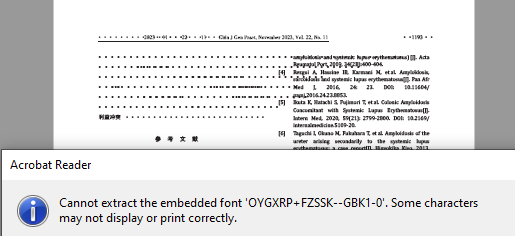
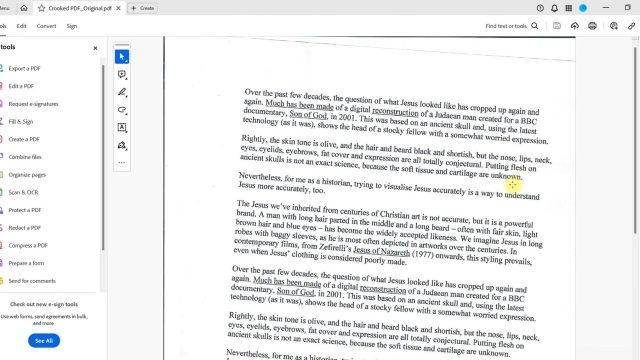
Adobe Acrobat Reader has a built-in repair feature. Open the PDF with Reader. If it’s corrupted, Reader may automatically attempt to fix it. If it still fails, go to File > Save As Other > Optimized PDF. Sometimes re-saving cleans up issues. This works for many minor corruptions.
Step 3: Use an Online Repair Tool
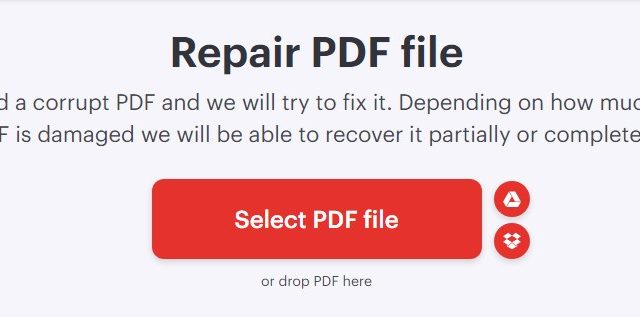
If Adobe can’t fix it, try an online PDF repair service like Smallpdf or iLovePDF. Go to the site, upload your file, click repair, and download the fixed version. These tools handle compression artifacts well. They’re free for small files. After downloading, open the repaired PDF to check.
Step 4: Use qpdf (Command Line)
For tougher cases, qpdf is a free command-line tool that can repair PDFs. Install qpdf on your computer. Open a terminal or command prompt and run: qpdf --replace-input input.pdf (replace input.pdf with your file name). This rewrites the PDF structure, fixing many issues. It’s like a reset for the file.
Step 5: Re-download from WhatsApp
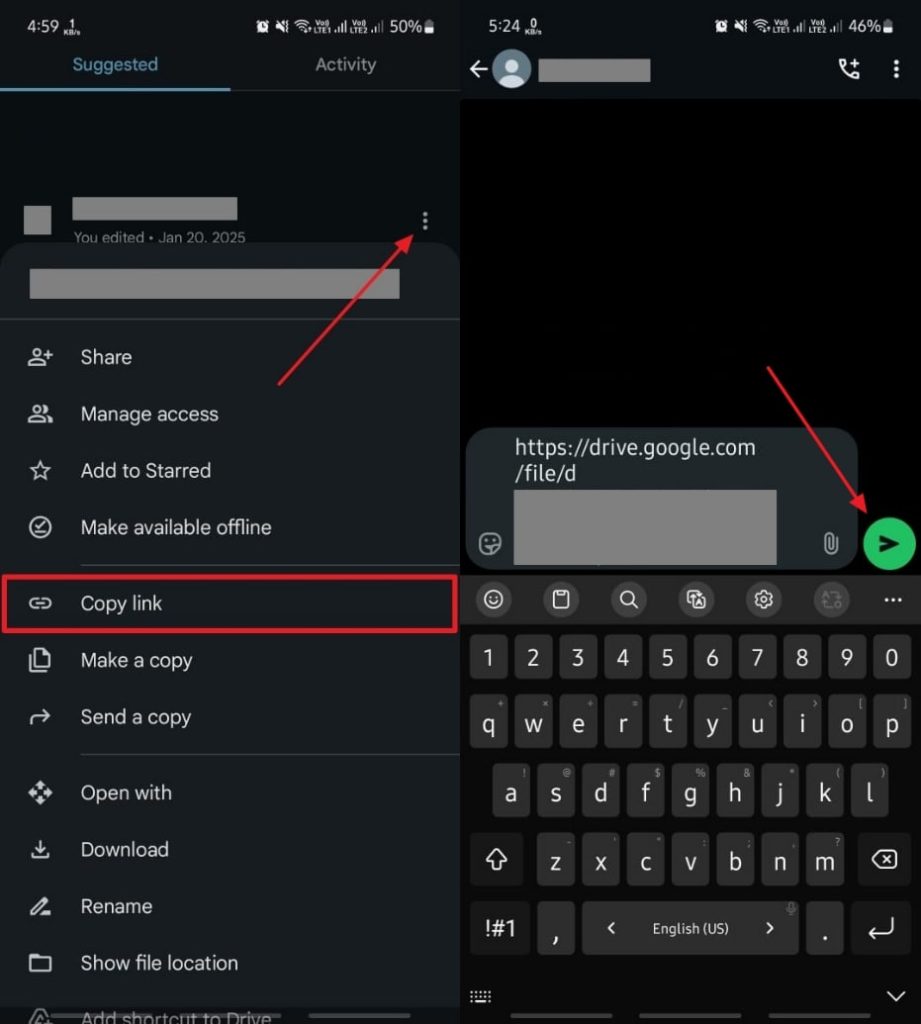
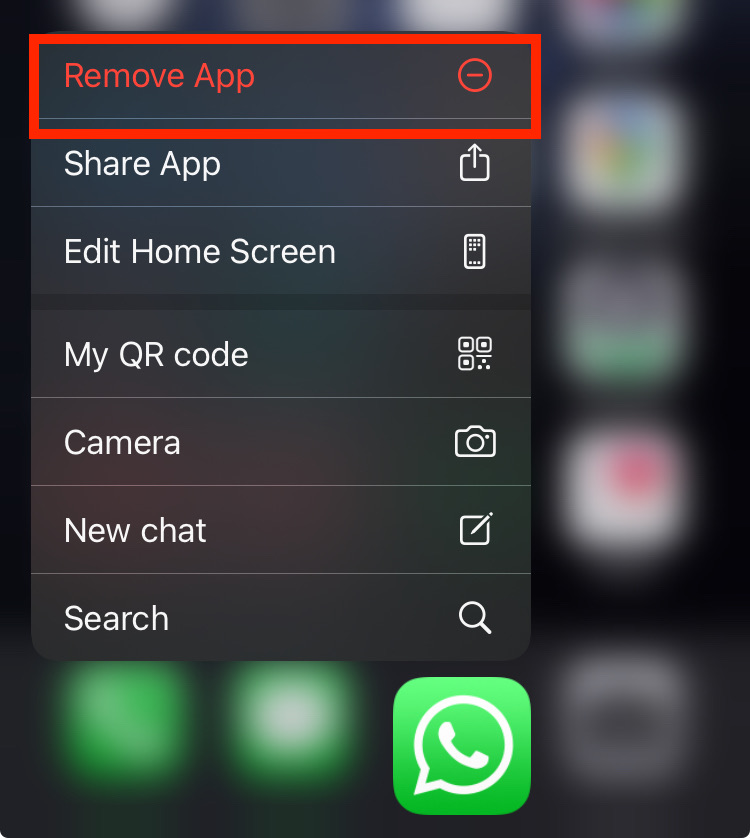
Sometimes the download itself was interrupted. Delete the file from your device, go back to the WhatsApp chat, and tap the download icon again. If the file was sent in a compressed state, ask the sender to resend it as a document (not as a compressed media file). This ensures the original PDF is delivered.
Common Pitfalls
- The file isn’t actually a PDF: Check if the sender renamed a JPEG or DOCX as .pdf. Use a file viewer to confirm.
- File size is zero: The transfer failed. Ask the sender to resend, and ensure a strong internet connection.
- Antivirus blocking the PDF: Some security software quarantines PDFs with macros. Temporarily disable real-time scanning or add an exception.
If you’re still stuck, these issues often mean the file is too damaged. But don’t give up yet!
Where to Next
If these steps didn’t work, check out our detailed guide on how to fix pdf document for deeper repairs, or learn how to repair damaged pdf with advanced tools. For a broader overview, our pdf recovery tips article covers many more scenarios. Good luck, and may your PDFs stay intact!