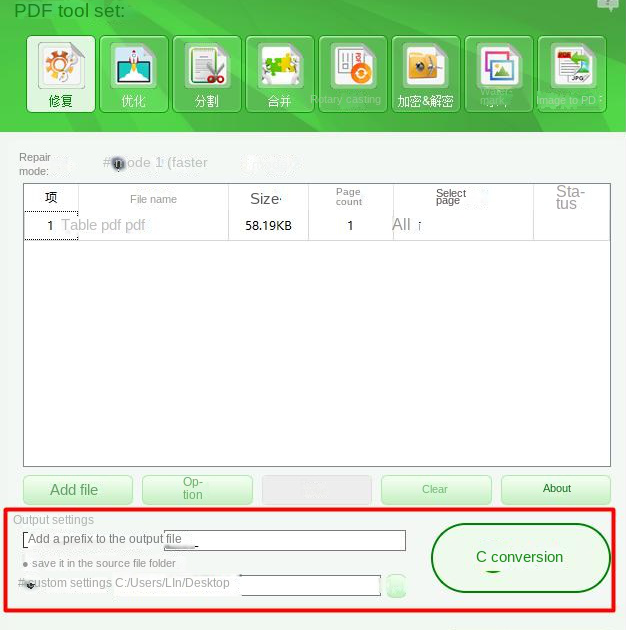
Ever tried to open a PDF and got a scary error message instead of your document? Maybe the file just shows blank pages, or the text is garbled. That’s a damaged (corrupted) PDF, and it happens more often than you’d think—from incomplete downloads, software crashes, cloud sync mishaps, or just age. This guide is for anyone who’s not a tech wizard but needs to get their PDF working again. By the end, you’ll have tried several methods—from free online tools to Adobe Acrobat tricks—and hopefully walked away with a fully functional file.
We’ll cover five approaches, starting with the simplest (trying a different viewer) and ramping up to command-line recovery if the first ones fail. Each step builds on the last, so you can stop once your PDF is fixed. I’ll also point out common mistakes so you don’t accidentally make things worse. Before we dive in, remember to **always keep a backup** of your original damaged file—sometimes repairs can alter the content, and you’ll want to start over if needed.
What You’ll Need
- The damaged PDF file you want to repair.
- A backup copy of that file (just in case).
- An internet connection (for online repair tools).
- A PDF reader like Adobe Acrobat Reader or Foxit Reader (optional, for first step).
- Adobe Acrobat Pro (optional, for Advanced repair).
- A terminal/command prompt (for command-line methods).
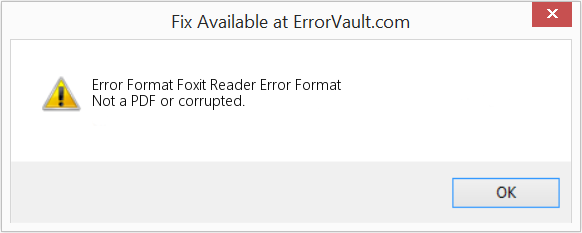
Step 1: Try Opening in a Different PDF Viewer
Sometimes your PDF is fine—the problem is the viewer you’re using. PDF viewers handle corruption differently; one might choke while another sails through. If you normally use Adobe Reader, try Foxit Reader or SumatraPDF (both free). If that doesn’t work, try opening the file in a web browser like Chrome or Firefox—they have built-in PDF viewers that are surprisingly tolerant. If the file opens correctly, you’ve saved yourself a lot of work. If not, move to Step 2.
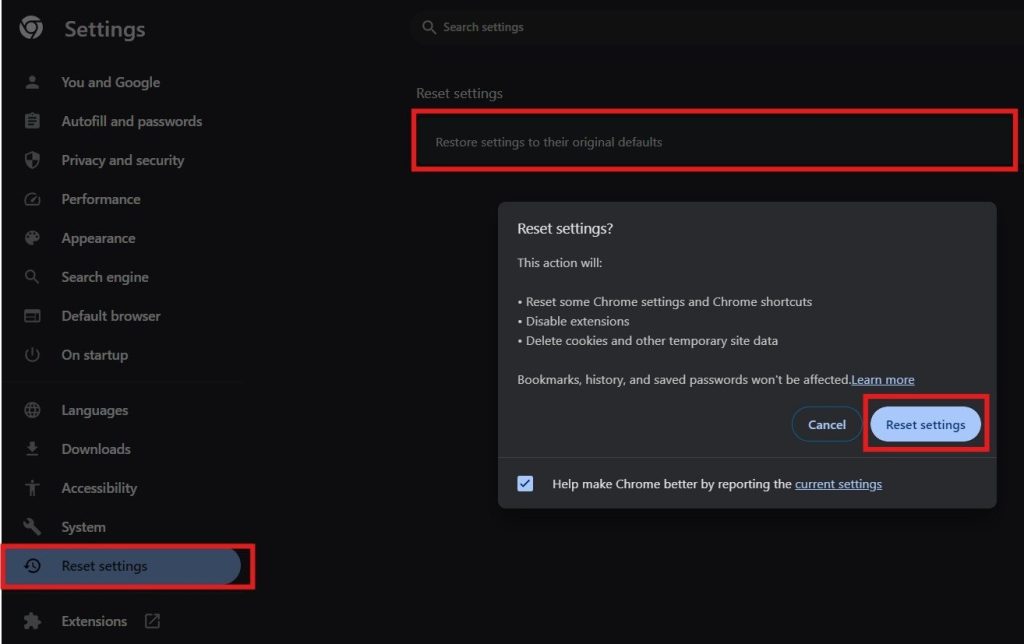
Step 2: Use a Free Online PDF Repair Tool
If changing viewers didn’t help, an online repair service is the next easiest option. Websites like PDF24, Smallpdf, or iLovePDF offer free repair tools—just upload your file and download the repaired version. These work best for minor corruption (e.g., header or trailer issues). Upload your PDF, wait a few seconds, and download the result. If the tool gives you a repaired file, open it and check that all pages, text, and images are intact. Keep in mind that these tools may not preserve complex elements like forms or scripts. For more advanced issues, you might need a desktop app.
Step 3: Repair Using Adobe Acrobat Pro’s Built-In Optimizer
If you have Adobe Acrobat Pro (not just Reader), you can use a neat trick: the ‘Save As Optimized PDF’ feature can often fix corruption by rewriting the file structure. Open the damaged PDF in Acrobat Pro, go to File > Save As Other > Optimized PDF. In the dialog that appears, click ‘OK’ without changing any settings. Acrobat will re-save the file, essentially rebuilding its internal structure. This method is great for repairing PDFs after incomplete downloads or cloud sync issues. For more details, check out our guide on repairing PDFs in Adobe Acrobat.
Step 4: Use Command-Line Tools (qpdf or pdfcpu)
When online tools and Adobe fail, command-line utilities can rescue your PDF. Two popular free tools are qpdf and pdfcpu. qpdf can linearize a PDF (which often fixes structural issues) and recover content from damaged files. For example, run: `qpdf –linearize damaged.pdf repaired.pdf`. If that doesn’t work, try `qpdf –replace-input damaged.pdf` (but always backup first). pdfcpu is another option for fixing corrupted streams. You’ll need basic terminal skills, but these tools are very effective for severe corruption. They’re also great for PDF document repair at scale.
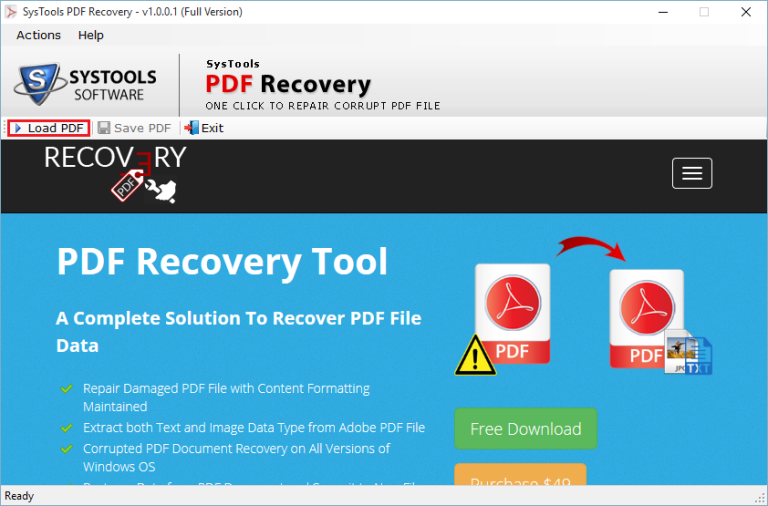
Step 5: Rebuild the PDF from Extracted Content
If the file is so damaged that none of the above works, you can try to salvage the text and images manually. Use a tool like pdftotext (from the poppler-utils package) to extract text: `pdftotext damaged.pdf output.txt`. Then use pdfimages to extract embedded images. Once you have the raw content, you can recreate a new PDF using a word processor (save as PDF) or a dedicated PDF builder. This isn’t perfect—you’ll lose formatting, annotations, and links—but it’s better than losing everything. For scanned documents, you might need OCR; check our article on repairing scanned PDFs.
Common Pitfalls
- **Not backing up the original file.** If a repair tool messes up, you’ll have no way to revert. Always keep a copy of the damaged file before any attempts.
- **Over-reliance on free online tools.** They’re convenient but often strip features like forms, signatures, or scripts. For important documents, use Adobe Acrobat or command-line tools.
- **Repeatedly trying to open the corrupted file in the same application.** This can sometimes cause further damage if the reader tries to auto-recover and writes garbage data. Try different viewers first.
Also, don’t forget to check if the PDF is actually damaged or just a display issue. Sometimes restarting your computer or clearing the PDF viewer’s cache works. And if your file is a form that stopped working, see our dedicated guide on PDF form repair.
Where to Next?
You’ve just learned several ways to repair a damaged PDF. If the methods here didn’t solve your problem, you might be dealing with a different type of corruption. Check out our related articles for more specific scenarios: restoring a damaged PDF from severe corruption, or fixing PDFs after an incomplete download. And if you used a command-line tool and want to automate repairs, read about PDF repair libraries. Happy restoring!




