So you’ve got a PDF that won’t open—maybe it throws an error, shows garbage characters, or just sits there forever loading. Don’t panic. This guide is for anyone who’s hit that moment of dread when a critical document goes bad. By the end, you’ll have a toolkit of proven methods to restore your damaged PDF, from quick online fixes to command-line wizardry.
We’ll keep things casual and step-by-step. No overly technical jargon unless it’s necessary, and every method is something you can try right now. Ready to bring that PDF back to life? Let’s dive in.
What You’ll Need
- The damaged PDF file (keep a backup copy first)
- A computer with internet access (for online tools)
- Adobe Acrobat Reader or Pro (optional, but handy)
- Ghostscript (free command-line tool – we’ll show how to get it)
- A text editor (like Notepad++ or VS Code) for manual fixes
Step 1: Assess the Damage
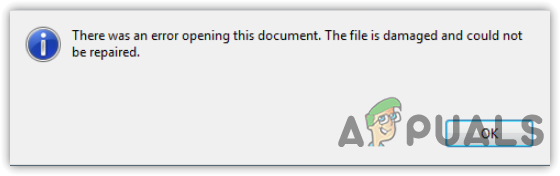
Before doing anything, try opening the file in different PDF viewers. Sometimes the issue is just with your reader. If it fails everywhere, note the error message. Common ones like ‘There was an error opening this document’ or ‘Root object is missing’ can guide your next steps. If the file was from an incomplete download, you might need to repair PDF after an incomplete download—we have a separate guide for that.
Also check the file size. If it’s suspiciously small (a few KB), the PDF might be empty or just a stub. Larger files that take forever to load could have structural corruption.
Step 2: Try an Online PDF Repair Tool
The quickest fix is often an online service. Upload your damaged PDF to a reputable site like PDFRepair.click (our own tool) or others. They’ll scan the file and try to rebuild the structure. Most of these tools are free for small files. If you need to fix unreadable PDF online, this is your fastest bet. Just be mindful of privacy—don’t upload sensitive documents to unknown sites.
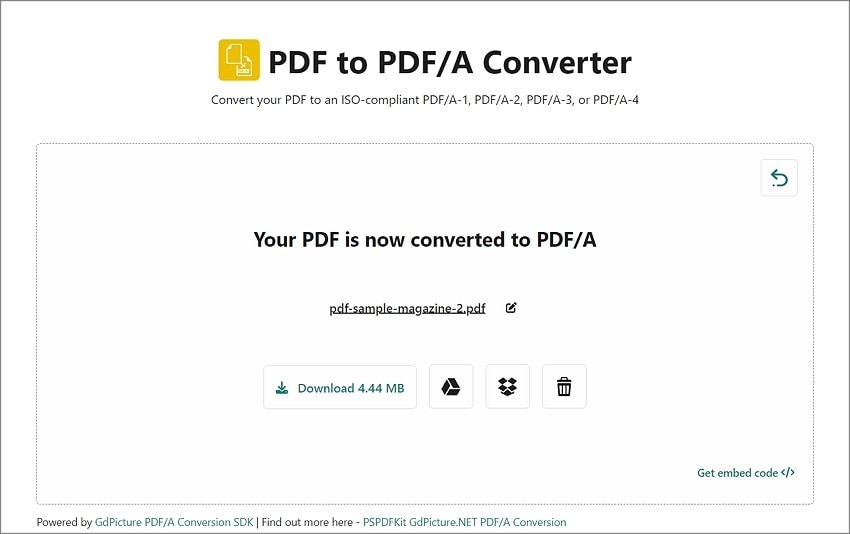
After upload, the tool will process and let you download a repaired version. Check if it opens correctly. If not, move to the next step.
Step 3: Use Adobe Acrobat’s Built-in Repair
If you have Adobe Acrobat Pro (not just Reader), you can try its built-in repair function. Open Acrobat, go to File > Open, select your damaged PDF. If it opens partially, you can save it as a new file (File > Save As Other > Optimized PDF). This sometimes strips out corrupted parts. For a more thorough approach, right-click on the file in the home view and choose ‘Repair’ (if available). This is essentially how to repair a PDF in Adobe Acrobat effectively.
If the file won’t open at all, you can try using the ‘Open and Repair’ option: go to File > Open and click the arrow next to Open, then select ‘Open and Repair’. This forces Acrobat to rebuild the file from scratch.
Step 4: Repair with Ghostscript (Command Line)
Ghostscript is a free open-source tool that can process and regenerate PDFs. It’s powerful for fixing structural issues. First, download and install Ghostscript from ghostscript.com. Then open a command prompt (or terminal). Use this command: gswin64c -sDEVICE=pdfwrite -dCompatibilityLevel=1.4 -dPDFSETTINGS=/default -dNOPAUSE -dQUIET -dBATCH -sOutputFile=output.pdf input.pdf (replace input.pdf with your damaged file and output.pdf with the new name). This forces Ghostscript to re-interpret the PDF stream—a technique similar to repair PDF without watermark, but here we’re fixing corruption.
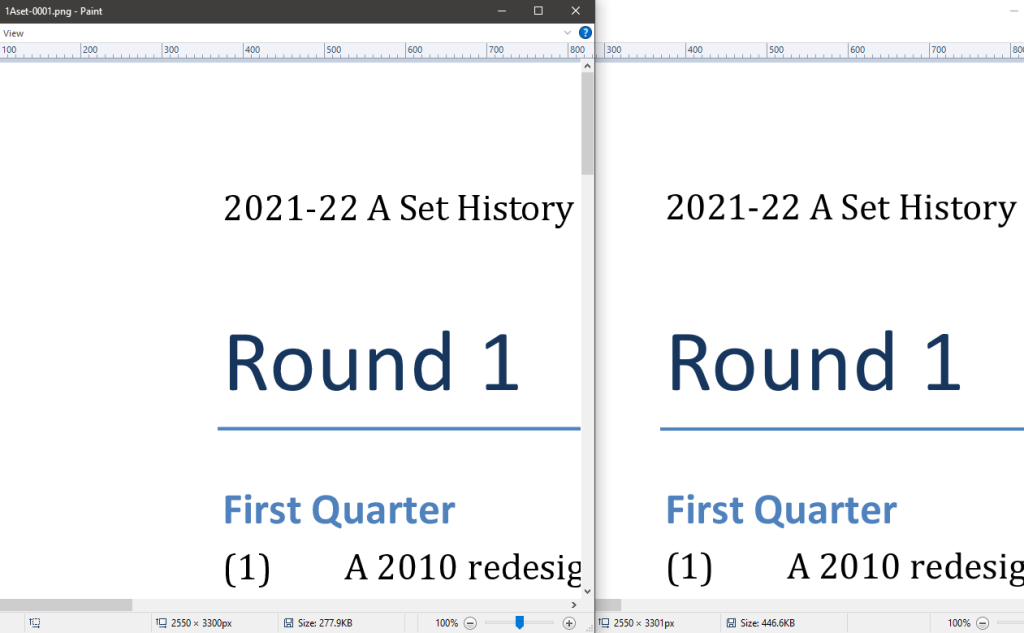
If that works, you’ll get a new PDF. It might be smaller (which is fine). If Ghostscript throws errors, those errors can often hint at the specific corruption—like missing xref tables or damaged streams.
Step 5: Manual Repair (For the Adventurous)
If automated tools fail, you can dive into the raw PDF code. This is advanced, but sometimes the only way. Open the PDF in a text editor (ensure you have a hex editor or a good plain-text editor like Notepad++). PDFs start with ‘%PDF’ and have sections like objects, xref table, and trailer. Look for obvious damage: a missing ‘%%EOF’ at the end, truncated objects, or mismatched offsets. You can try to repair PDF on Windows with a hex editor to fix a broken trailer. This is painstaking, but can restore the file if only a small part is corrupted.
A common manual fix is to remove partial objects at the end of the file (if the PDF was truncated during download). Simply delete everything after the last valid object and add a proper trailer. This is essentially what you’d do to repair PDF after an incomplete download.
Common Pitfalls
- Over-relying on free online tools: Some free tools leave watermarks or limit file size. Always read the fine print, and use our guide to repair PDF without watermark if needed.
- Skipping backups: Always copy the damaged file before trying anything. One wrong edit and you could make things worse. Keep the original intact.
- Using incompatible tools: Not all PDF readers can handle external repairs. Stick with the methods here, and if you’re on Windows, follow the steps specific to repair PDF on Windows.
Where to Next
You’ve restored your PDF! Hopefully one of these methods worked. If not, the corruption might be too severe, but you can still try more specialized tools. Check out our other guides on stream repair, form recovery, and advanced fixes. And remember, prevention is key: always close PDFs properly and avoid abrupt shutdowns. Happy reading!




