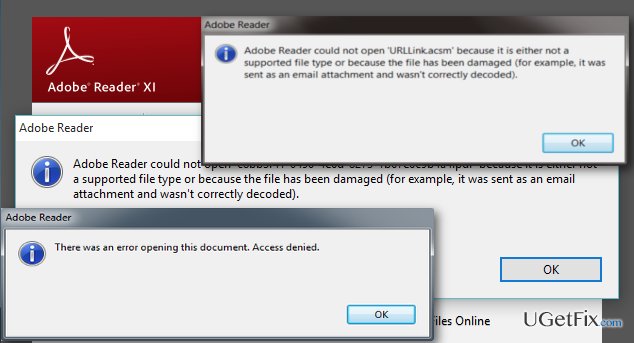
You’ve got a PDF that just won’t open — maybe it shows an error, displays gibberish, or looks like a mess. You’re a Windows user, and you don’t have time to mess around with complicated terminal commands. This guide is for you. By the end of these steps, you’ll have a working PDF, whether you use a free online tool, Adobe Acrobat, or a third-party utility.
We’ll cover methods that range from built-in Windows tricks to dedicated repair software. No prior experience needed — just follow along. If your PDF is truly damaged, at least you’ll know all your options before giving up.
What You’ll Need
- A Windows PC (any version from Windows 7 to Windows 11)
- The corrupted PDF file you want to repair
- An internet connection if you plan to use online tools
- Optional: Adobe Acrobat Pro or a free trial if you want to use its repair feature
- Optional: A dedicated PDF repair program (free or paid)
Step 1: Try Built-in Windows Tricks
Before downloading anything, try these quick fixes that often work on Windows. First, right-click the PDF, select ‘Open with’, and choose a different PDF reader (like Microsoft Edge, Chrome, or Adobe Reader). Sometimes the issue is with the reader, not the file. If that doesn’t work, try opening the PDF in a web browser — drag and drop it into Chrome or Edge. Browsers have robust PDF engines that can render some corrupted files.
Another trick: use Windows’ ‘Print to PDF’ feature. Open the corrupted PDF as best you can, go to Print, and choose ‘Microsoft Print to PDF’ as the printer. This creates a new PDF that may be clean. Note that this works only if the file opens partially.
Step 2: Use Adobe Acrobat’s Built-in Repair
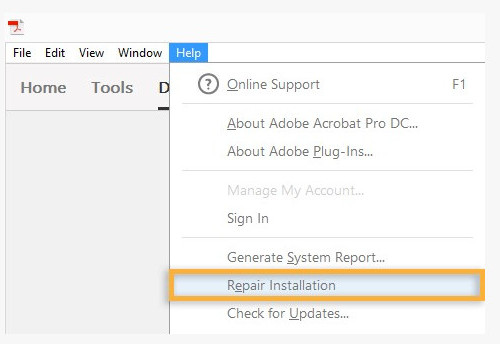
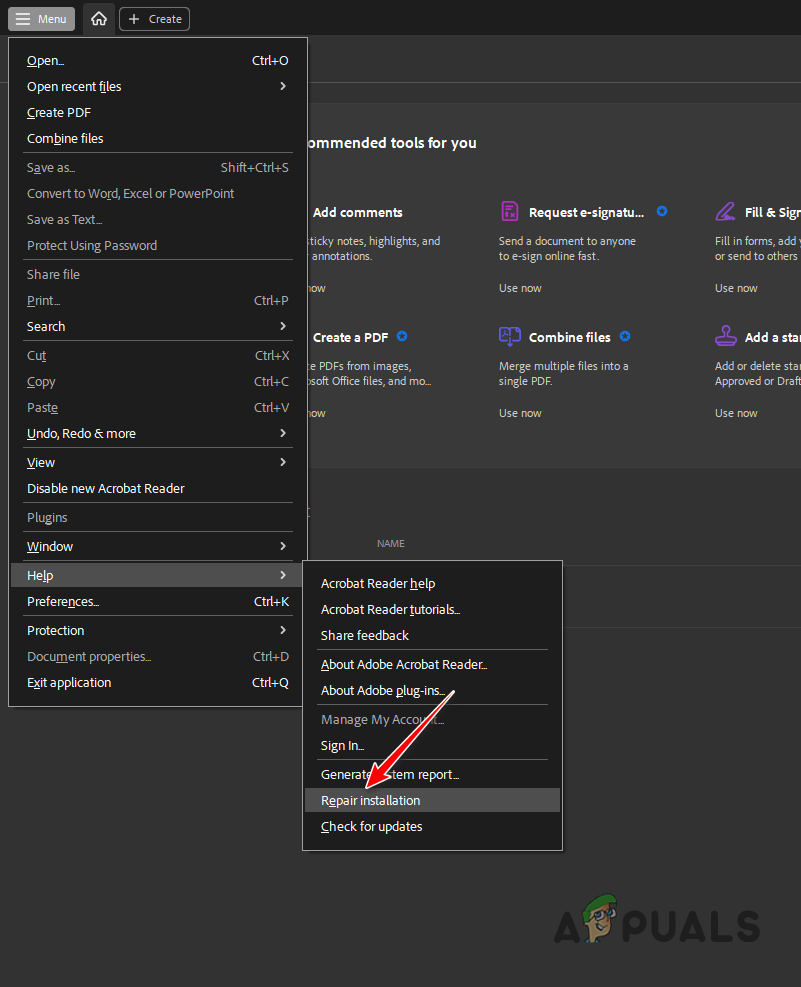
If you have Adobe Acrobat Pro (not just Reader), it includes a repair function. Open the file in Acrobat, go to the menu ‘File > Save As Other… > Optimized PDF…’ and in the dialog, click ‘Advanced’ and check ‘Repair broken links’ or ‘Resave with corrections’. This often fixes minor corruption. Alternatively, try ‘File > Save As…’ and re-save as a new PDF. For free, you can use the ‘Export PDF’ tool on the Adobe website, but that’s a cloud service.
Step 3: Use a Free Online PDF Repair Service
When your PDF won’t open at all, online tools are your best bet. They work by reinterpreting the file structure and extracting readable content. One popular choice is the service we cover in our guide to repair PDF online for free. You just upload your file, let the server fix it, then download the repaired version. These tools handle common issues like broken headers, missing cross-references, and small file corruptions.
Another option is to use a site that helps fix unreadable PDF online — it’s especially good when the file looks like a jumble of characters. Most online tools are free for files under 10-20 MB. If your PDF is larger, you might need to use a desktop solution.
Step 4: Try Dedicated PDF Repair Software
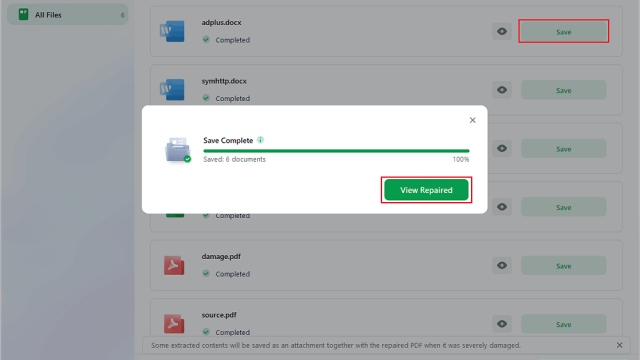
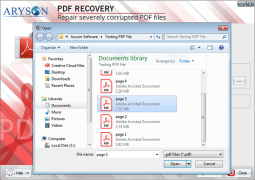
For serious corruption — like when the file is incomplete, has a bad extension, or is the result of a crash — you’ll want a specialized repair tool. Programs like PDF Repair Kit, SysInfoTools PDF Repair, or Recovery Toolbox for PDF can scan the file and recover text, images, and even forms. They often offer a free trial that shows what can be recovered before you pay. Download, install, point it to your PDF, and let it work.
Step 5: Automate with a PDF Repair API
If you frequently handle damaged PDFs or are building a workflow, consider a PDF repair API. This method is for advanced users or developers, but it’s surprisingly accessible. You can send your file to an endpoint and get a repaired version back. Our guide on using a PDF repair API walks you through the process. It’s great for batch processing or integrating into your own tools.
Common Pitfalls
- Online tools have file size limits. If your PDF is huge, you’ll need to split it first or use desktop software. Also, some online tools require a sign-up, but many free ones don’t — check our recommendation for repair PDF online for free without signup.
- Not all corruption is fixable. If the file structure is completely overwritten or encrypted, no tool can recover it. In that case, you may need to go back to the original source. This is especially true for invalid PDF repair attempts.
- Always work on a copy! Never overwrite your original corrupted file until you’re sure the repaired version is complete and correct. Save the repaired file with a new name (e.g., ‘repaired_original.pdf’).
Where to Next
You’ve repaired your PDF, but what if the problem was something else? Check out our guides on invalid PDF repair for files that simply won’t open, or how to fix unreadable PDF online when the content is scrambled. If you’re into automating your workflow, the PDF repair API article is a great next step. And remember — if a PDF is too damaged, sometimes the best repair is to recreate it from the original document.