Ever opened a PDF only to see a cryptic error like ‘Invalid PDF’ or ‘File is damaged and could not be repaired’? Don’t panic. This guide is for anyone who’s staring at a corrupted PDF and needs it fixed—fast. We’ll cover everything from quick online fixes to deeper manual recovery, so by the end you’ll either have your file back or know exactly what your next move is.
We’re assuming you’re not a tech wizard, but you know your way around a computer. No command-line ninja skills required (though we’ll offer those options too). At the end of this tutorial, you’ll have a repaired PDF or a clear understanding of what went wrong and how to avoid it next time.
What You’ll Need
- The corrupted PDF file (keep a backup copy!)
- A computer with internet access
- Adobe Acrobat Reader or Pro (optional but helpful)
- A free online PDF repair tool account (or just a browser)
- Basic terminal/command prompt access (for advanced methods)
Step 1: Identify the Problem
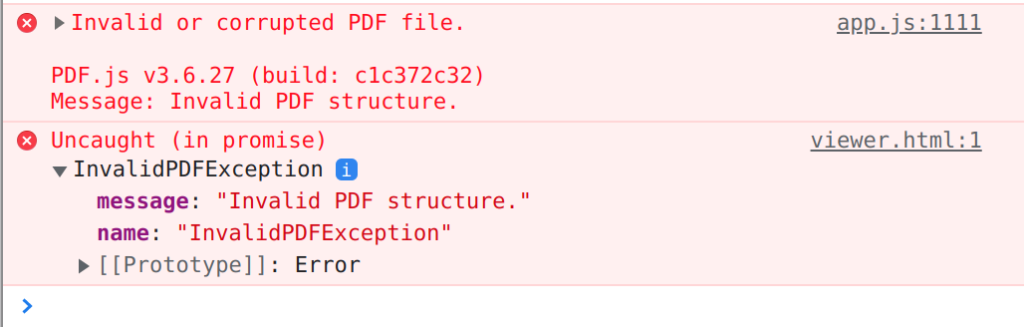
Before you hit the repair button, figure out what’s actually broken. Open the file in your PDF reader and note the exact error message. Is it saying ‘Invalid PDF’? ‘Damaged file’? Or does it just refuse to open? Also check the file size—if it’s zero bytes, you have a bigger issue (check out our guide on PDF file size zero repair). Knowing the error helps you pick the right tool.
Step 2: Try Adobe Acrobat’s Built-in Repair
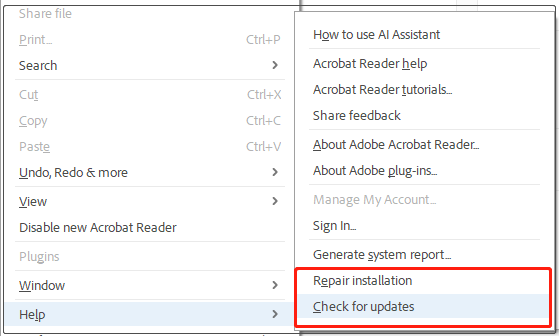
If you have Adobe Acrobat (not just Reader), you can try its native repair. Open Acrobat, go to File > Open, select your PDF, and when the error pops up, click ‘Try to Repair.’ This sometimes fixes minor corruption. If it works, save a copy immediately. If not, move on.
Step 3: Use an Online PDF Repair Tool
Online tools are your best bet for non-technical users. Head to a trusted site like the one we tested in our online repair tool guide. Upload your file, let it work its magic, and download the repaired version. No watermarks, no sign-ups if you use a good service. For a deeper dive on this, see our corrupted PDF online fix article. If the online tool fails, we have more options below.
Step 4: Repair with Ghostscript or pdftk
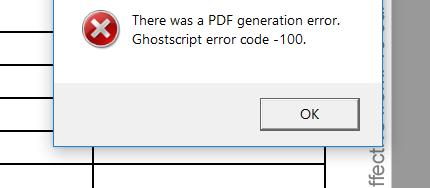
For stubborn corruption, command-line tools like Ghostscript or pdftk can strip out bad data. Install Ghostscript, then run: gs -o repaired.pdf -sDEVICE=pdfwrite -dPDFSETTINGS=/default damaged.pdf. This regenerates the file, often fixing PDF stream repair issues. Alternatively, pdftk can decompress and rebuild streams. If you’re not comfy with the terminal, skip this step.
Step 5: Manual Recovery for Severe Corruption
When all else fails, you can manually extract content from the PDF using a hex editor or tools like pdf-parser. This is advanced—expect to dig into raw PDF objects. You can often salvage text and images even if the file structure is trashed. For less severe cases, our restore PDF file guide offers more gentle options. And if your PDF is an ebook, see our recover ebook PDF article.
Common Pitfalls
- Not keeping a backup – If you overwrite the original, you lose any chance of alternative recovery.
- Using sketchy online tools – Some add watermarks or malware. Stick with reputable services (like the ones we review).
- Expecting 100% recovery – Some files are beyond repair, especially if the underlying data is gone. You may only recover text, not formatting.
Where to Next
You’ve got your PDF (mostly) back—now what? Check out our in-depth guides on fixing specific issues: if the file size was zero, read up on PDF file size zero repair; for links that broke, try our repair PDF links guide. And remember, prevention is easier than cure—always keep backups and avoid editing PDFs in unstable software.




