Ever opened a PDF only to see gibberish, blank pages, or error messages about corrupted streams? Don’t worry — you’re not alone. PDF streams are the compressed guts that hold text, images, and fonts. When they break, the whole file goes south. This guide is for anyone comfortable with a little command-line work who wants to get their hands dirty and fix the stream layer directly. By the end, you’ll have a working PDF with all its original content restored.
We’ll use free, open-source tools like qpdf and a text editor. No expensive software, no sketchy online uploads. Just you, the terminal, and some PDF internals. Ready to become a PDF mechanic? Let’s dive in.
What You’ll Need
- – A corrupted PDF file (back it up first!)
- – qpdf installed (get it from qpdf.sourceforge.net or via package manager)
- – A text editor that can handle binary-ish data (VS Code, Sublime, or even Notepad++)
- – Basic comfort with the command line (terminal on Mac/Linux, Command Prompt on Windows)
Step 1: Identify the Problematic Stream
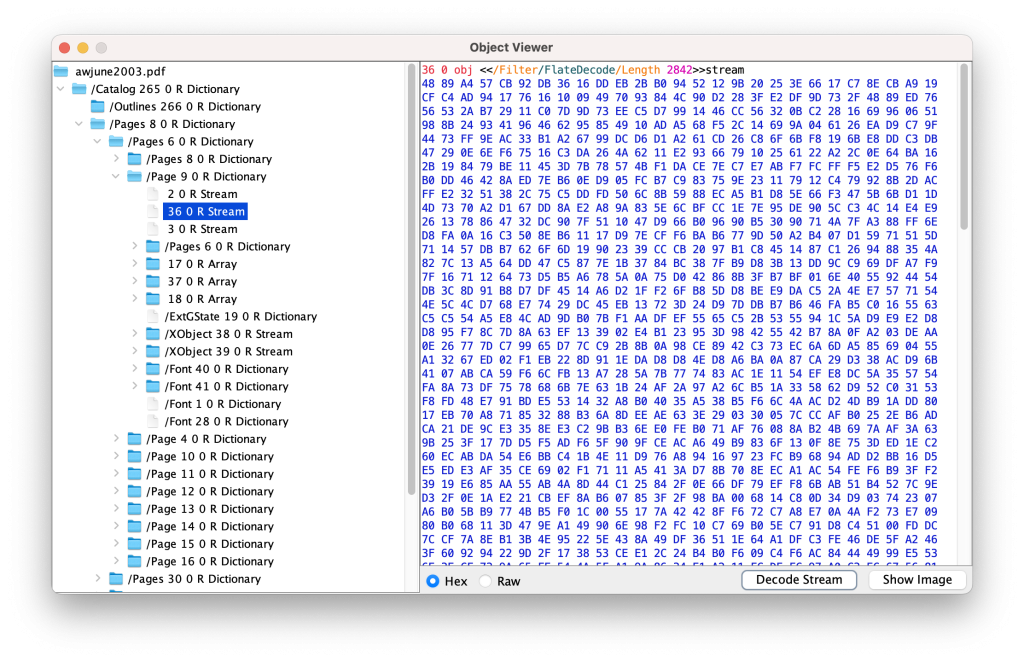
First, see what’s wrong. Run a quick qpdf check: qpdf --check corrupted.pdf. This will spit out warnings like “object 12 0: stream has incorrect length” or “expected endstream but not found”. Make a note of the object numbers — those are your targets. If you’re seeing blank pages or symbols, the stream might be compressed with a filter that’s not decoding properly. We’ll tackle that next.
Step 2: Uncompress the PDF (QDF Mode)
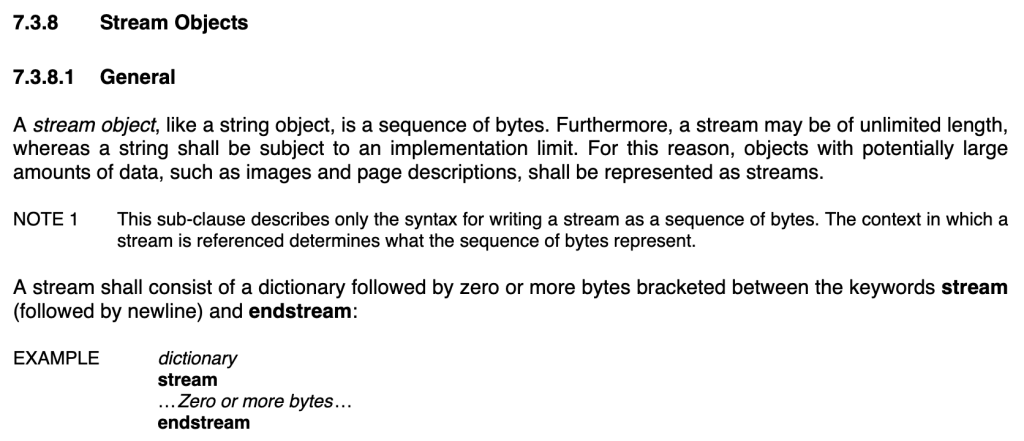
Now, decompress the entire PDF into a human-readable form: qpdf --qdf --object-streams=disable corrupted.pdf uncompressed.pdf. This creates a QDF file — a heavily annotated, uncompressed version of your PDF. Open it in your text editor. Look for the object numbers you identified earlier. Each stream object looks like: 12 0 obj <> stream ... endstream endobj. The raw data between ‘stream’ and ‘endstream’ is likely garbled now that it’s decompressed.
Step 3: Fix Common Stream Issues
Here are three problems you’ll encounter and how to fix them:
- – **Missing endstream**: If the endstream keyword is missing or damaged, the PDF engine won’t know where the stream ends. Look at the /Length entry in the dictionary — that number tells you how many bytes of raw stream data to expect. If the actual data is shorter or longer, you can manually adjust /Length or add the missing endstream. Often, simply re-saving the file with qpdf (without the –qdf flag) can reconstruct it.
- – **Wrong filter**: A common cause of blank pages is a declared filter that doesn’t match the actual compression. For instance, the dictionary says /Filter /FlateDecode, but the data is actually raw. You can try removing the filter entirely: change
/Filter /FlateDecodeto nothing (delete the line) and see if the content appears. Or swap it to /ASCIIHexDecode if you see hex digits. - – **Corrupted stream data itself**: If the data inside is trash, you might need to replace it from a backup or from a similar object. qpdf can also try to recompress:
qpdf --linearize --object-streams=generate corrupted.pdf fixed.pdf. This often forces a clean rebuild of the stream.
Step 4: Recompress and Validate
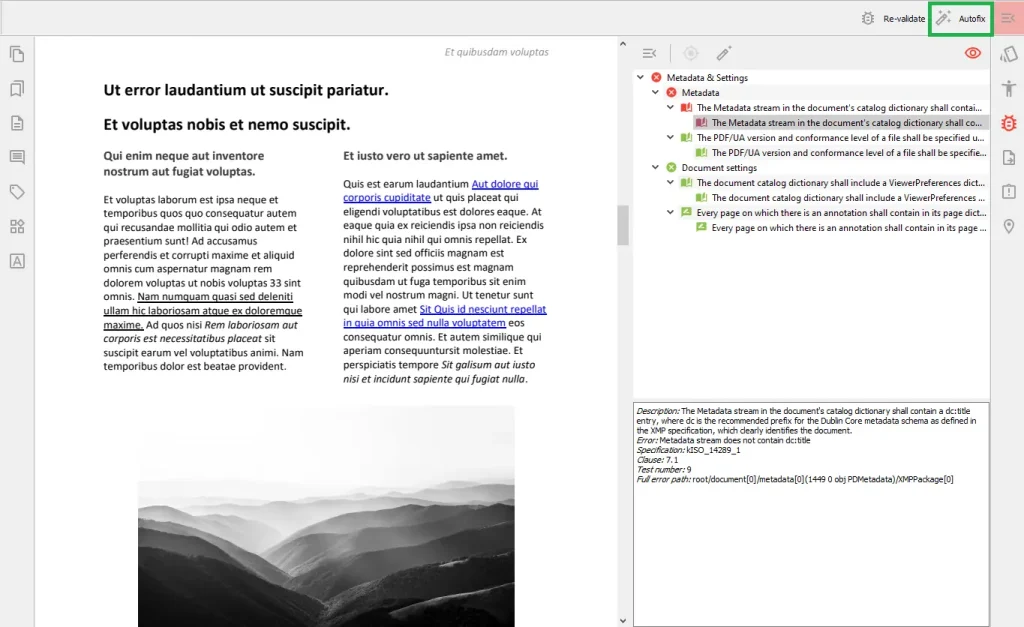
After editing, you need to turn the QDF back into a normal PDF: qpdf uncompressed-fixed.pdf final.pdf. This will recompress the streams and produce a standard file. Then run qpdf --check final.pdf again. Ideally, no errors remain. Open it in a PDF viewer to see if content is intact. If you still have issues, go back to step 3 — it might be another stream or an indirect reference problem. For deeper issues, check out our guide on why pdf shows blank pages.
Common Pitfalls
- – **Editing without backup**: Always work on a copy. One wrong character and the file becomes useless. Keep the original safe.
- – **Wrong /Length after editing**: If you manually change stream data, the /Length value must match the new byte count. qpdf can do this automatically if you use its –qdf mode and then re-run without –qdf. Doing it manually? You risk broken objects.
- – **Ignoring indirect references**: Some streams reference objects that themselves are damaged. Use the –check output to follow the chain. A missing font object can trigger stream errors that look like stream problems. For font issues, our pdf symbols instead of text fix article helps.
Where to Next
You’ve just repaired a PDF stream by hand — that’s some solid troubleshooting. From here, explore broader command line pdf repair techniques, or tackle header corruption with our repair pdf invalid header guide. If you’re dealing with metadata issues, fix pdf metadata can tidy up the file’s metadata. Keep a copy of qpdf handy — it’s your Swiss Army knife for PDF surgery.




