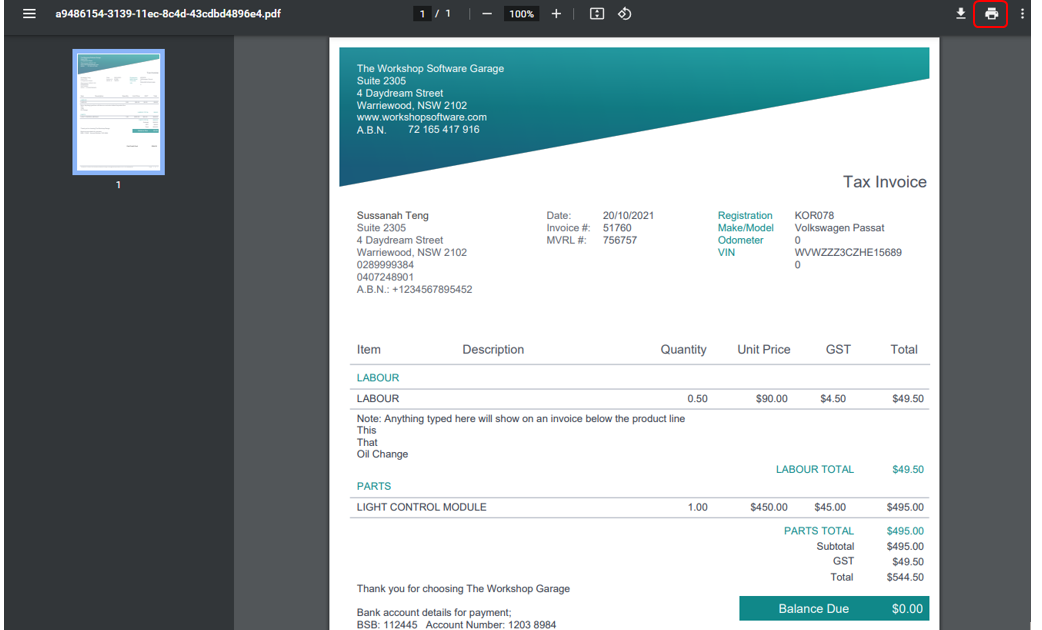
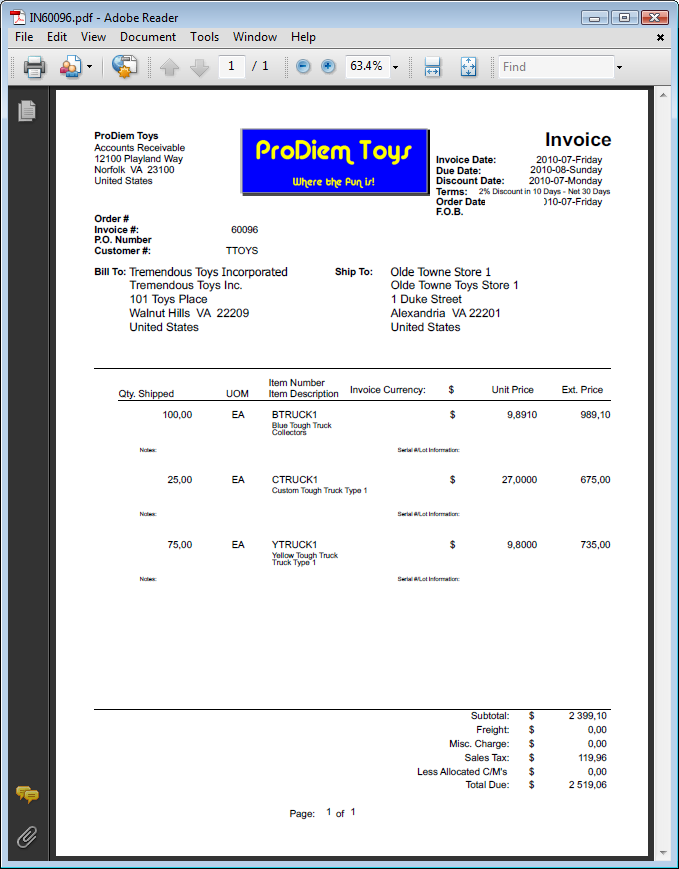
Ever had an invoice PDF go missing just before tax season? Or maybe you opened a file and got a garbled mess instead of your neat bill. This guide is for anyone who needs to recover an invoice PDF — whether it’s lost, corrupted, accidentally deleted, or just not opening. By the end, you’ll have your invoice back (or at least know exactly what to try next) using free tools and methods that actually work.
We’ll cover the most common scenarios: recovering from email where you originally received it, checking your download folder or recycle bin, using a free online repair tool for corrupted files, and even digging into your hard drive with recovery software. No prior tech skills required — just follow along.
What You’ll Need
- A computer (Windows, Mac, or Linux) — smartphone steps also included where possible
- An internet connection
- The email account where you received the invoice (if sent via email)
- A USB flash drive or external drive (optional, for backup)
- A free PDF repair tool (we’ll link one)
Step 1: Check Your Email First
Most invoice PDFs arrive as email attachments. Before doing anything else, search your inbox for the sender’s name or the word “invoice.” Also check your spam folder — automated invoices often get flagged. If you find it, download a fresh copy. This is the easiest fix and avoids any repair work.
Step 2: Look in Your Downloads & Recycle Bin
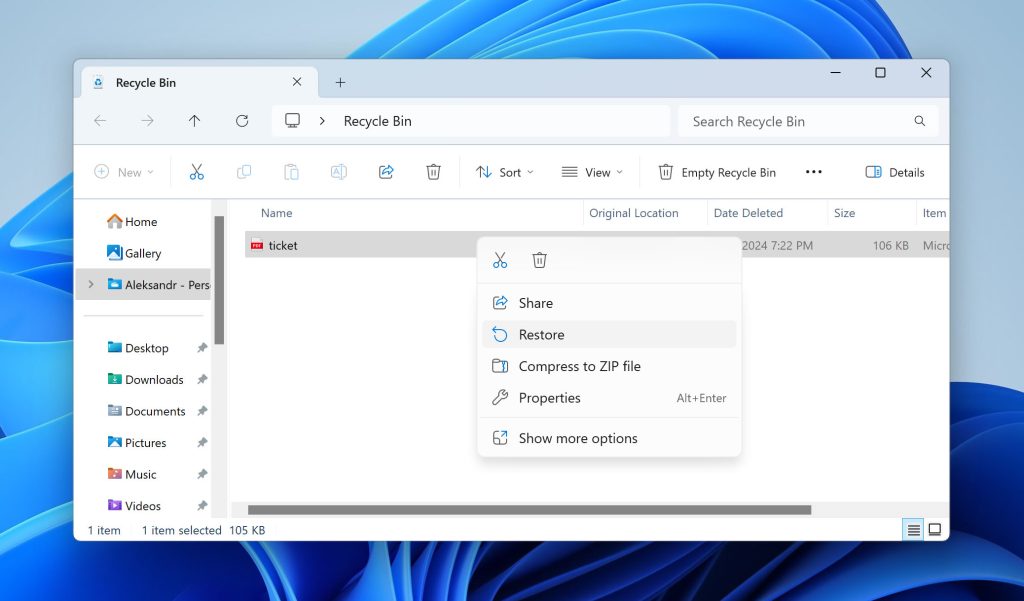
If you downloaded the invoice earlier, it might still be in your Downloads folder. Use your file manager to search for *.pdf or the invoice name. Also check the Recycle Bin (Windows) or Trash (Mac). If you deleted it recently, you can restore it in one click. Still no luck? Move to the next step.
Step 3: Try a Free Online PDF Repair Tool
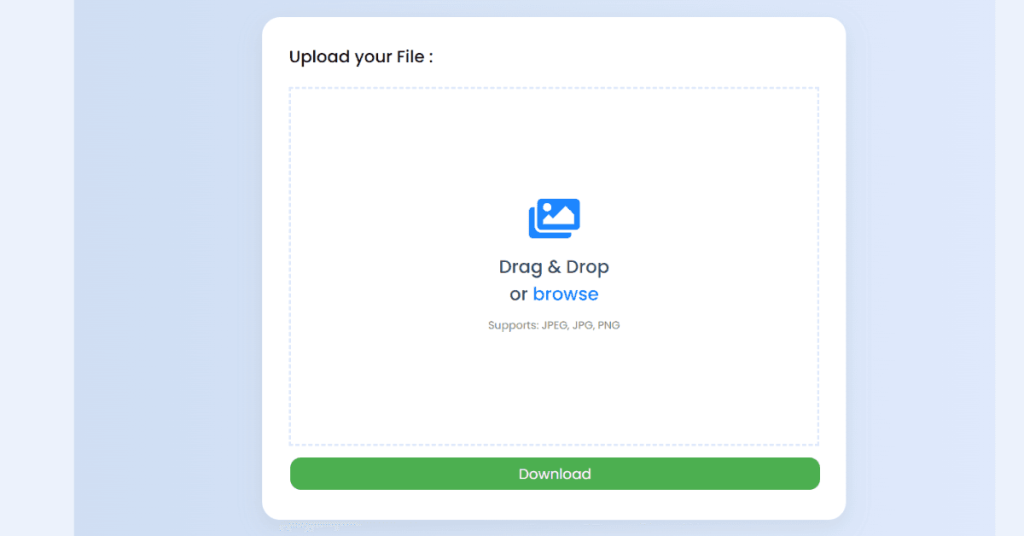
If the PDF exists but won’t open — showing errors like “file is damaged” or “cannot display PDF” — use a free online repair tool. A reliable option is the one we cover in our free corrupted PDF recovery guide. Upload your file, let the tool fix it, and download the repaired version. This works for most corruption issues, especially if the file is partially intact.
Step 4: Recover from Hard Drive or Backup
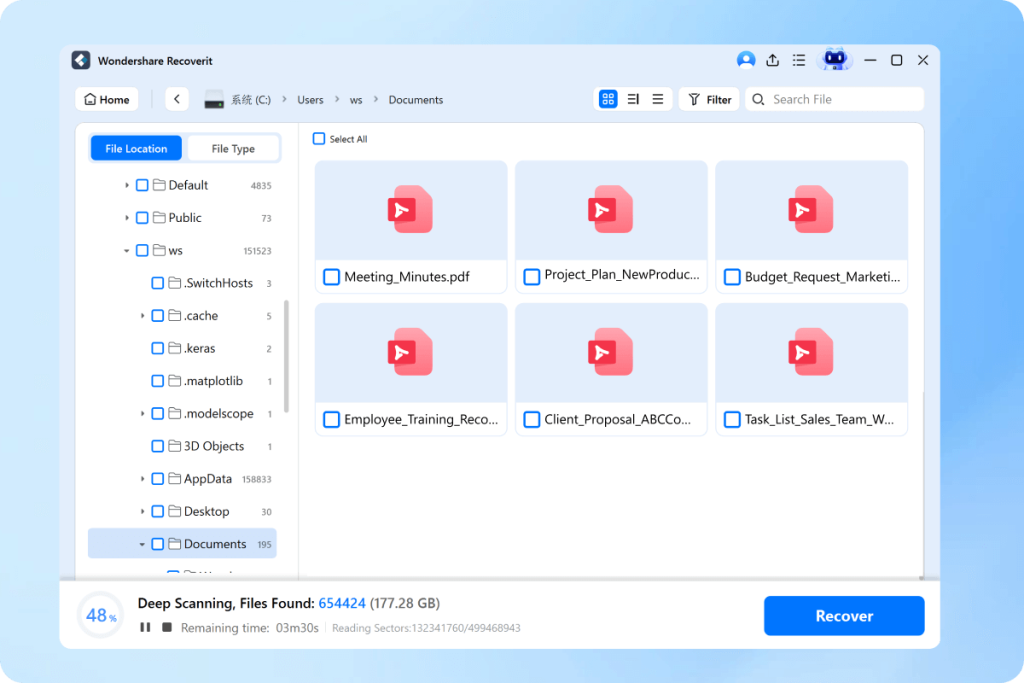
If the invoice is lost due to a hard drive crash, accidental format, or deletion beyond the recycle bin, you’ll need recovery software. Use a tool like Recuva (Windows) or Disk Drill (Mac) to scan the drive. Look for the file name or filter by PDF. This can recover files that were not overwritten. For detailed steps, see our guide on how to recover PDF from hard drive.
Step 5: Check Cloud Storage & Shared Folders
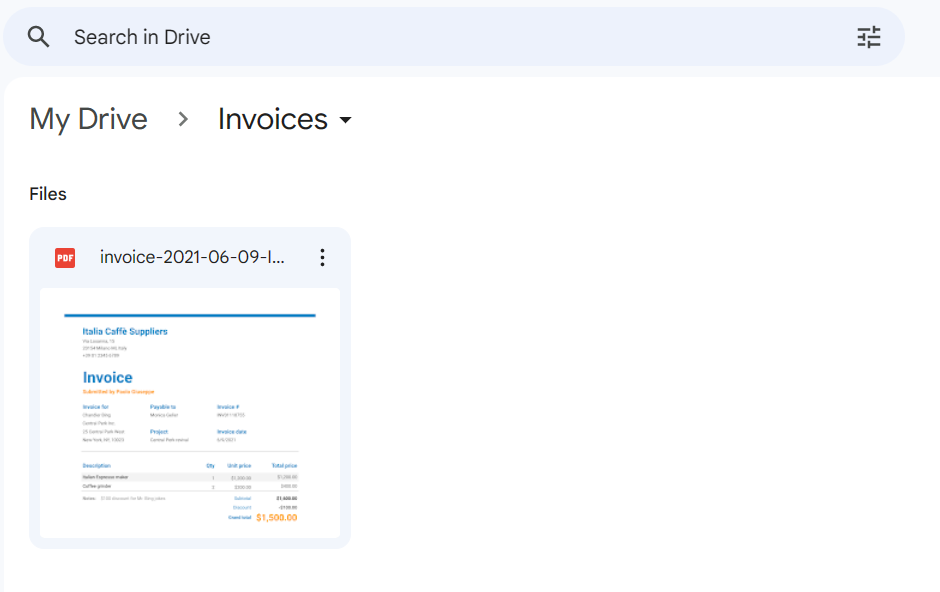
Many people save invoices to cloud services like Google Drive, Dropbox, or OneDrive. Log in and search for the file. Also check the “Shared with me” section — someone might have shared it with you. If you use accounting software, the invoice may be stored in its own cloud. This step often yields a quick victory.
Step 6: Contact the Sender for a Resend
If all else fails, reach out to the person or company who sent the invoice. Explain that you lost the file and ask them to resend it. Most businesses keep records and can email you a fresh PDF within minutes. This is especially common for utilities, subscriptions, and freelancers. It’s also a good reminder to save future invoices in a dedicated folder.
Common Pitfalls
- Using the same tool repeatedly with the same broken file — if the first repair tool fails, try a different one (like the one in our pdf repair guide) before giving up.
- Overwriting the lost file by installing recovery software on the same drive — install the tool on a different drive or USB to avoid overwriting data.
- Not checking spam or trash thoroughly — invoices often hide in places you don’t expect. Always do a full search before moving to complex recovery methods.
Where to Next
Now that you’ve recovered your invoice PDF, consider organizing your digital files to prevent future loss. Set up automatic backups, use a consistent naming convention, and keep a local folder just for invoices. For similar issues, check out our guides on how to recover bank statement PDF and how to repair PDF from email. And if you ever run into a corrupted file again, you’ll know exactly where to start.




