You’ve got an important PDF that just won’t open. Maybe it throws an error, shows garbage characters, or is completely blank. Before you resign yourself to losing that document, take a breath. This guide is for anyone – no tech background needed – who wants to recover a corrupted PDF without paying for expensive software. By the end, you’ll have a working PDF (or at least a salvaged version of it).
We’ll cover five free methods, from quick online tools to a sneaky Google Drive trick, and even a couple of command-line utilities if you’re feeling adventurous. Each step builds on the previous one, so start with step 1 and move down the list until your file is back in action. Ready? Let’s get that PDF fixed.
What You’ll Need
- The corrupted PDF file (keep a backup copy just in case)
- A computer with an internet connection
- A PDF reader like Adobe Acrobat Reader or your browser
- (Optional) A free account on Google Drive – you probably already have one
- (Optional) A willingness to type a few commands if you go the command-line route
Step 1: Try a Different PDF Reader
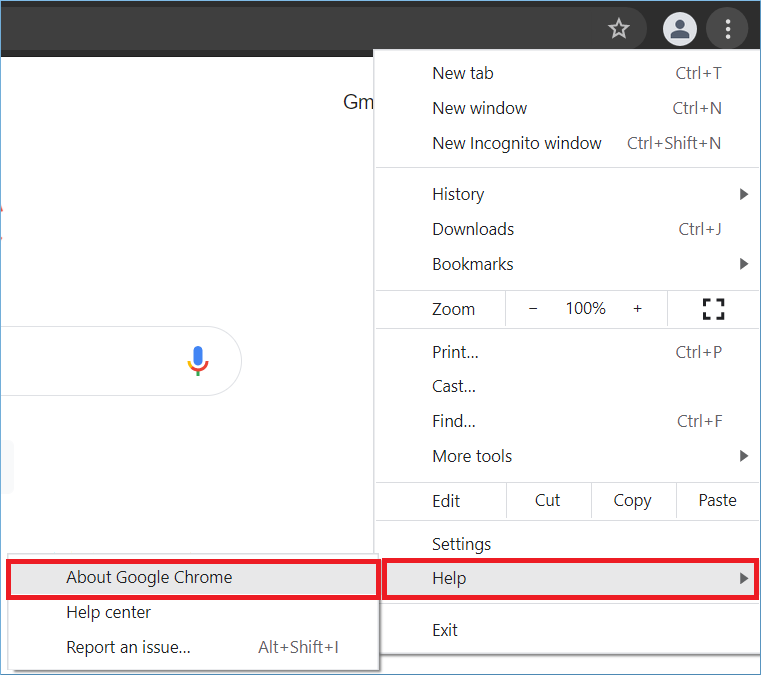
Sometimes the corruption isn’t in the file itself – it’s in the way your current reader interprets it. Before diving into repairs, download a different PDF reader and try opening the file. Browsers like Chrome and Edge have built-in PDF viewers that can handle minor glitches. If the file opens fine elsewhere, you’ve solved it without any actual repair. If not, move to step 2.
Step 2: Use a Free Online PDF Repair Tool
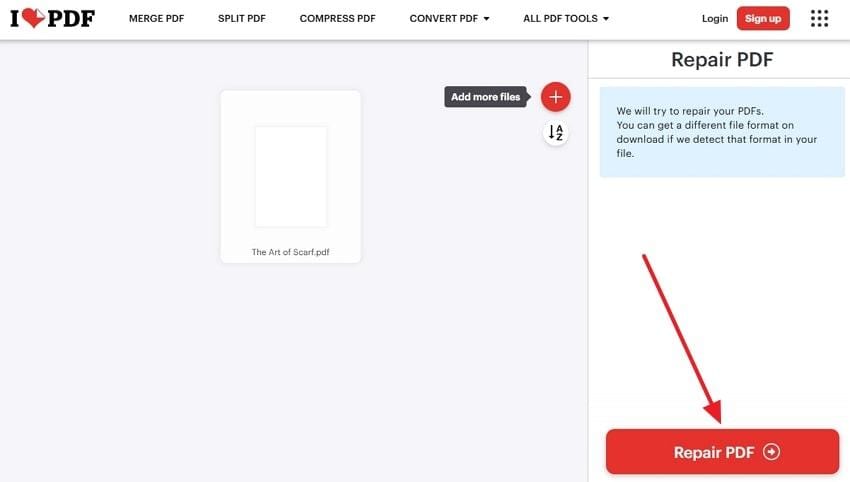
Several websites offer free PDF repair for files under a certain size (usually 100-200 MB). iLovePDF, Smallpdf, and PDF24 are popular choices. Upload your file, let their servers try to rebuild it, then download the result. Be aware: if your document contains sensitive info, skip this step – uploads go to third-party servers. For general-purpose recovery, this is the fastest method.
Step 3: Recover via Google Drive (The Hidden Trick)
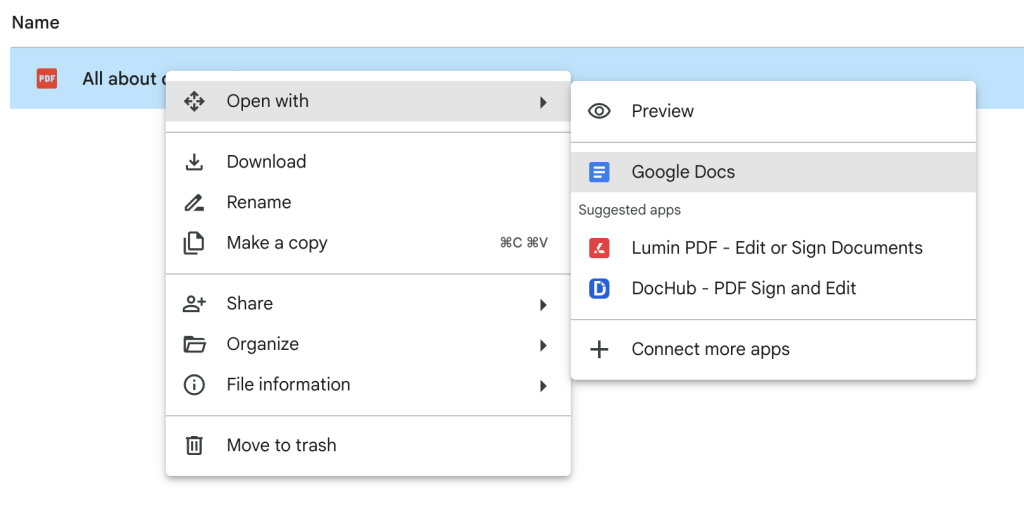
If you have a Google account, this is a lifesaver. Upload your corrupted PDF to Google Drive, then right-click it and select “Open with” > “Google Docs.” Google Docs will attempt to convert the PDF into an editable document. Even if the PDF is damaged, Docs often manages to extract the text and layout. Once opened, go to File > Download > PDF Document to export a fresh, healthy PDF. This trick works surprisingly often for text-based PDFs.
Step 4: Repair with Ghostscript (Command Line)
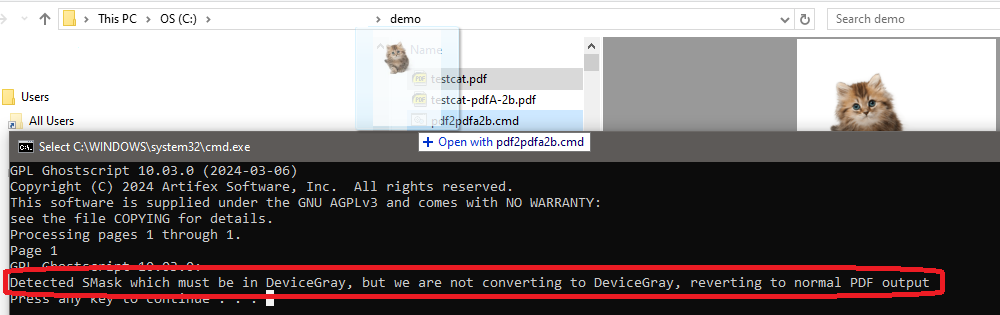
Ghostscript is a powerful free tool that can reinterpret and regenerate PDF files. It’s a command-line utility, but don’t let that scare you. First, download and install Ghostscript from ghostscript.com. Then open your terminal (Command Prompt on Windows, Terminal on Mac/Linux) and run this command: gs -o output.pdf -sDEVICE=pdfwrite -dPDFSETTINGS=/prepress input.pdf. Replace input.pdf with your corrupted file. This command reads the original PDF and writes a new, clean version. Many corruption types – like invalid headers or broken xref tables – are fixed this way.
Step 5: Try PDFtk (Another Free Command-Line Tool)
If Ghostscript didn’t work, PDFtk Server (free) is another option. Download it from pdflabs.com. Then run: pdftk corrupted.pdf output fixed.pdf. This simple command tells PDFtk to copy the input to a new output, which often fixes minor corruption issues. PDFtk is especially good at repairing PDFs with missing or broken page references. For more advanced tweaks, you can also burst the PDF into pages and reassemble them.
Common Pitfalls
- File size limits: Many online free tools cap uploads at 100 MB. For larger files, use the desktop methods (Ghostscript, PDFtk) or try compressing the PDF first using a free compression tool like PDF24.
- Obfuscated errors: Some corruption is so severe that no free tool can recover meaningful data. In those cases, your best bet is to recover the PDF from a backup or use paid software like Adobe Acrobat Pro.
- Security concerns: Uploading sensitive PDFs to online services is risky. Always check the site’s privacy policy, or better yet, stick to offline methods like Ghostscript or Google Drive (which guarantees encryption in transit).
Where to Next
You’ve just learned how to recover a corrupted PDF for free. To dive deeper into specific issues, check out our guides on how to repair a corrupted PDF, fix a damaged PDF, or how to handle command line PDF repair. If you’re dealing with a different symptom like a PDF invalid header or why PDF shows blank pages, we’ve got you covered. And if all else fails, remember: always keep backups!




