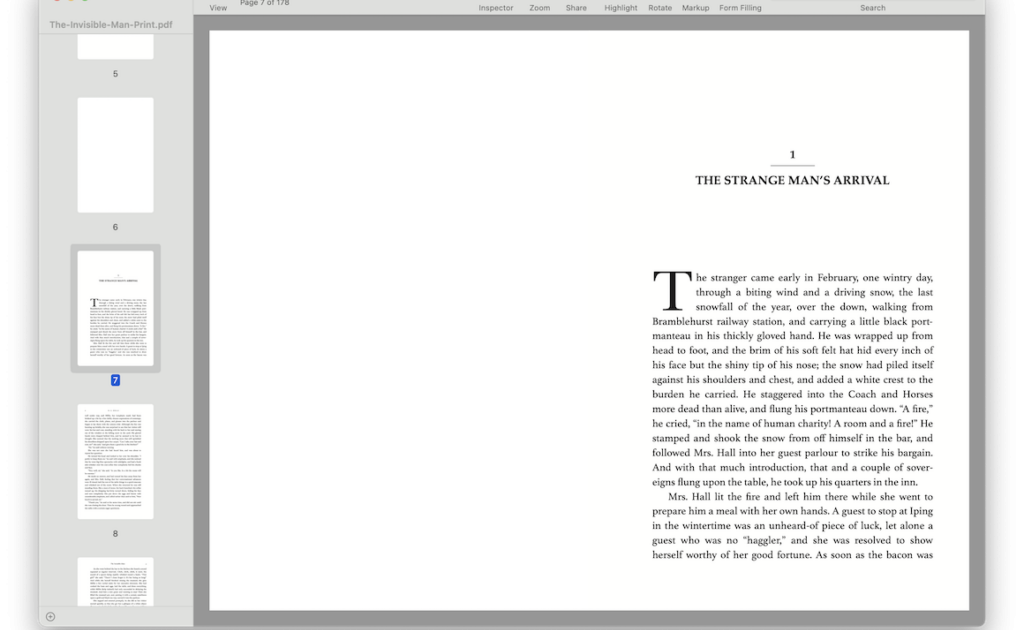
Ever opened a PDF only to find a bunch of blank pages where your content should be? It’s frustrating, especially when you’re in a hurry. This guide is for anyone who’s dealing with blank pages in a PDF — whether you’re a student, an office worker, or just someone trying to view a document. By the end, you’ll know the common reasons why PDFs show blank pages and have a set of practical steps to fix them yourself.
We’ll cover everything from simple viewer glitches to corrupt files and printer driver issues. No need to be a tech wizard — follow along and you’ll be back on track in no time.
What You’ll Need
- The problematic PDF file
- A PDF reader (Adobe Acrobat Reader, Foxit Reader, or web browser)
- Optional: A second PDF viewer for comparison
- Optional: A PDF repair tool or online service
- Basic computer skills (opening files, saving, etc.)
Step 1: Check Your PDF Viewer
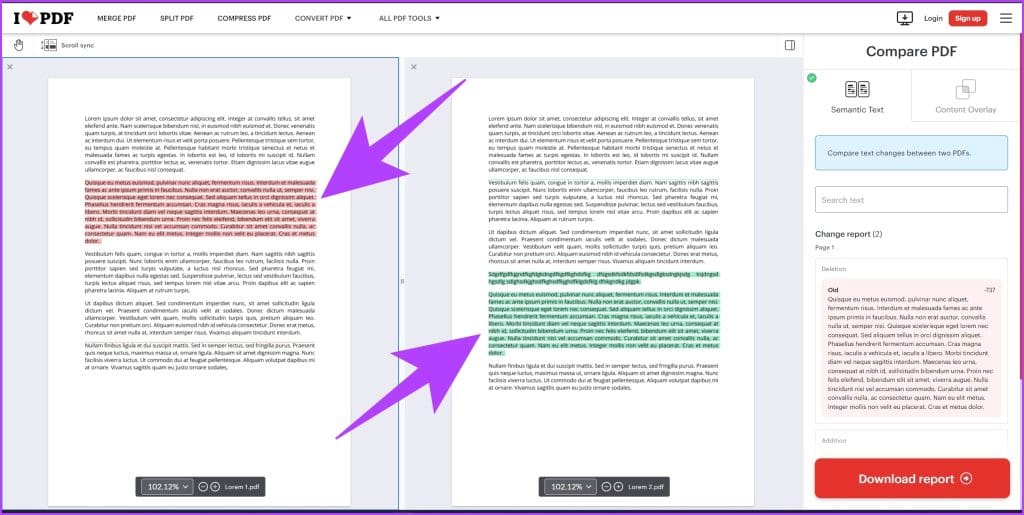
Sometimes the issue isn’t the PDF itself, but the viewer you’re using. Try opening the same PDF in a different program. If you’re using a browser, download the file and open it in Adobe Acrobat Reader or Foxit Reader. If the blank pages disappear, your original viewer might have a glitch.
Step 2: Update or Reinstall Your PDF Viewer
An outdated PDF viewer can misinterpret page content. Check for updates in your viewer’s settings. If that doesn’t help, uninstall and reinstall the viewer. This often fixes rendering issues that cause blank pages.
Step 3: Adjust Print as Image Settings
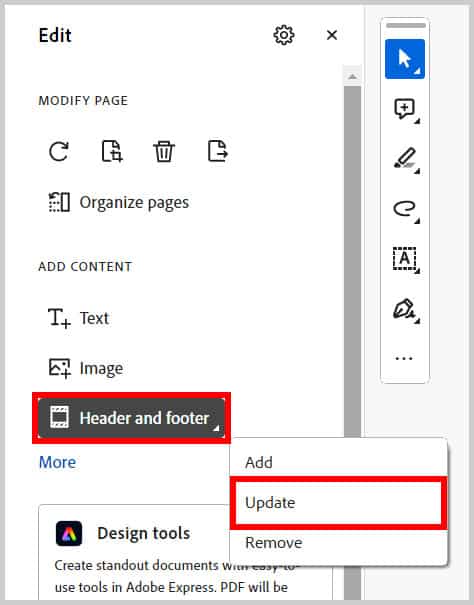
If your PDF was created by a printer or scanner and shows blank pages, it might be a driver issue. Try printing the PDF using ‘Print as Image’ or ‘Rasterize’ option. In Adobe Reader, go to File > Print, click Advanced, and check ‘Print as Image’. This forces the printer to treat each page as an image, bypassing driver problems.
Step 4: Repair the PDF File
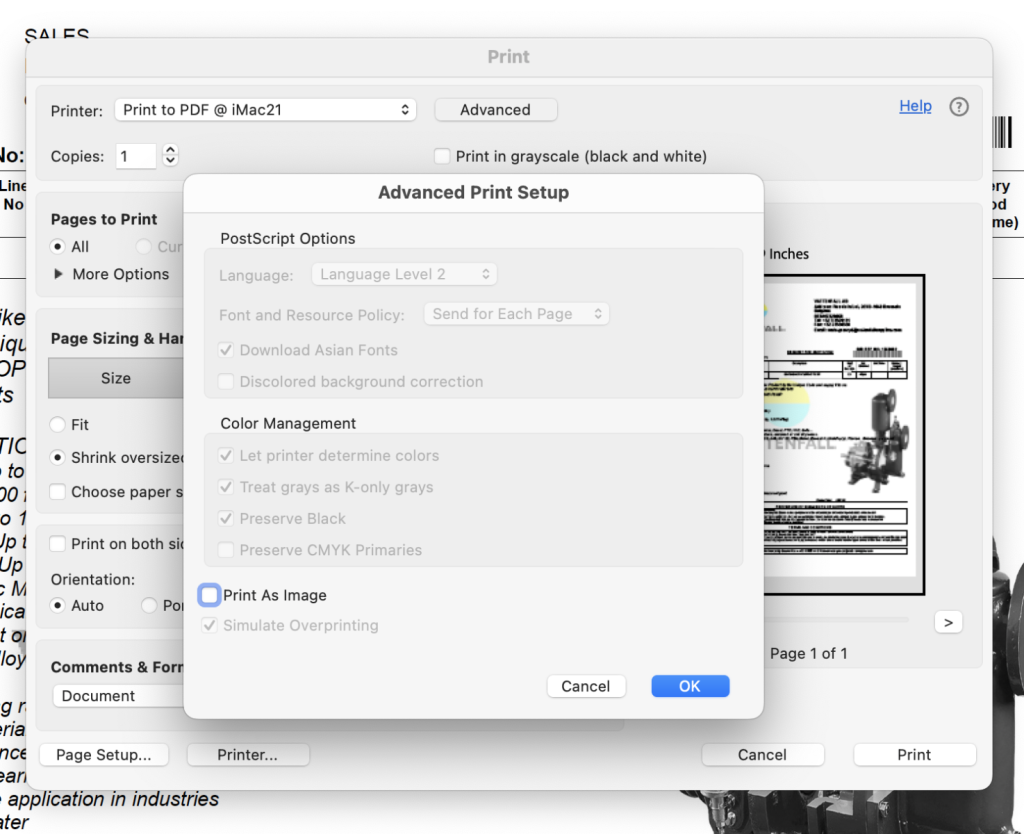
Corruption is a common cause of blank pages. Use a dedicated PDF repair tool or online service. You can also try to fix scanned pdf using methods from our guide. If the file is corrupted only partially, saving it as a new PDF (File > Save As) sometimes rebuilds the structure.

Step 5: Recover Content from a Damaged PDF
If repair fails, you might still extract content. Open the PDF in a text editor (like Notepad) and look for readable text among the garbage. This works for simple text PDFs. Another option is to import the PDF into a tool like Google Docs, which sometimes renders blank pages correctly.
Step 6: Recreate the PDF from Source
As a last resort, recreate the PDF from the original source file (Word document, image, etc.). If you don’t have the source, consider using an online PDF conversion service to convert the blank pages to an image format (JPEG) and then back to PDF. This often ‘flattens’ the content.
Common Pitfalls
- Assuming the PDF is completely blank when only some pages are missing — check page by page.
- Ignoring font issues: If a PDF uses embedded fonts that are corrupt, pages may appear blank. Try copying text to see if it’s there but invisible.
- Forgetting to check layers: Some PDFs have layers that can be hidden. In Adobe Reader, go to View > Show/Hide > Navigation Panes > Layers to check for hidden content.
Where to Next?
If you’re still seeing blank pages after trying these steps, the PDF might be too damaged. Check out our guides on how to fix pdf image pages or repair pdf created by printer for more specialized fixes. You can also learn how to fix pdf compression error if the file size seems off. Don’t give up — most PDF issues are fixable!




