Hey there, so you’ve got a PDF that’s acting up with compression errors? Maybe it won’t open, or the images are all blocky, or the file size is way too big (or tiny). You’re not alone—compression errors are super common when saving or sharing PDFs. This guide is for anyone who needs to get their PDF back in working shape without losing your mind. By the end, you’ll have a clean, properly compressed PDF that opens fine and looks good.
We’ll walk through a few methods: using Adobe Acrobat (if you have it), the powerful free tool Ghostscript, and some handy online alternatives. No advanced skills needed—just follow along.
What You’ll Need
- The problematic PDF file (make a backup first!)
- Adobe Acrobat Pro or Standard (optional, but helps)
- Ghostscript (free, download from ghostscript.com)
- An internet connection for online tools (if you go that route)
- A cup of coffee (optional but recommended)
Step 1: Identify the Compression Error
Before we dive in, let’s figure out what kind of compression error we’re dealing with. Open the PDF and look for error messages like “File is damaged” or “Image compression not supported.” Also check the file size: if it’s huge after compression, or tiny but images are missing, that’s a clue. Sometimes the PDF just won’t open at all.
If you’re seeing weird behavior, it might be a deeper corruption issue. If so, check out our guide on how to validate and repair PDFs for more thorough checks. But for pure compression problems, move on.
Step 2: Use Adobe Acrobat’s PDF Optimizer
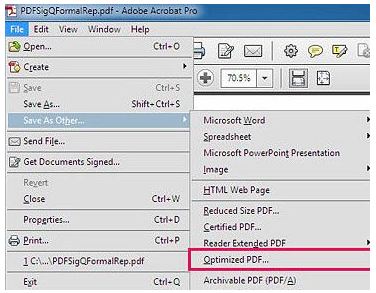
If you have Adobe Acrobat (not just Reader), this is the easiest fix. Open the PDF, then go to File > Save As Other > Optimized PDF. A dialog box will pop up with all the compression settings. You can tweak image resolution, font embedding, and more. For a quick fix, try the “Standard” setting, then click OK and save as a new file name.
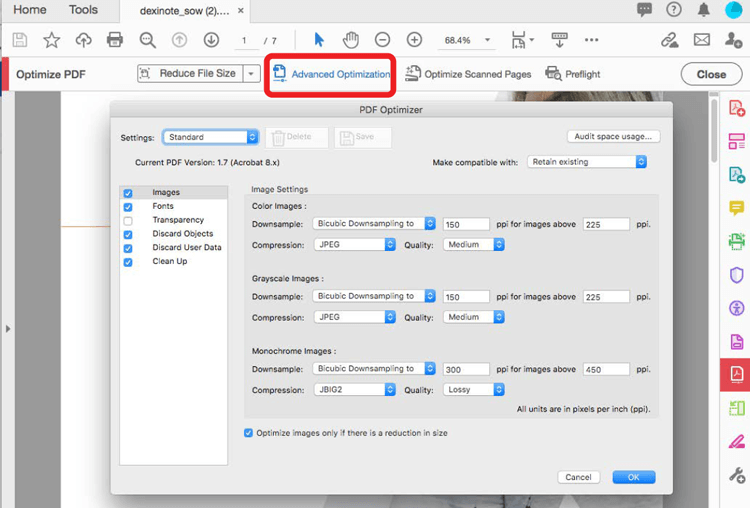
This often solves compression errors caused by incompatible settings. If it doesn’t work, don’t worry—we’ve got more tools.
Step 3: Use Ghostscript to Recompress from the Command Line
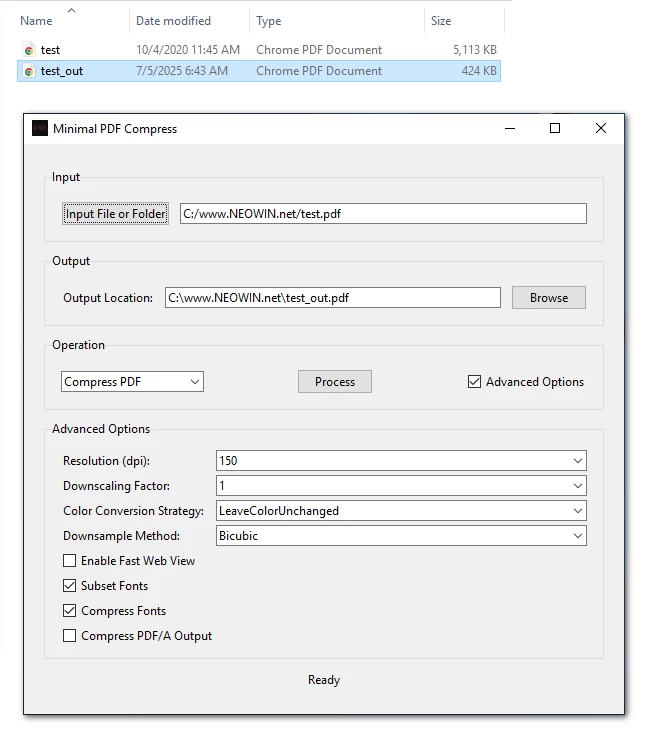
Ghostscript is a free command-line tool that can re-process PDFs and fix many compression issues. Install it, then open a terminal or command prompt. Run this command (adjust paths as needed):
gswin64c -sDEVICE=pdfwrite -dCompatibilityLevel=1.4 -dPDFSETTINGS=/ebook -dNOPAUSE -dQUIET -dBATCH -sOutputFile=output.pdf input.pdf
Ghostscript command
The /ebook setting is a good balance of size and quality. If you need higher quality, use /printer instead. This recompresses all images and fixes object issues. If you’re comfortable with terminal, this is a lifesaver. For more details, see our post on command-line PDF repair.
Step 4: Try an Online Tool for Quick Fixes
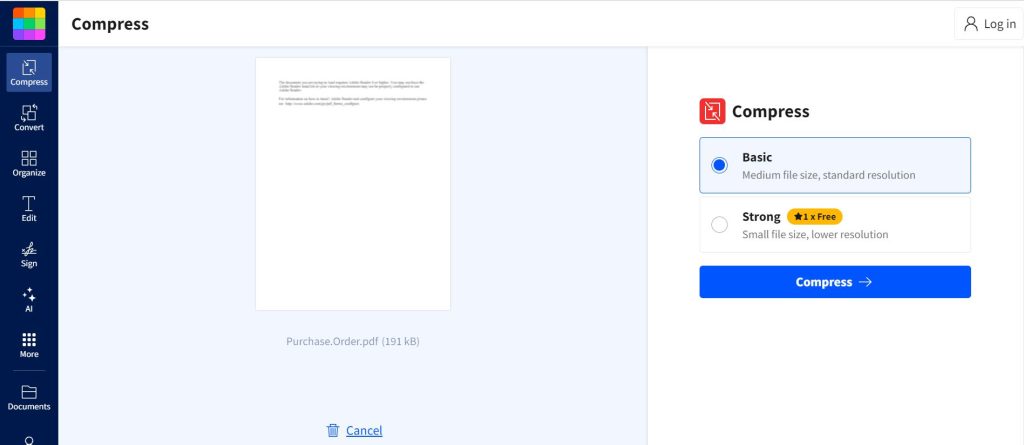
Don’t want to install anything? Use an online tool like Smallpdf or iLovePDF. Upload your PDF, let them compress or repair it, and download the fixed version. They’re great for simple compression errors, but be careful with sensitive documents—privacy matters. If the file is too large to upload, stick with Ghostscript or Acrobat.
If you need a simple PDF repair tool that works offline too, we’ve got you covered with dedicated guides.
Step 5: Check Font Embedding and Image Settings
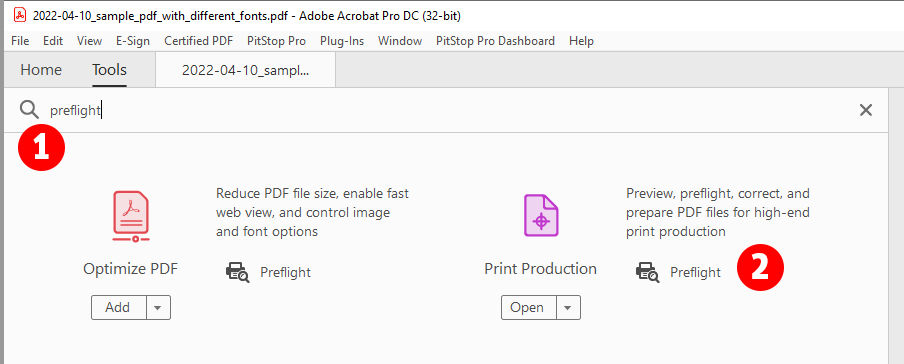
Sometimes compression errors come from missing fonts or poorly embedded images. In Acrobat, run a Preflight check: Tools > Print Production > Preflight. Look for “PDF/A compliance” or “List fonts not embedded.” If fonts are missing, you can embed them manually. For images, ensure they’re set to JPEG2000 or ZIP compression—some older PDF readers don’t support newer compression. This step can fix stubborn errors that others miss.
Understanding why PDF files become corrupted can help you avoid future errors. Check out our article on common causes.
Common Pitfalls
- Overcompressing: Using too aggressive settings can ruin image quality. Always test on a copy first.
- Incompatible PDF version: Some older readers don’t support the latest compression standards. Stick to PDF 1.4 or 1.6 for broad compatibility.
- Forgetting to embed fonts: If the font isn’t embedded, the PDF will look wrong on another device. Make sure fonts are included during compression.
Where to Next?
You’ve fixed your compression error—awesome! But if you run into other issues, we have more guides: learn how to repair PDF after transfer, or explore other fixes like unlocking damaged PDFs. And remember, a good backup strategy is your best friend. Happy PDFing!