You know the panic: you need a PDF that was sent to you on WhatsApp yesterday, but when you scroll up, it’s gone. Maybe you accidentally deleted the chat, or the file expired. This guide is for anyone who’s ever misplaced a PDF on WhatsApp and needs it back – fast. By the end, you’ll have a concrete plan to recover your PDF, whether it’s still lurking in your phone’s storage or buried in a backup.
I’ll walk you through five methods, from the simplest (checking the hidden WhatsApp folder) to more advanced (using backup restores or third-party recovery software). And if the recovered file turns out damaged, I’ll show you how to fix that too. Let’s dig in.
What You’ll Need
- Your phone (Android or iPhone) with WhatsApp installed
- A computer (optional, for some methods)
- A USB cable (if using computer)
- File manager app (Android) or Files app (iPhone)
- WhatsApp chat backup enabled (either Google Drive or iCloud – helps a lot)
- A PDF repair tool (like a web-based PDF repair tool) if the recovered PDF is corrupted
Step 1: Check WhatsApp’s Internal Media Folder (Android)
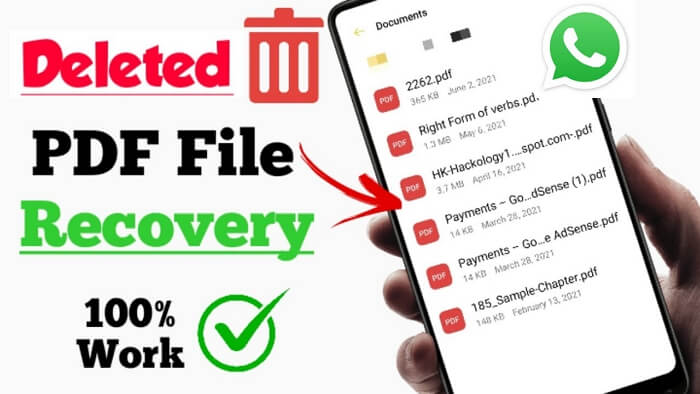
WhatsApp stores all received documents, including PDFs, in a hidden folder on your phone’s internal storage. Even if you deleted the chat, the file might still be there.
- Open your phone’s file manager. If you don’t have one, install a free file manager app from the Play Store.
- Navigate to Internal Storage > WhatsApp > Media > WhatsApp Documents.
- Look for your PDF. Files are named with a timestamp and the sender’s number (e.g., “DOC-20250321-WA0000.pdf”).
- Tap the file to open it, or long-press and select ‘Share’ to send it elsewhere.
If the PDF is there, copy it to a safe folder – congratulations, you’re done! If it’s not, move to the next step.
Step 2: Restore from Google Drive Backup (Android)
If you have WhatsApp chat backup enabled to Google Drive, you can restore a version of your chats from before the PDF was deleted. Warning: this will replace your current chats with the backup.
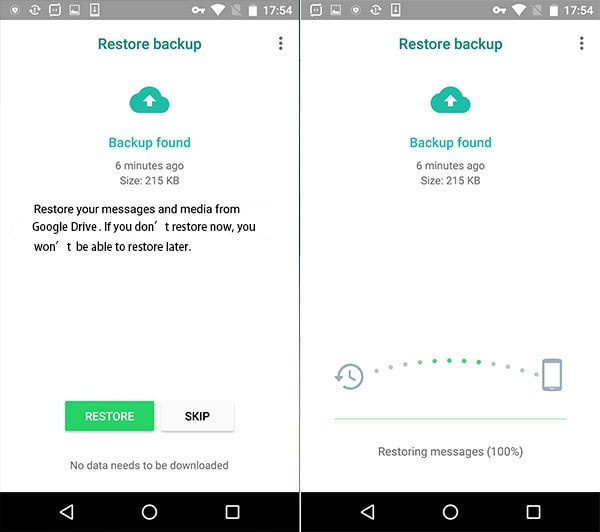
- Uninstall WhatsApp from your phone.
- Reinstall WhatsApp from the Play Store and verify your phone number.
- When prompted, tap ‘Restore’ to restore chats from Google Drive.
- After restore, open the chat where the PDF was sent – it should be there along with all other media.
Note: The backup must have been created before the PDF was deleted. If your backup is too old, the PDF won’t be there.
Step 3: Use iCloud Backup (iPhone)
For iPhone users, WhatsApp backs up to iCloud. The process is similar to Android, but happens via iOS settings.
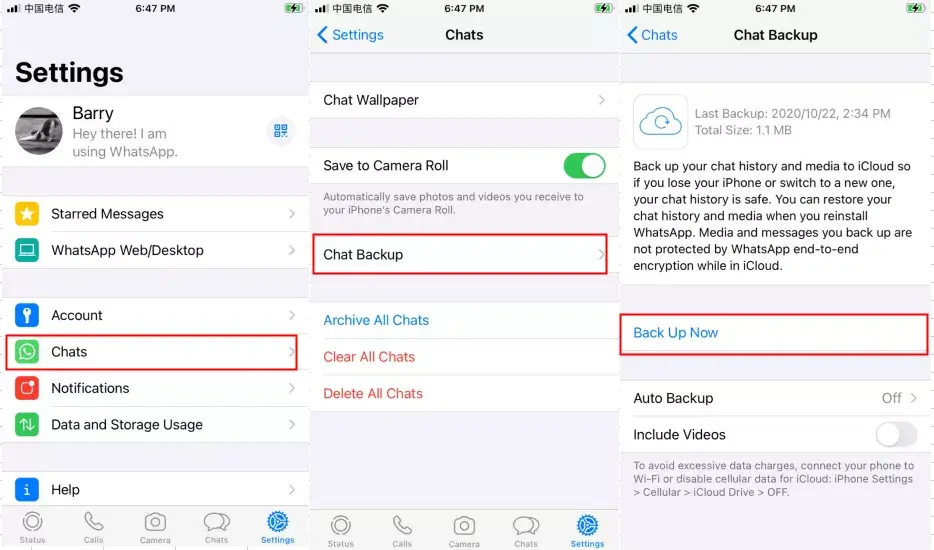
- Go to Settings > [your name] > iCloud > Manage Storage > Backups, and check if a WhatsApp backup exists. If not, you’re out of luck.
- If a backup exists, you’ll need to restore your entire iPhone from that backup – or use a third-party tool (see Step 4) for selective recovery.
- To restore from iCloud backup: erase your iPhone (Settings > General > Transfer or Reset iPhone > Erase All Content and Settings), then during setup choose ‘Restore from iCloud Backup’ and select the appropriate backup.
- After restore, open WhatsApp and the PDF should reappear in the chat.
This method is drastic – it deletes all current data on your phone, so consider trying Step 4 first if you have a third-party recovery tool available.
Step 4: Use Third-Party Data Recovery Software
If you don’t have a backup, third-party tools can scan your phone’s leftover data and extract deleted files – including PDFs. Popular options include Dr.Fone, iMobie PhoneRescue, and Tenorshare UltData.
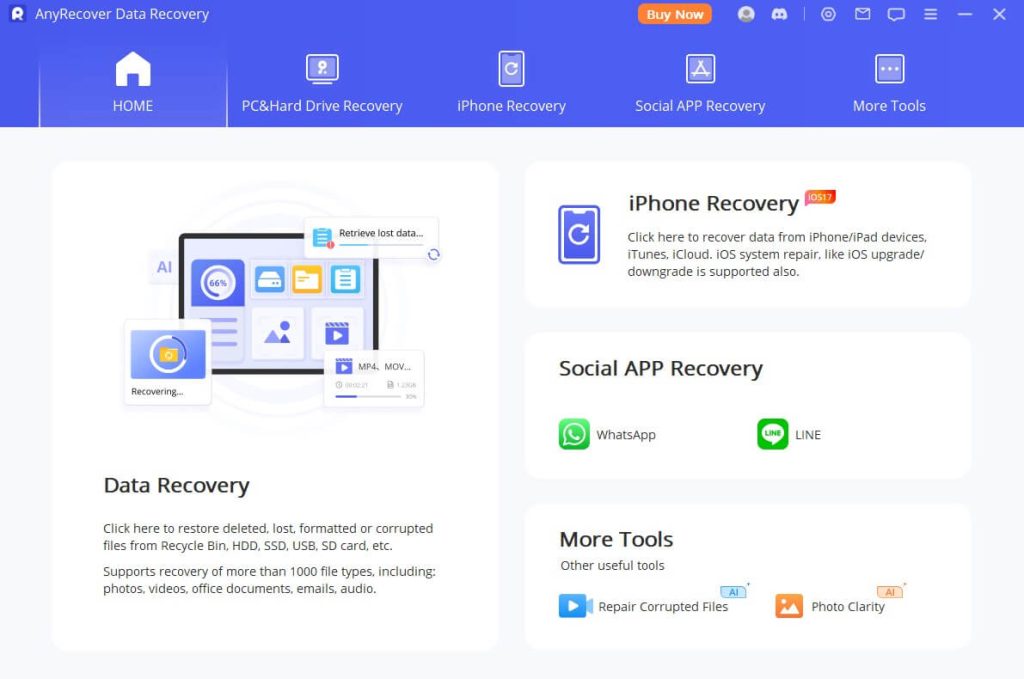
- Download and install a trustworthy data recovery tool on your PC or Mac.
- Connect your phone via USB and follow the software’s instructions to enable USB debugging (Android) or trust the computer (iPhone).
- Select ‘WhatsApp’ or ‘Messages & Attachments’ as the scan type.
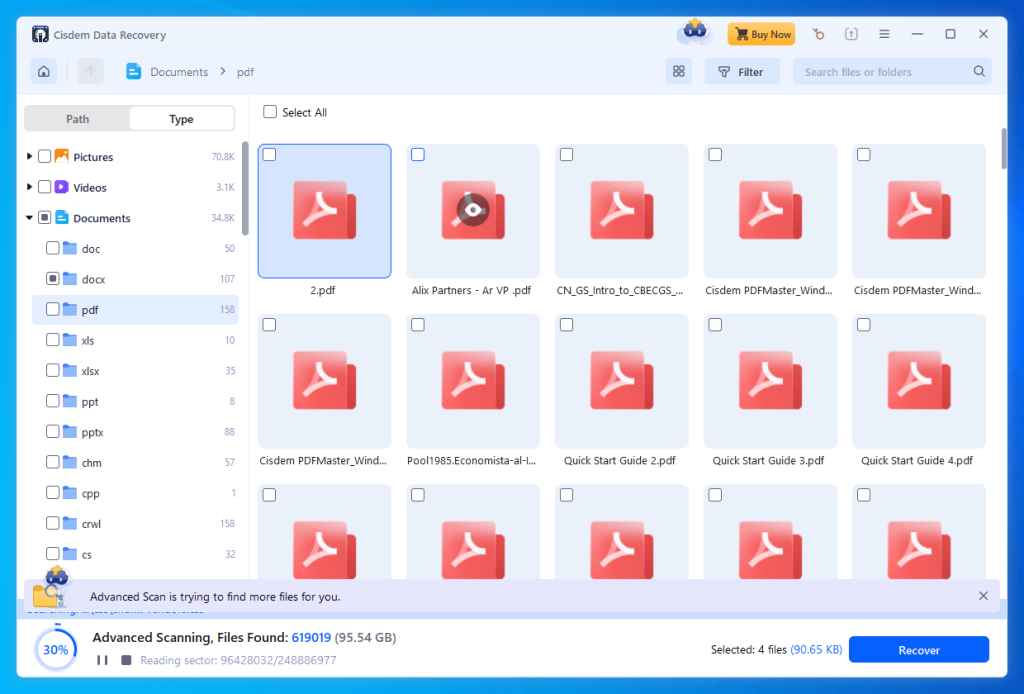
- After scanning, preview and select the PDF you want to recover, then save it to your computer.
Be cautious: many free tools are limited or spammy. Stick to well-known options and read reviews first.
Step 5: Repair a Corrupted Recovered PDF
Sometimes the recovered PDF won’t open, shows weird characters, or has a 0KB file size. This means it’s corrupted. Don’t panic – you can often fix it. I have an entire guide on why a PDF file size becomes 0KB and how to resolve it. Also, if the file is partially intact, you can use a web-based PDF repair tool to rebuild the structure. Another option is to repair a PDF after transfer, which may apply here since the file was transferred via WhatsApp.
- Open a reputable online PDF repair service (e.g., PDF Repair Services like Smallpdf or iLovePDF).
- Upload the corrupted PDF file.
- Let the tool analyze and repair it (this may take a minute).
- Download the repaired PDF and try opening it in your preferred reader.
If the repair fails, the PDF may be beyond recovery – but these methods save many files, so it’s worth a shot.
Common Pitfalls
- PDF file size is 0KB after recovery – This often means the file header is missing or the data wasn’t recovered correctly. Check out my guide on why a PDF file size becomes 0KB for specific fixes.
- Backup is too old – WhatsApp backups overwrite the previous one, so if you deleted the PDF weeks ago and only have a recent backup, it’s gone unless you have a manual copy somewhere.
- File is encrypted end-to-end – WhatsApp’s encryption means even WhatsApp can’t see your messages. If the file wasn’t saved to your phone (e.g., expired media), there’s no way to recover it from WhatsApp’s servers. Your only hope is a local backup.
Where to Next
Recovering a PDF is only half the battle – if it’s damaged, you’ll need to repair a PDF after transfer or use a web-based PDF repair tool. For other common PDF headaches, explore our guides on fixing PDF not opening in Chrome or unlocking a damaged PDF. Happy recovering!




