So you scanned a document or printed to PDF from a printer, and the result is a mess—garbled text, missing pages, or a file that won’t even open. This is a common headache, and it usually happens because the printer driver or scanner software didn’t encode the PDF properly. Don’t worry: you can often fix it with free tools. By the end of this guide, you’ll have a clean, readable PDF that works like it should.
Printer-created PDFs can suffer from a variety of issues: cross-reference table corruption, missing fonts, or incorrect page dimensions. The good news is that most problems can be solved with a few targeted steps. We’ll start with the simplest online fix and move to more powerful command-line tools if needed.
What You’ll Need
- The corrupted PDF file (the one created by your printer)
- A computer (Windows, macOS, or Linux)
- Internet connection (optional—for online repair tools)
- Ghostscript (free, open-source, available at ghostscript.com)
- PDFtk (free, available at pdflabs.com)
- A PDF viewer (like Adobe Acrobat Reader or your browser)
Step 1: Identify the Problem
Before diving into repairs, open the PDF in a viewer and note exactly what’s wrong. Is it completely unopenable? Are pages scrambled? Is the text garbled but images fine? This will help you choose the right fix. If you get an error like ‘PDF is damaged’ or ‘Cross-reference table missing,’ that’s a structural issue. For garbled text, it might be a font or encoding problem.
Step 2: Try an Online Repair Tool (Quickest Fix)
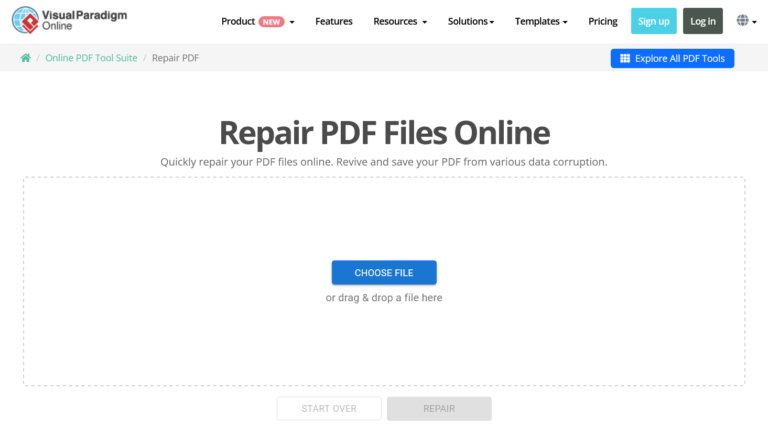
If the PDF is not too sensitive (no confidential data), start with a free web based pdf repair service like iLovePDF, Smallpdf, or PDF2Go. Upload your file and let the tool automatically fix it. These services rebuild the PDF structure and often resolve missing cross-references or stream errors. Download the repaired copy and check if it opens properly. This works for about 60% of printer-related corruption.
Step 3: Repair with Ghostscript (For Stubborn Files)
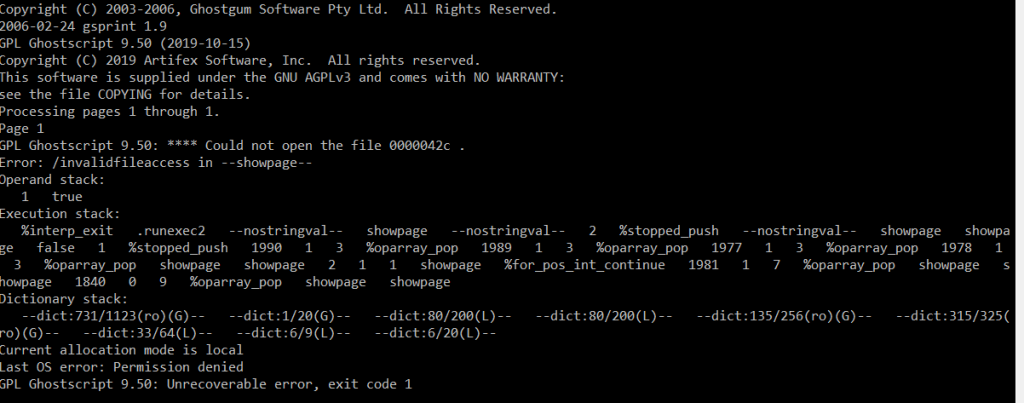
When online tools fail, Ghostscript is your next weapon. It’s a command-line interpreter that can regenerate a clean PDF from a troubled one. Install Ghostscript, then open a terminal (Command Prompt on Windows) and run a command like: gswin64c -o repaired.pdf -sDEVICE=pdfwrite -dPDFSETTINGS=/prepress corrupted.pdf. This forces Ghostscript to re‑encode the entire PDF, often fixing deep corruption. After running, open the new file and see if it’s readable.
Step 4: Use PDFtk to Restructure the PDF
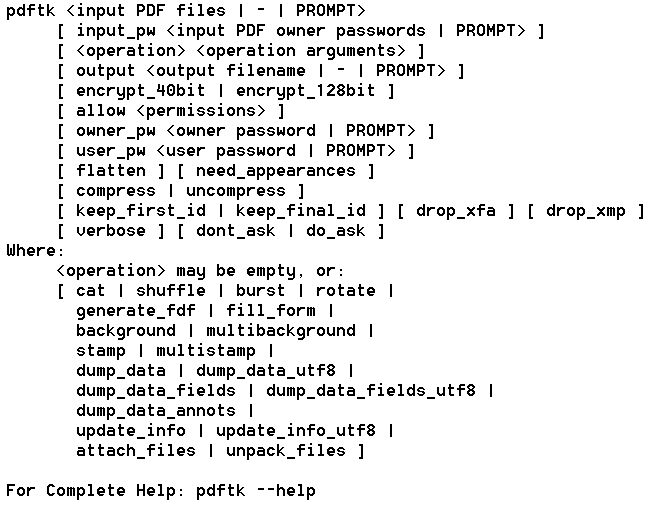
If the PDF still has issues like missing pages or wrong ordering, PDFtk (PDF Toolkit) can help. It has a ‘fix’ mode that rebuilds the file structure. Run: pdftk corrupted.pdf output fixed.pdf. PDFtk will attempt to repair the cross-reference table and linearize the file. This is especially effective for PDFs that were created by printer drivers with bad output. After this, your PDF should be structurally sound.
Step 5: Validate and Verify the Repaired PDF
Now that you’ve repaired the PDF, it’s crucial to validate and repair pdf thoroughly. Open it in multiple viewers: Adobe Acrobat, your browser, and a lightweight viewer like SumatraPDF. Check all pages, text, images, and bookmarks. If everything looks good, you’re done. If there are still glitches, you may need to repeat a step or try a different tool. For persistent issues, see our guide on using a simple pdf repair tool for additional methods.
Common Pitfalls
- Not checking file permissions: Some printer‑created PDFs are locked or have restrictions that prevent repair. Try ‘unlock damaged pdf’ first if you get permission errors.
- Relying solely on online tools for sensitive documents: If your PDF contains personal data, avoid uploading it to unknown servers. Use Ghostscript or PDFtk locally instead.
- Forgetting to update printer drivers: Often the root cause is a buggy printer driver. After repairing, consider updating your printer software to prevent future corruption. Check our fix pdf printing error guide for driver troubleshooting.
Where to Next
Fixing a printer-created PDF is usually straightforward once you know the right steps. If you still run into trouble—like pages out of order—check out our dedicated guide on fixing pdf pages out of order fix. For a broader overview of PDF health, see our validate and repair pdf article. And if you’re dealing with a damaged PDF from other sources, our simple pdf repair tool guide covers more scenarios.




