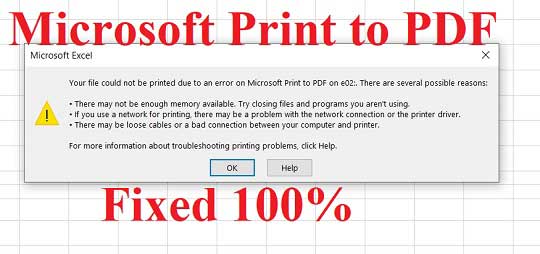
Tried to print a PDF and got gibberish, blank pages, or an error message? You’re not alone. PDF printing errors are super common, but they’re usually easy to fix. Whether you’re a student printing an assignment, an office worker sending a report, or someone dealing with a corrupt file, this guide is for you. By the end, you’ll have a clean, printable PDF that works with your printer.
We’ll walk through the most effective solutions step by step—no technical expertise required. You’ll learn how to update printer drivers, check your PDF for corruption, use free tools to repair it, and tweak your print settings. Everything I recommend is free or built into your computer. Let’s get that document on paper.
What You’ll Need
- A computer (Windows or Mac) with internet access
- The PDF file that won’t print
- A printer (or virtual PDF printer for testing)
- A few minutes of patience
Step 1: Check Your Printer and Drivers
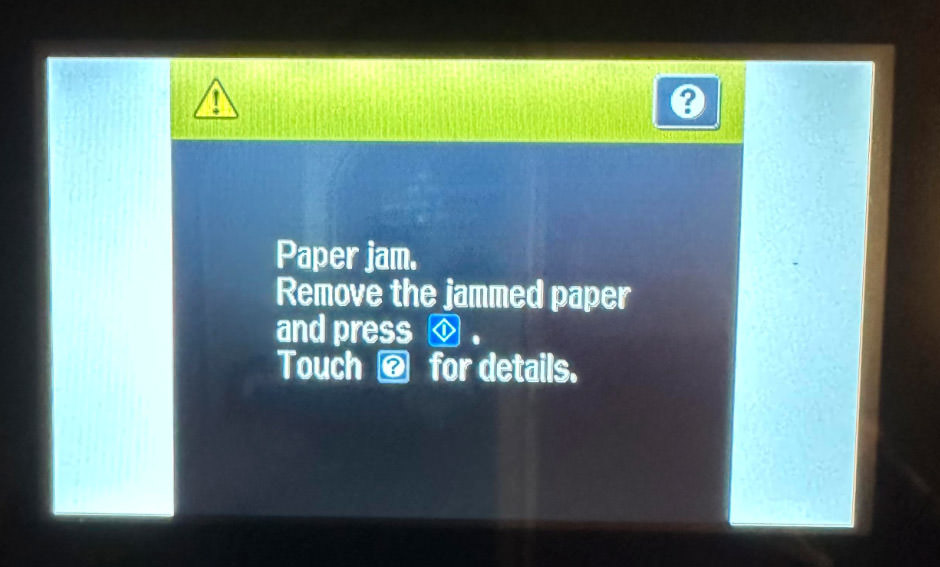
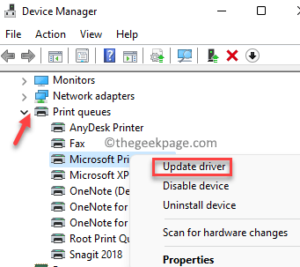
First, make sure the issue isn’t your printer. Turn it off and on again (yes, really). Check for paper jams, low ink, or error lights. Then, update your printer drivers. Outdated drivers are a top cause of PDF printing errors. On Windows, go to Device Manager, find your printer under ‘Print queues,’ right-click and select ‘Update driver.’ On Mac, check System Settings > Printers & Scanners, then click your printer and look for driver updates. You can also download the latest driver from the manufacturer’s website.
Step 2: Test with a Different PDF
Try printing another PDF file—any PDF that you know works. If it prints fine, the problem is likely with your specific PDF file. If nothing prints, the issue is with your printer or computer setup. That’s actually good news because you can then focus on the broader problem.
Step 3: Print as Image
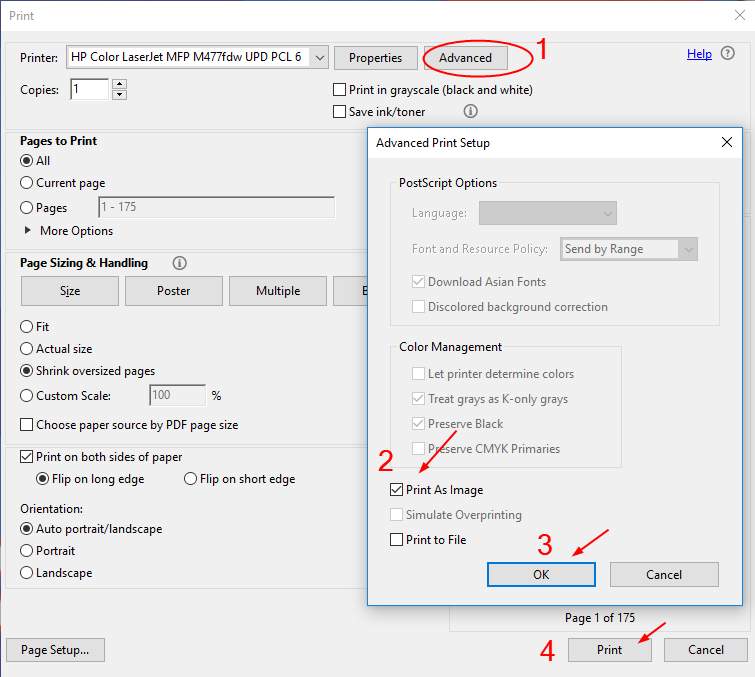
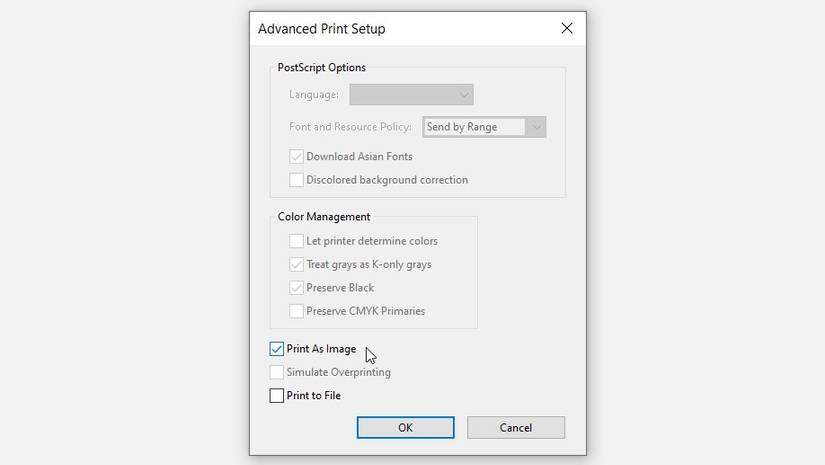
A quick fix for corrupt or complex PDFs is to print them as an image. This bypasses the usual rendering engine. Open your PDF in Adobe Reader or your default viewer. Go to File > Print. In the print dialog, look for an ‘Advanced’ button. Check the box that says ‘Print as image’ (or similar). Then try printing again. This often works when nothing else will.
Step 4: Repair the PDF File
If printing as an image didn’t help, the PDF itself might be corrupt. For example, one common cause is a file that got mangled during download or transfer—check out our guide on repairing a PDF after transfer. Corruption can also happen due to software crashes or storage errors (see why PDF files get corrupted). To fix it, try using a free online repair tool. I recommend the Smallpdf repair tool or Adobe’s built-in ‘Save as Other > Optimized PDF’ feature. If you prefer offline software, download a simple PDF repair tool like PDF Repair Toolbox (free trial). Upload your broken PDF, let the tool fix it, then download and print.
Step 5: Convert to Another Format and Back
Another reliable method is to convert the PDF to a different format (like Word or image) and then convert back to PDF. This strips out corruption while keeping the content. Use a free tool like Zamzar or CloudConvert. Convert your PDF to Word, download the file, then open it in Word and save as PDF. Or convert to JPEG, then recombine into a PDF using a tool like Adobe Acrobat or Preview on Mac. This is especially useful if you’re fixing PDFs exported from Excel, which often have embedded formatting errors.
Step 6: Update or Reinstall PDF Software
Sometimes the printing error is caused by your PDF reader, not the file. Update Adobe Acrobat Reader or your default PDF viewer to the latest version. If it still fails, uninstall and reinstall it. On Windows, go to Settings > Apps, find your PDF reader, click Uninstall, then download a fresh copy. On Mac, drag the app to Trash and reinstall from the App Store or official site. After reinstalling, try printing again.
Common Pitfalls
- Skipping the print-as-image test – This simple fix can save you hours, so always try it first.
- Ignoring printer driver updates – Drivers are the bridge between your PC and printer; keeping them updated prevents many errors.
- Using the wrong repair tool – Not all free tools are safe. Stick to reputable ones like Smallpdf or Adobe to avoid malware.
Where to Next
Once your PDF prints, you’re golden. But if you run into other PDF headaches, we’ve got you covered. For instance, you might want to read about validating and repairing PDFs to prevent future issues. Or if your PDF is completely dead, check out our guide to using a simple PDF repair tool. Happy printing!




