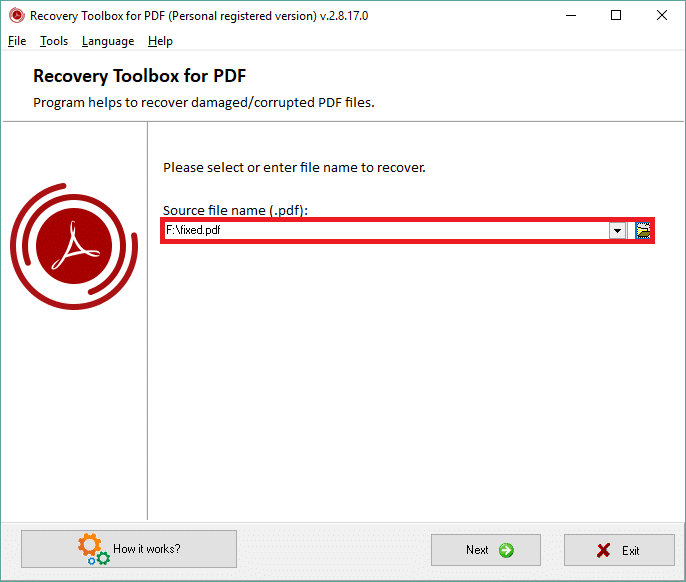
You’re trying to open a PDF and all you get is an error message—or worse, a blank screen. It’s frustrating, especially when you need that document right now. This guide is for anyone who’s ever had a PDF go bad, whether you’re a student, office worker, or just someone trying to open an attachment. By the end, you’ll understand the most common reasons PDF files become corrupted and how to prevent it from happening again.
We’ll walk through each cause step by step, from incomplete downloads to malware attacks, and share practical tips to keep your PDFs healthy. Plus, if you already have a corrupted file, we’ll point you to tools and methods to recover it—including how to use a simple PDF repair tool or even recover a PDF online if needed.
What You’ll Need
- A stable internet connection
- A PDF reader (like Adobe Acrobat or a browser)
- A file backup solution (cloud or external drive)
- Basic understanding of file management
Step 1: Incomplete Download or Transfer
The most common cause of PDF corruption is an interrupted download. If your internet drops or the server times out, the PDF file won’t fully download. When you try to open it, the reader can’t find all the pieces and throws an error.
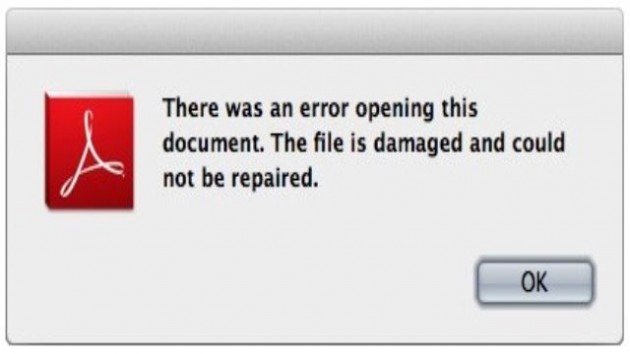
To avoid this, always use a download manager or make sure your connection is stable. If you’re transferring via email or a USB drive, verify the file size matches the original. If you already have a corrupted download, try downloading again—many times that alone fixes it. For persistent issues, consider using an online PDF recovery service to salvage what’s there.
Step 2: Corrupted File Header
A PDF file starts with a header that tells the reader it’s a PDF. If that header gets damaged—say, by a text editor accidentally saving it in the wrong format—the file won’t open. This can happen when someone tries to edit a PDF with a tool that doesn’t fully support PDFs.
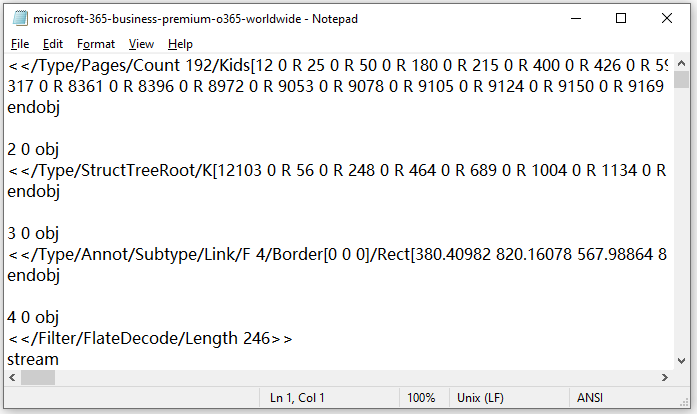
To fix a corrupted header, you can use a dedicated tool to repair PDF objects. The best way to repair a PDF often involves specialized software that can reconstruct the header. If you’re comfortable with hex editors, you can manually check the first few bytes—they should read ‘%PDF’. But for most people, simply using a repair tool is safer.
Step 3: Software Crashes While Saving
Programs like Microsoft Word or Adobe Acrobat can crash while saving a PDF. If the save process is interrupted, the file structure gets mangled. This is similar to a corrupted Word doc but even trickier because PDFs are tightly packed.

Always save your work frequently and consider auto-recovery settings. If a crash corrupted your PDF, try opening it with another reader—sometimes the file is fine, just the original program is buggy. If not, you’ll need to fix corrupted PDF using a tool that can rebuild the structure.
Step 4: Virus or Malware Infection
Malware can target PDF files specifically. Ransomware encrypts them, while other viruses might damage the file contents. This is especially common with email attachments from unknown senders.
Always scan downloaded PDFs with antivirus software before opening. If you suspect a virus, run a full system scan and then attempt to recover pdf after virus using a dedicated recovery tool. Some online services can also help recover the original file if you have a backup.
Step 5: Bad Sectors on Hard Drive or Storage Media
Hard drives and flash drives develop bad sectors over time. If a PDF is stored on a failing drive, parts of it may become unreadable. This is more common with older drives or cheap USB sticks.
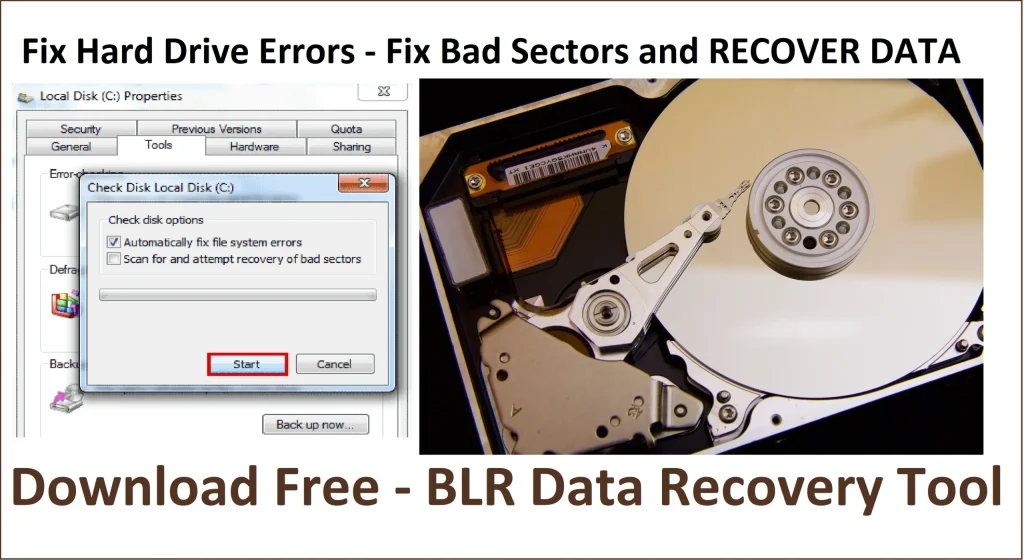
Regularly back up important files to multiple locations. If you suspect a drive is failing, copy all data off immediately. For a corrupted PDF from a bad sector, you can try copying the file to another drive—sometimes the OS recovers enough to open it. Otherwise, use an online PDF recovery service.
Common Pitfalls
- Ignoring error messages: If your PDF reader says ‘file is damaged’, don’t try to force it—that can make things worse. Instead, use a proper fix corrupted PDF method.
- Not keeping backups: A single point of failure is risky. Always keep a second copy in the cloud or on another drive. If you use cloud storage, learn how to fix PDF from Google Drive if that file goes bad.
- Using unreliable download managers: Some free downloaders can introduce errors. Stick with built-in browser downloads or reputable managers.
Where to Next
Now that you know why PDFs get corrupted, you’re better equipped to prevent it. If you currently have a corrupted file, don’t panic—there are ways to fix it. Check out our guides on how to fix corrupted PDF using simple tools, or try an online PDF recovery service for quick results. For a thorough solution, read about the best way to repair a PDF. And if you’re dealing with multiple files, our batch repair guide can save you time. Remember, prevention is always easier than recovery!




