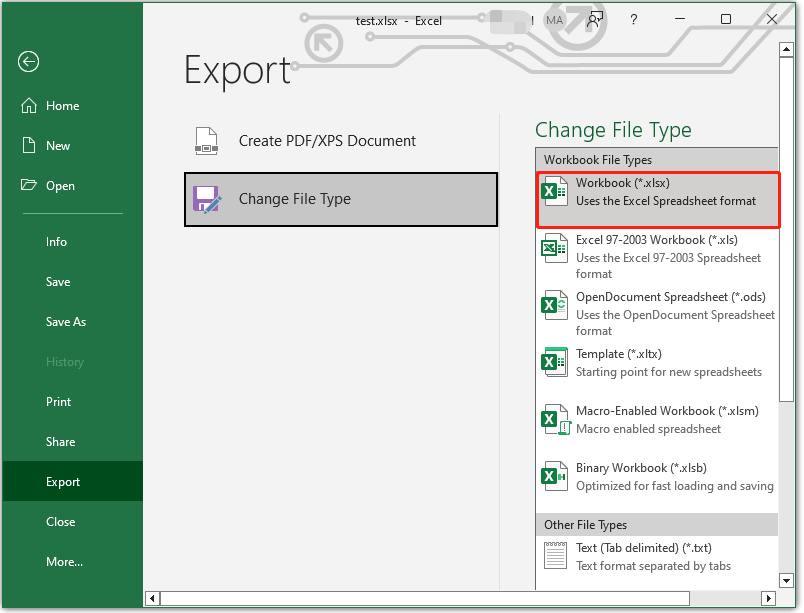
So you just exported your Excel spreadsheet to PDF, and it looks like a mess—text is cut off, columns are misaligned, or the file is way too big. You’re not alone. This happens more often than you’d think, especially when you’re in a hurry. This guide is for anyone who needs a clean, readable PDF from Excel without starting over. By the end, you’ll know exactly how to fix common export issues and get a professional-looking document.
We’ll walk through five practical steps, from adjusting export settings to using a dedicated repair tool. Most of these fixes take just a few minutes and require only free software you probably already have. Let’s turn that messy PDF into something you can share proudly.
What You’ll Need
- Your original Excel file (or the exported PDF you want to fix)
- Microsoft Excel (or a free alternative like LibreOffice Calc)
- A PDF viewer (Adobe Acrobat Reader, Foxit, or browser built-in)
- A free PDF repair tool (we’ll show you where to get one)
- Optional: a PDF editor (like PDFescape or Sejda) for manual tweaks
Step 1: Check Your Excel Export Settings
Most Excel-to-PDF problems start in the export settings. Open your spreadsheet in Excel, go to File > Export > Create PDF/XPS. Before you click Publish, hit the ‘Options’ button. Make sure ‘Active sheet(s)’ is selected, not ‘Entire workbook’ (unless you want all sheets). Then check the paper size and margins—if your data spills over, it’ll get cut off. Set scaling to ‘Fit Sheet on One Page’ for a compact view.
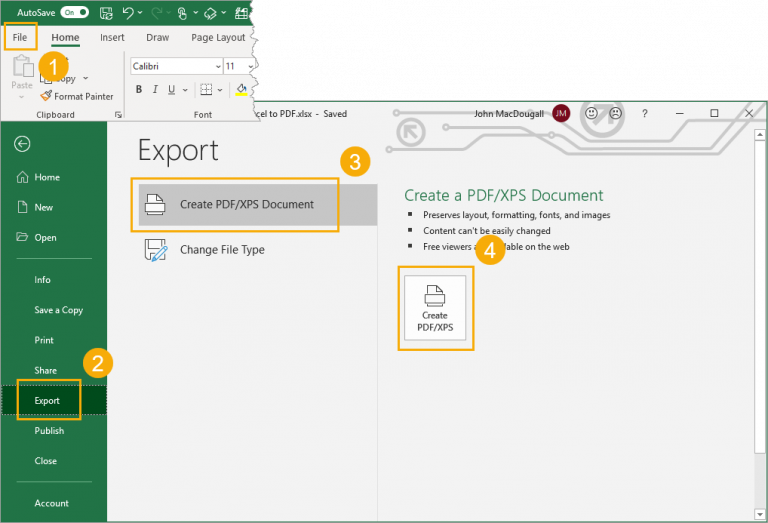
If your PDF already exists, you can’t go back to these settings, but you can re-export. For a quick fix, try changing the page orientation to landscape if your table is wide. Also, remove any empty rows or columns—they bloat the file and cause alignment issues.
Step 2: Use Excel’s Built-in Repair (If You Have the Original File)
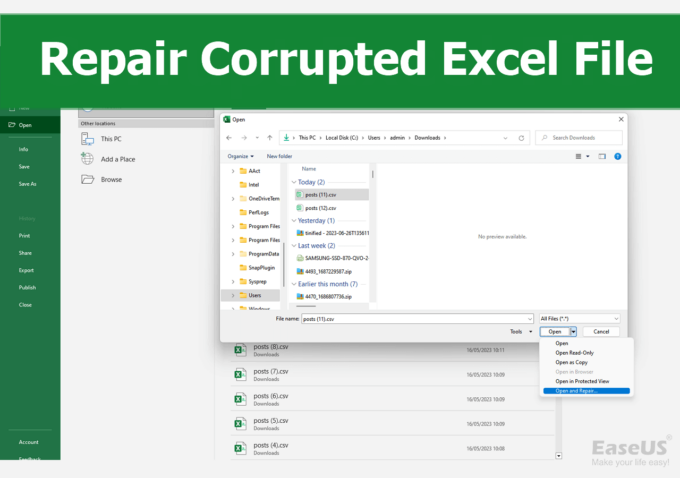
Excel has a hidden feature to repair corrupt or misbehaving files before you export. With your spreadsheet open, go to File > Open, click the file once, then click the dropdown arrow next to ‘Open’ and choose ‘Open and Repair’. This scans and fixes internal errors. After that, export to PDF again—many problems vanish.
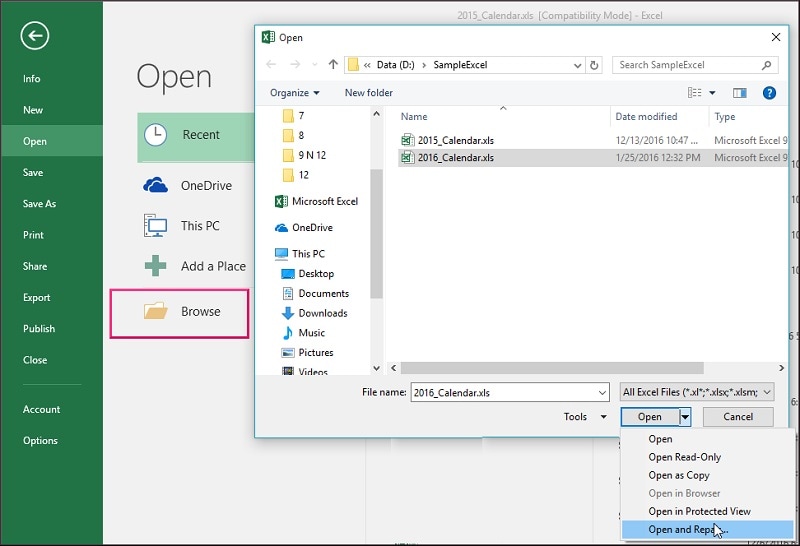
No luck? Save a copy of your Excel file as a new workbook (File > Save As) to strip out any glitches, then retry the export. This simple step can resolve layout corruption.
Step 3: Use a Simple PDF Repair Tool
If re-exporting isn’t an option or the PDF still looks off, grab a free dedicated repair tool. One of the easiest is the simple pdf repair tool—it’s lightweight and handles common issues like garbled text or missing images. Upload your file, let it scan, and download the repaired version. Most tools fix stuff like invalid cross-reference tables (common in Excel exports) and restructure the file.
For more stubborn cases, a best way to repair pdf is to use an online service that rebuilds the PDF from scratch. These tools often work when others fail. Just be mindful of privacy—avoid uploading sensitive data to unknown sites.
Step 4: Reduce PDF File Size (If It’s Too Large)
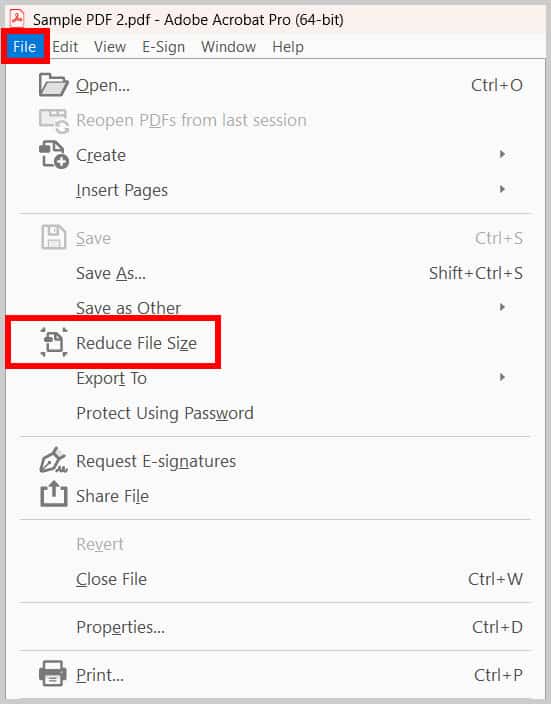
Excel exports can create bloated PDFs because of embedded fonts and high-resolution images. To shrink it, open your PDF in a tool like Adobe Acrobat Reader and go to File > Reduce File Size (or use an online compressor). You can also re-export from Excel with the ‘Minimum size (publishing online)’ option selected. This strips unnecessary data and often fixes display glitches too.
If you need a fast, no-fuss solution, a quick pdf repair can handle both corruption and size issues in one pass.
Step 5: Manual Cleanup with a PDF Editor
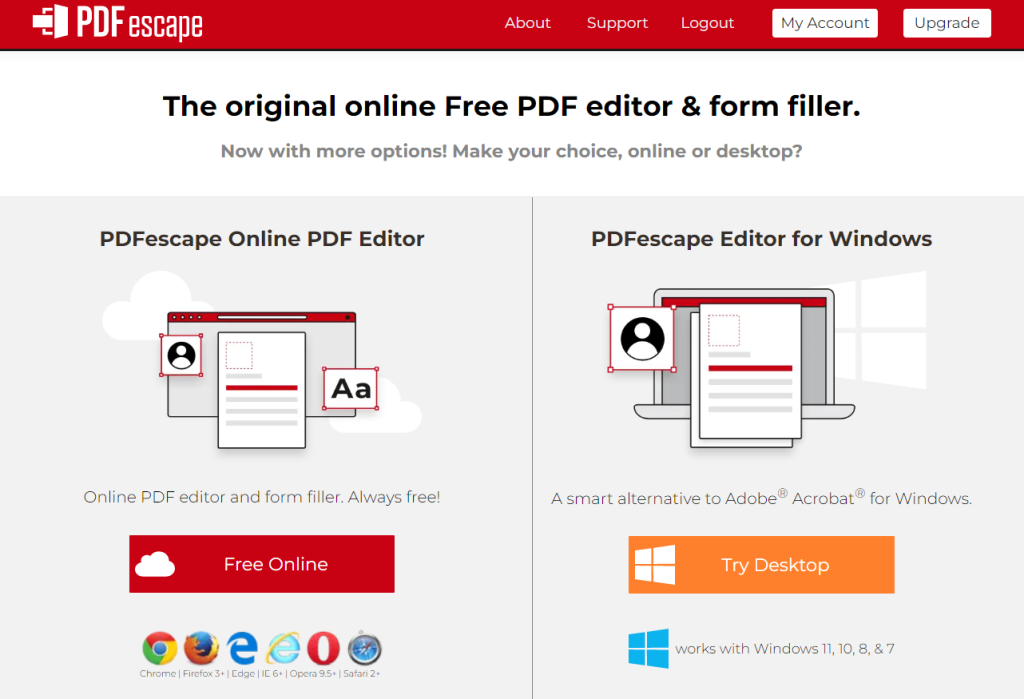
Sometimes automated tools leave minor errors—like a misaligned table or missing text. For those, use a free online PDF editor like PDFescape or Sejda. You can add, delete, or reorder pages, and even edit text if the font is embedded. This is also the place to fix broken bookmarks or hyperlinks. If you’re comfortable with scripting, you can repair pdf using python to automate these fixes for multiple files.
For severe corruption, follow the steps in our guide to fix corrupted pdf—it covers deeper repair techniques.
Common Pitfalls
- Forgetting to check the print area: If your Excel sheet has a defined print area, only that section exports. Use Page Layout > Print Area > Clear Print Area before exporting.
- Trying to edit the PDF directly without repairing first: Editing a corrupt PDF often makes it worse. Always repair before editing.
- Using an outdated PDF viewer: Old viewers may not render modern PDFs correctly. Update to the latest version of Adobe Reader or use a browser-based viewer.
Where to Next
Now you’ve got a clean PDF from Excel. If you run into other issues, check out our guides on fixing bookmarks or recovering damaged files. For ongoing maintenance, set up a routine to verify PDFs after export. Happy repairing!




