
You’re in a hurry. You’ve got a PDF that won’t open, shows error messages, or looks like scrambled text. Maybe it’s a contract, a report, or an important document you need right now. This guide is for anyone who needs to repair a corrupted PDF fast — no technical skills required. By the end, you’ll have a working PDF file you can read, print, or share.
We’ll cover the easiest methods first, then move to more powerful tools if needed. All the tools mentioned are free or have free tiers. And if you’re looking for a deeper dive, check out our guide on the best way to repair a pdf. But for a quick fix, let’s jump in.
What You’ll Need
- Your corrupted PDF file (keep a backup copy just in case)
- A computer with an internet connection
- A web browser (Chrome, Firefox, Edge, etc.)
- About 5 minutes of your time
Step 1: Identify the Type of Corruption
Not all PDF corruption is the same. Knowing what you’re dealing with helps you pick the right fix. Common symptoms include: “This file is not a PDF or is corrupted” error, garbled text or missing images, or the PDF opens but crashes when you scroll. For a thorough breakdown of error types, see our pdf corruption fix guide.
If your PDF won’t open at all, skip to Step 2. If it opens but looks weird, you might only need a simple repair.
Step 2: Try an Online PDF Repair Tool First
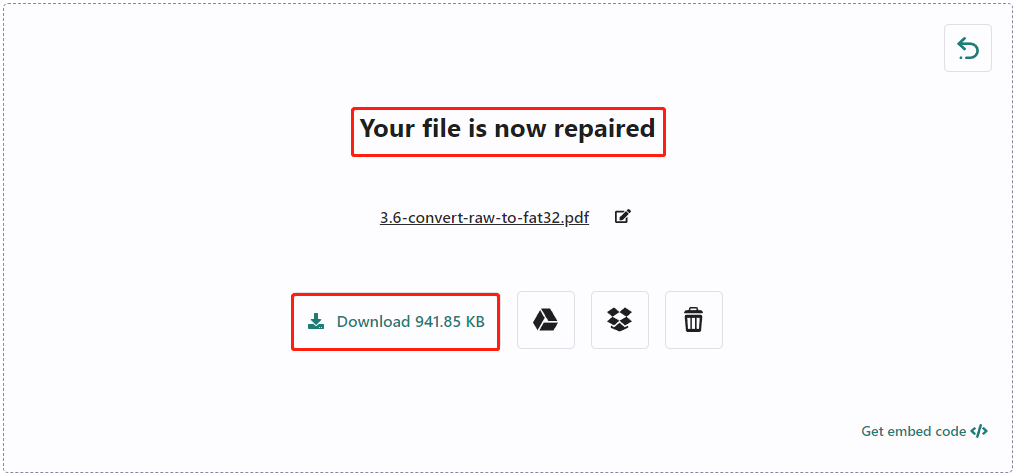
Online tools are the quickest fix for common corruption. They require no installation and work from any device. We recommend using a trusted online pdf recovery service like PDFRepairs.click — it’s free, handles files up to 50MB, and doesn’t require sign-up. Just upload your file, wait a few seconds, and download the repaired version.
After the repair, open the new PDF. If it works, you’re done! If not, move to the next step. For a tool that works even faster, check out repair pdf instantly — it uses a different algorithm that sometimes succeeds when others fail.
Step 3: Use a Desktop PDF Repair Tool
When online tools don’t cut it, desktop software offers deeper repair capabilities. Adobe Acrobat Pro has a built-in “Save As Optimized PDF” feature that can fix some structural issues. Alternatively, free tools like PDFsam or Ghostscript can reconstruct broken files. For a step-by-step on using these, our guide on fix multiple pdf files covers batch repairs, but the same principles apply to a single file.
To use Adobe Acrobat: open the corrupted file (it may show a warning), then go to File > Save As Other > Optimized PDF. In the dialog, leave settings at default and save. This often resolves cross-reference and startxref errors.
Step 4: Recover Content from a Broken PDF
If repair fails, you can still salvage text and images. Tools like PDFextractor or online services can extract text using OCR. For a PDF that’s completely unreadable, try opening it in a text editor to see if readable segments remain — though this is rare. More robust recovery methods are covered in our online pdf recovery service guide.
Save extracted content to a new file. You may lose formatting, but you’ll preserve the information.
Step 5: Verify the Repaired PDF
Always double-check your repaired PDF. Open it in multiple viewers (browser, Adobe Reader, etc.). Scroll through all pages, check images and tables, and try printing a page. If it all looks good, you’re set. If you notice issues, try a different repair method or revisit the corruption type.
Common Pitfalls
- Overwriting your original file before verifying the repair — always keep the original backup.
- Using unreliable free tools that may introduce malware or ruin the file further — stick to reputable ones.
- Skipping the backup step — without it, you might lose the original beyond recovery.
Where to Next
Repairing a PDF is often just the first step. If you deal with corrupted files regularly, check out our comprehensive guides: the best way to repair a pdf, how to fix multiple pdf files at once, or how to recover a contract PDF. And if you’re still stuck, our community forums have plenty of tips. Good luck!




